
Your first 30 minutes
Find an asset, review its details, and understand one useful relationship.
Outcome: Find one asset, confirm what it is, and identify at least one connected resource.
For: Customer administrators, engineers, and support staff
Permission: read my_launchpad and read assets
Time: 10–30 minutes
Changes made: None
If you're stuck
- If Launchpad is missing, ask an administrator to verify
read my_launchpad—not a permission namedview launchpad. - If Assets is missing, verify
read assets. - Clear Inventory and graph filters before reporting a missing Asset or Relationship.
Before you start
- Sign in to the company workspace assigned to you.
- Ask for the name of one known asset if the data is unfamiliar.
- If the inventory is empty, ask an administrator to add an integration or add or import assets.
Page and checkpoint guide
| Where | What it answers | Successful checkpoint |
|---|---|---|
| Launchpad | What data and shortcuts are available to your Role? | You can identify the relevant starting card or navigation area |
| Functions → Assets → Inventory | Which Assets are maintained in this workspace? | You can find one known Asset by name or unique value |
| Asset details | What is the Asset and how is it enriched? | Name, Asset Type, source context, and tags are understandable |
| Relationship Graph | What supported records connect to this Asset? | You can follow one edge to a correctly identified record |
1. Orient yourself
- Open Launchpad from the left navigation.
- Review the summaries available to your role.
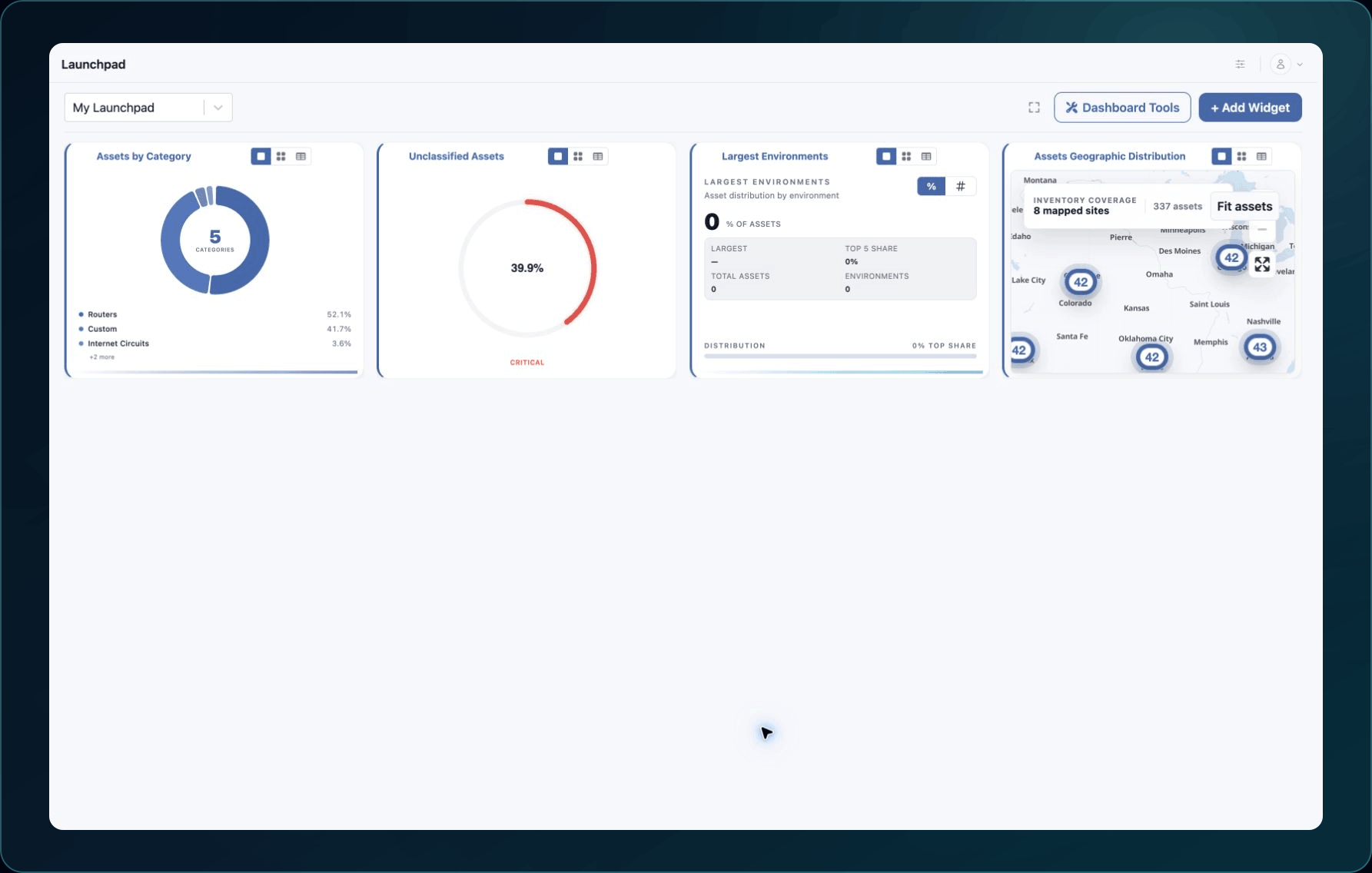
3. In the left navigation, open Functions → Assets.
4. Select Inventory.
Expected result: The inventory opens. Counts and Launchpad cards can vary by role and company configuration.
If a page is missing, see A page or action is missing.
2. Find a known asset
- Search using the full asset name or another unique value.
- Clear existing filters if the result is missing.
- Select the asset row or node.
- Confirm the asset name, type, and source context.
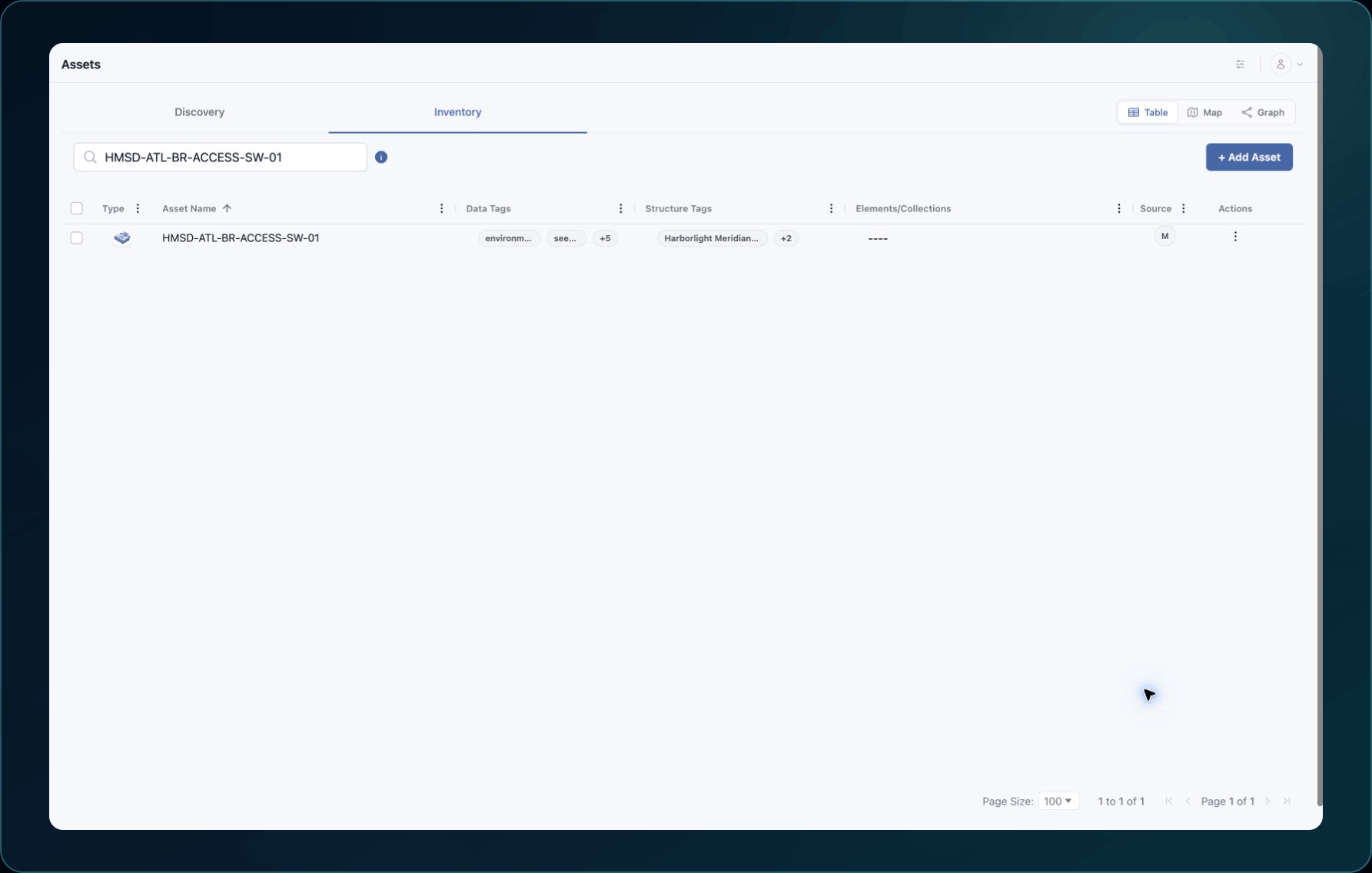
Expected result: The asset detail page opens with the tabs supported by its Asset Type.
3. Understand its details
- Review the asset name and Data Tags.
- Review any Structure Tags to see where the asset is organized.
- Open each available detail tab and note any fields that are incomplete.
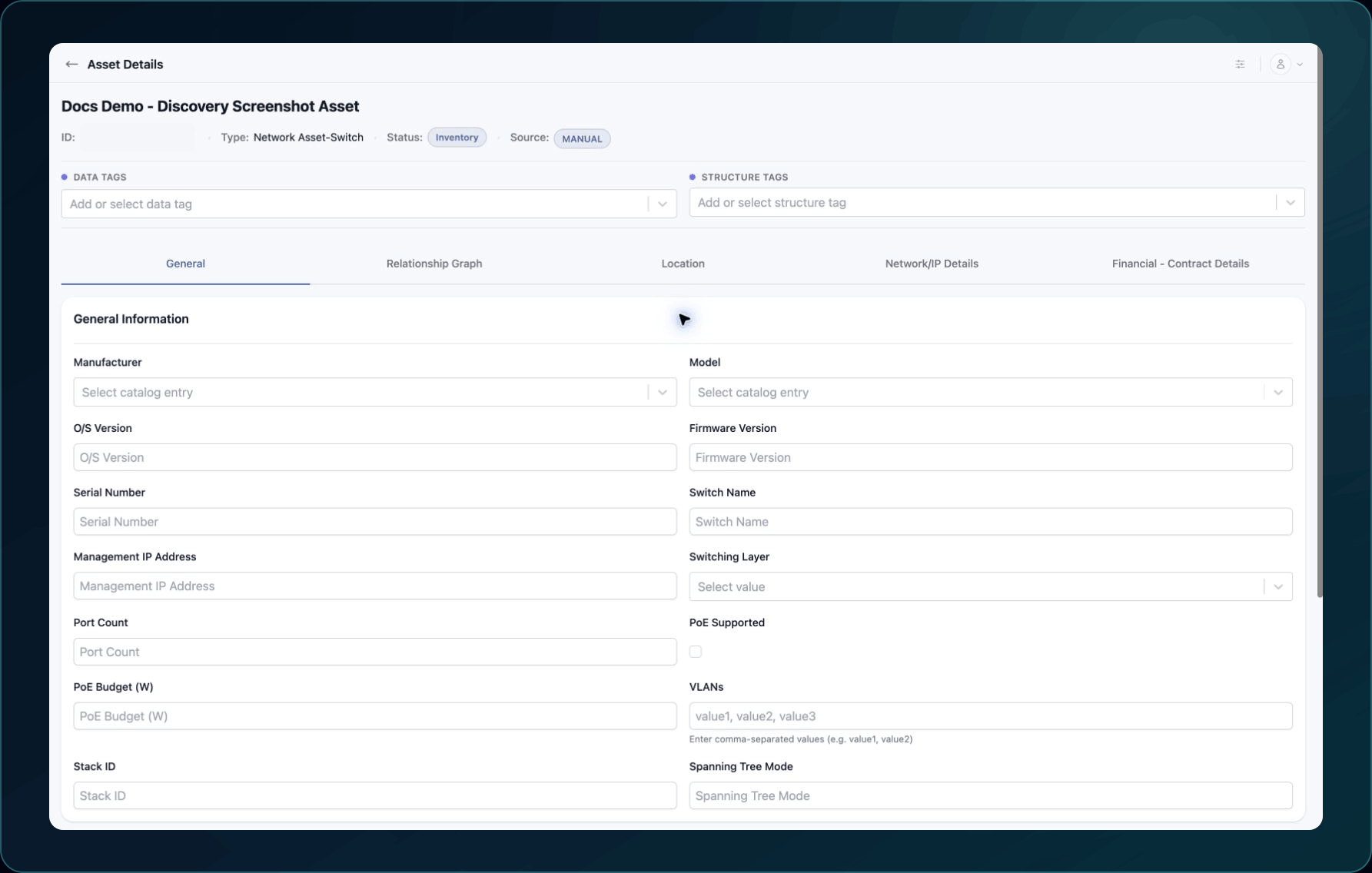
4. Do not edit data during this path unless the workspace owner has asked you to.
4. Follow one relationship
- Select Relationship Graph.
- Find the focused asset.
- Follow one connecting line to another node.
- Select that node and identify the connected resource.
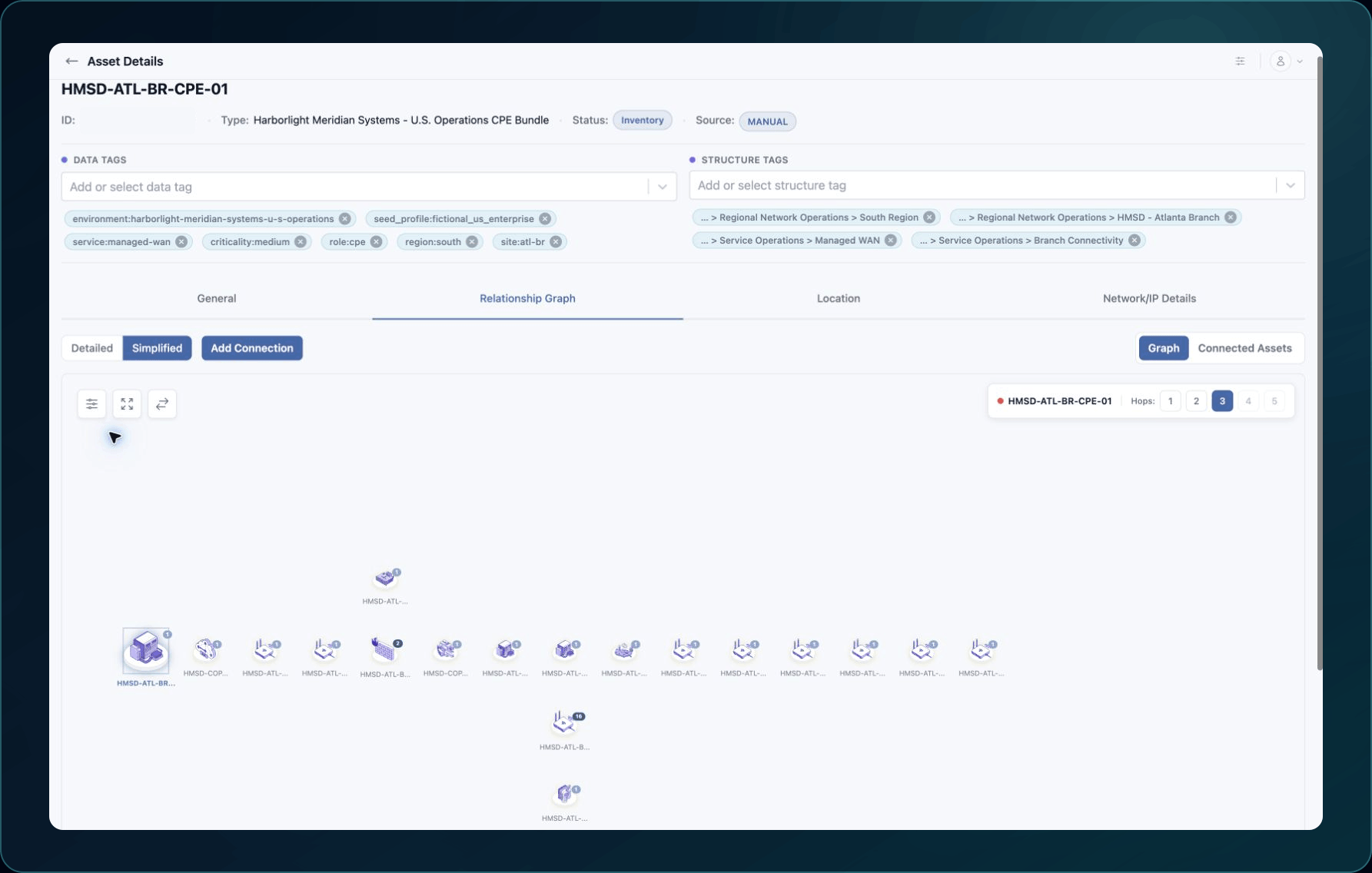
5. Clear filters before deciding that a relationship is missing.
Expected result: You can describe one relationship in plain language.
Check your result
You have completed the Explore path when you can answer:
- Which asset did you inspect?
- What type of asset is it?
- Which resource is connected to it?
- Why is that connection useful to your work?
Learn and continue
- Learn: Product map and terminology
- In WanAware: Open
/launchpadin your WanAware workspace.
Next steps
Get help
Email [email protected] with your company, affected user, page URL, asset name or ID, timestamp and time zone, reproduction steps, and expected versus actual behavior. Never send passwords, credentials, tokens, or secret values.
Updated about 2 months ago
What’s Next
Continue with the workflow that matches what you found.