
Understand Asset Types and Service Catalogs
Learn how schemas and managed catalog data work together before you create either one.
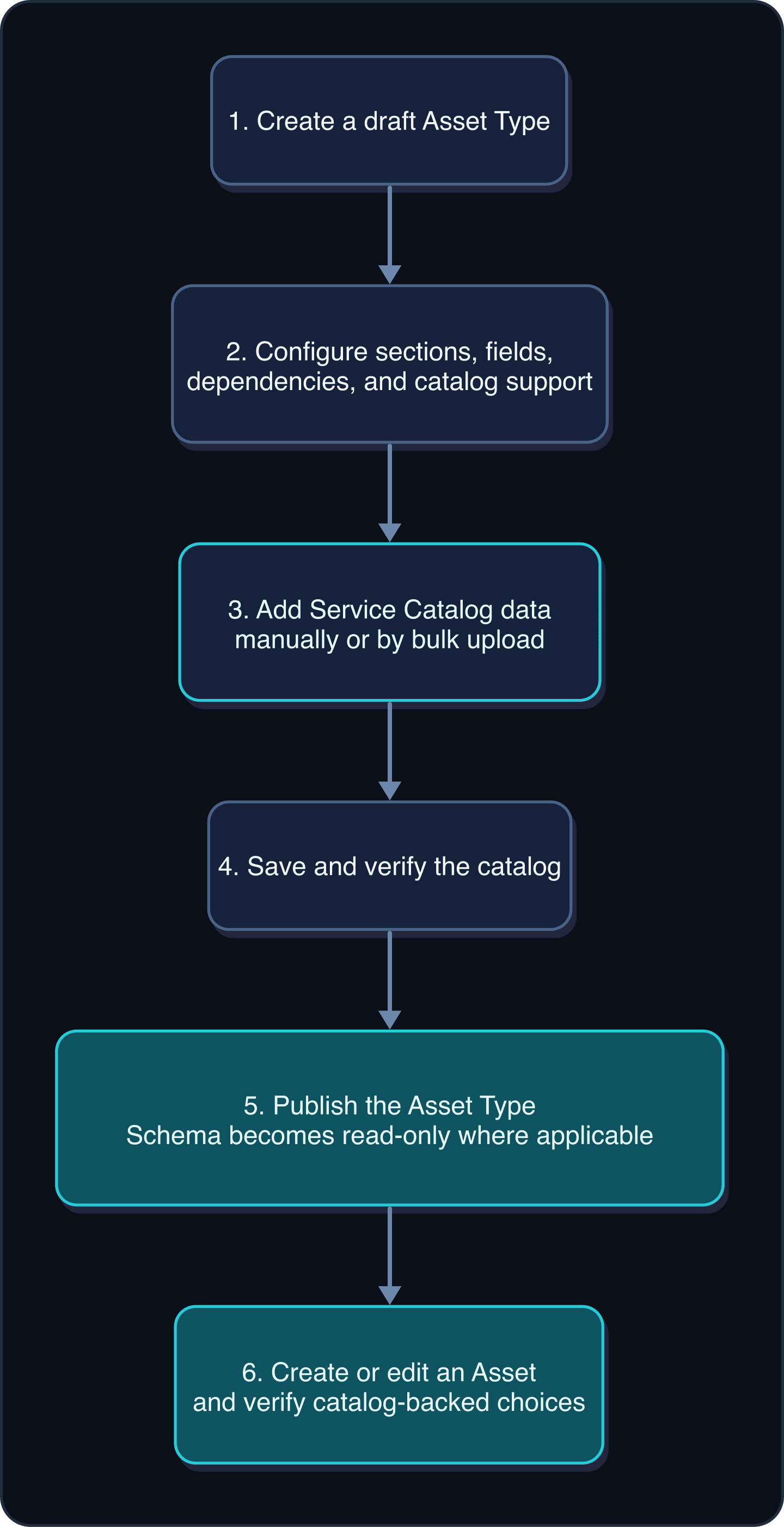
An Asset Type defines the structure of an asset record: its sections, fields, dependencies, and whether a field uses managed catalog data. A Service Catalog provides those managed choices and their relationships.
Use this order
- Create a custom Asset Type and keep it as a draft.
- Configure its sections, fields, dependencies, and catalog support.
- Select the draft Asset Type in Service Catalog.
- Add the needed catalog entries, models, modules, software, specifications, attributes, and compatibility.
- Save and verify the catalog.
- Publish the Asset Type.
- Create or edit an asset and verify its catalog-backed selections.
Publishing can make a custom schema read-only. Treat publication as a release decision, not a routine save.
What belongs in each place
| Need | Configure it in |
|---|---|
| A new kind of asset | Asset Types |
| A section or field on that asset | Asset Types |
| A field dependency | Asset Types |
| An approved manufacturer or provider choice | Service Catalog |
| Models, modules, or software | Service Catalog |
| Specifications and attributes tied to catalog entries | Service Catalog |
| Which catalog items work together | Service Catalog compatibility |
Plan a small first version
Start with the fields needed for one real workflow. Use familiar names and assign an owner.
Before publication, test the draft with non-customer sample data.
Related tasks
- Create a custom Asset Type
- Configure Asset Type sections and fields
- Create a custom Service Catalog
- Add catalog entries and compatibility
- Publish and verify an Asset Type
Get help
Email [email protected] and include:
- Company, affected user, page URL, timestamp, and time zone
- Draft Asset Type name or ID
- The model you are trying to represent
Never send passwords, credentials, tokens, or secret values.
Updated about 2 months ago
Did this page help you?