
Create Collections and add Assets
Create a Collection inside an Element and add the intended existing assets.
Outcome: Create a named Collection inside an Element and add the intended assets once.
For: Customer administrators and engineers
Permission: create element_collections and update element_collections
Time: 5–10 minutes
Changes made: Creates a shared Collection and assigns Assets to it
If you're stuck
- Confirm the parent Element before creating the Collection; a Collection is not a top-level record.
- Clear Asset-selection filters and search by unique ID, not only name.
- Removing an Asset from a Collection does not delete the Asset from Inventory.
Before you start
- Open the intended Element and confirm its ID.
- Search its current Collections for the same purpose.
- Gather unique identifiers for the assets you intend to add.
Field and option guide
| UI item | Purpose | What to enter or select | Verification |
|---|---|---|---|
| Parent Element | Owns the Collection | Intended Application, Service, or Site | Collection appears only under that Element |
| Collection name | Describes the group | Unique, purpose-based name | Collection list shows one match |
| Asset selector | Adds existing Inventory records | Confirm name, Asset Type, and unique ID | Collection lists each selected Asset once |
| Structure Tags | Attaches the Collection to a Structure | Exact existing Structure node | Structure context and Collection details |
Create the Collection
- Open Functions → Elements and select the Element.
- Open Collections.
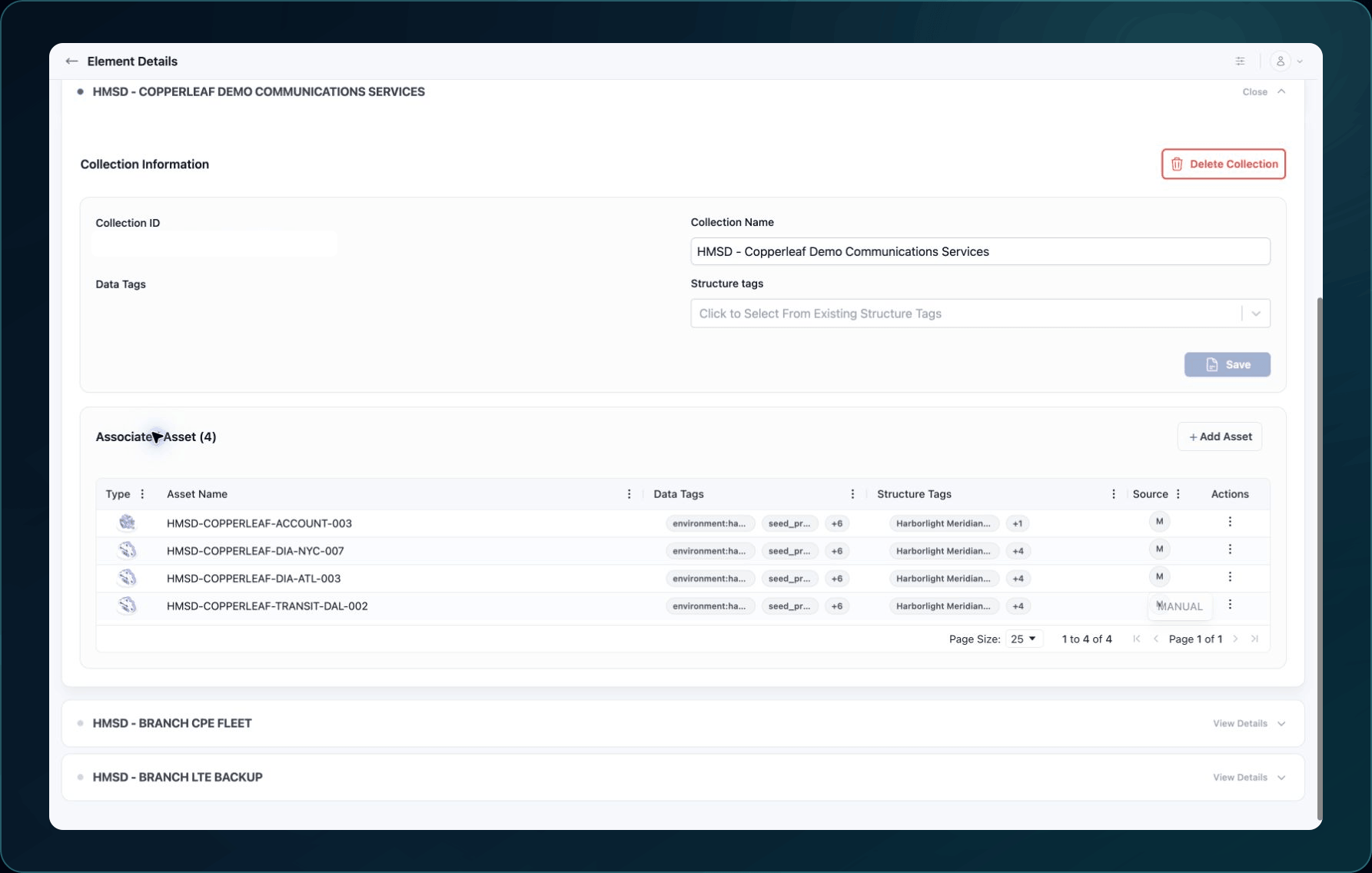
3. Select + Add Collection.
4. Enter a clear Collection name.
5. Search for and select the intended assets.
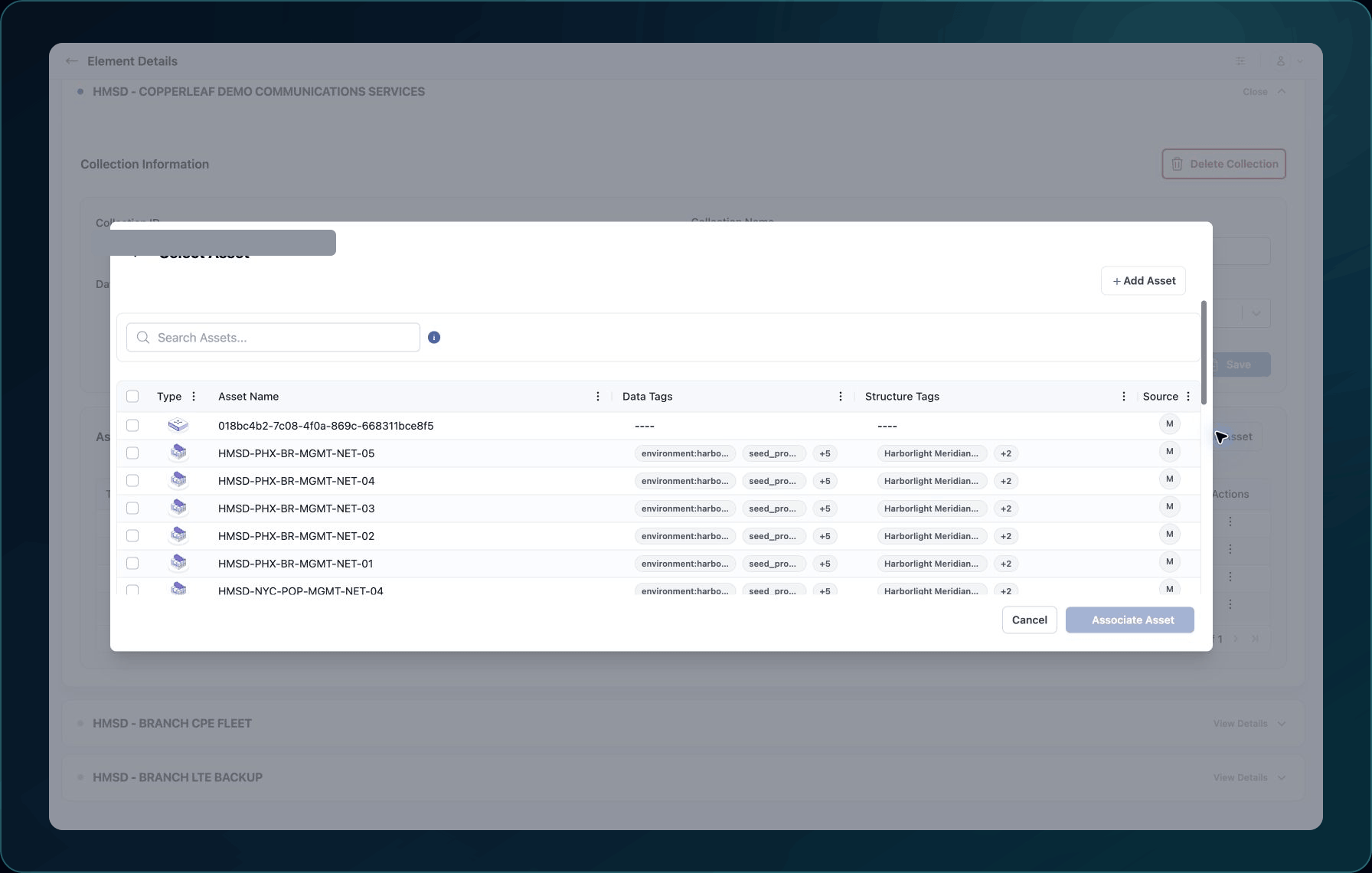
6. Confirm each asset's name, Asset Type, and unique identifier.
7. Save the Collection.
Expected result: The Collection appears once inside the Element and lists the selected assets.
If an asset is missing from the selector, clear its filters and confirm that the asset is in Inventory and visible to your role.
Add or remove Assets later
- Open the Collection.
- Use its edit or asset-selection action.
- Select an Asset to add it, or clear its selection to remove it from the Collection.
- Save and reopen the Collection.
Adding an Asset to a Collection does not create another Asset. Removing an Asset from the Collection does not delete it from Inventory.
Check your result
Open the Collection and compare every listed asset ID with the intended set. Confirm no similarly named asset was selected by mistake.
Undo this change
Remove an incorrect Asset from the Collection. Before deleting the Collection, review its Assets and Structure Tags. Do not delete the Assets themselves.
Learn and continue
- Learn: Understand Structures, Elements, and Collections
- In WanAware: Open
/elements, choose an Element, and select Collections.
Next steps
Get help
Email [email protected] and include:
- Company, affected user, page URL, timestamp, and time zone
- Element ID, Collection ID, and affected Asset ID
- Expected versus actual Collection membership
Never send passwords, credentials, tokens, or secret values.
Updated about 2 months ago