
Invite users and assign roles
Add a company member and grant only the access required for their work.
Outcome: Invite a company member and assign the smallest role that supports their work.
For: Customer administrators
Permission: read users, create users, and read roles
Time: About 5 minutes, plus invitation acceptance
Changes made: Creates a member and grants access to company data
If you're stuck
- Administration → IAM appears through
read users; the navigation does not use a permission named IAM. - Search by exact email before inviting. If the member already exists, open that record instead.
- If the invitation is already Pending, resend the existing invitation rather than creating a duplicate.
Before you start
- Confirm the person's business email and company.
- Choose an existing Role based on their responsibilities.
- Review the Role's Permissions.
- Confirm another active administrator can manage IAM before changing your own access.
Field and option guide
| UI value | Purpose | What to enter or select | Where it appears later |
|---|---|---|---|
| Identifies the invited member | The person's exact company email | User list and invitation email | |
| User name | Identifies the person in IAM | The person's business name | User list and details |
| Roles | Grants one or more Permission sets | The smallest approved set of Roles for the job | User details and effective access |
| Invite Status | Tracks acceptance | Pending before acceptance; Accepted afterward | User details |
Invite the member
- Open Administration → IAM (
/administration/iam). - Open the Users list and select Create User.
- Enter the person's business name in User name.
- Enter the exact company address in Email.
- Under Roles, select at least one approved Role. If none is selected, the form reports Select at least one role.
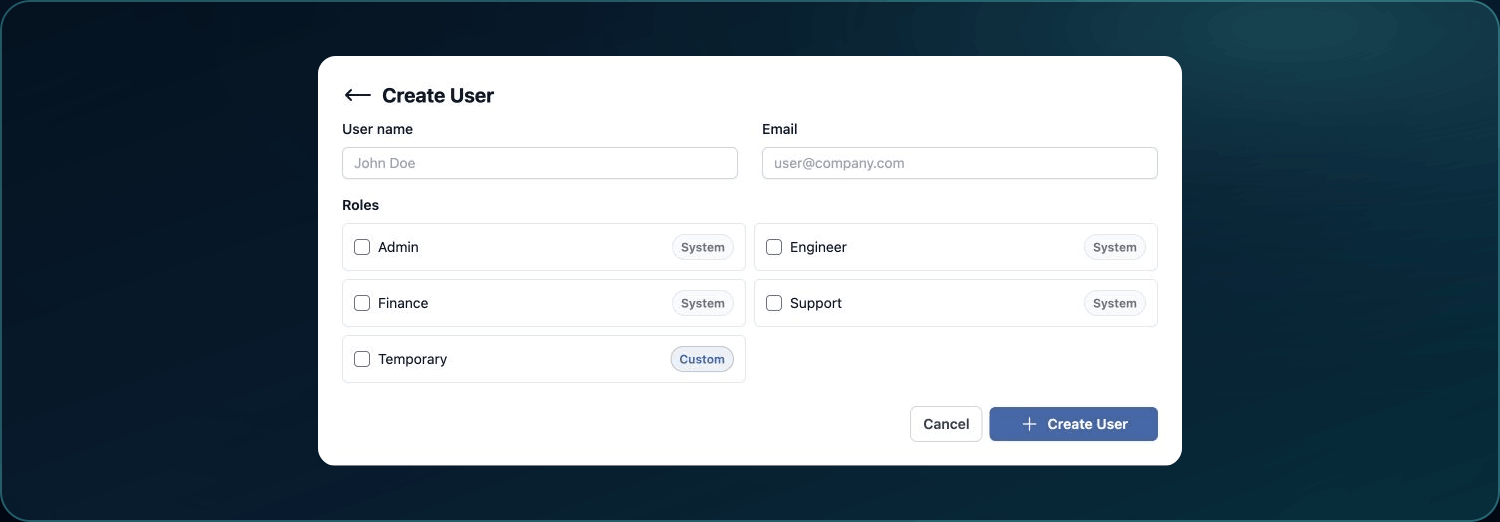
6. Review the address and Roles, then select Create User once.
Expected result: WanAware reports Invitation sent, and the member appears with Invite Status set to Pending until they accept.
If the email already belongs to a member, update the existing record rather than sending duplicate invitations.
Verify access
- Ask the person to use the latest invitation email.
- Confirm their status becomes active after acceptance.
- Ask them to sign in and open one page required for their work.
- Confirm they do not see unrelated administration actions.
If the expected page is missing, use A page or action is missing.
Check your result
The member is active in the correct company, has the intended role, can complete their required task, and does not have unnecessary access.
Undo this change
Do not share an invitation with a different person. If the wrong Role was assigned, correct the existing user record before resending. If the wrong email was invited, stop and contact Support rather than assuming an unverified cancellation or deletion control exists. Before reducing your own administrator access, verify another active administrator can manage IAM.
Learn and continue
- Learn: Understand Roles and Permissions
- In WanAware: Open
/administration/iamin your WanAware workspace.
Next steps
Get help
Email [email protected] and include:
- Company, affected user email, page URL, timestamp, and time zone
- Invitation status and Role names
- Exact error text
Never send passwords, MFA codes, invitation tokens, credentials, or access tokens.
Updated about 2 months ago