
Add an integration
Connect a supported data source, verify access, and begin importing inventory.
Outcome: Connect and test a supported data source, then begin its first inventory collection.
For: Customer administrators and source-system owners
Permission: read integrations and create integrations
Time: About 10–20 minutes, plus provider setup and processing time
Changes made: Saves a connection in WanAware; the selected provider may require source-side changes
If you're stuck
- Confirm Administration → Integrations is visible through
read integrations. - If the provider is visible but its connect control is missing, confirm
create integrations. - Open the matching provider adapter before entering any identifier or authorization value. Provider fields are intentionally not generalized here.
Before you start
- Get approval from the source-system owner.
- Open the matching provider adapter and confirm its requirements.
- Gather the non-secret account identifiers requested by the current provider form.
- Use the least access supported by the provider.
- Confirm which WanAware company workspace should receive the inventory.
Only enter an authorization value in a field that the current setup explicitly identifies for that purpose. Never send that value to Support or include it in a screenshot.
Field and option guide
| UI item | Purpose | What to verify | Source of the value |
|---|---|---|---|
| Provider card | Selects the kind of data source | Provider name and supported inventory scope | Your approved source system |
| Connection name | Distinguishes saved connections | Unique, recognizable name with no credential data | Your internal naming standard |
| Provider identifier fields | Identifies the source account or tenant | Exact format in the provider adapter | Source-system administration page |
| Authorization fields | Grants the documented access | Least-privilege value requested by that exact field | Approved source-system setup |
| Test connection | Checks saved access without proving inventory import | Successful connection result | WanAware after save |
Add the integration
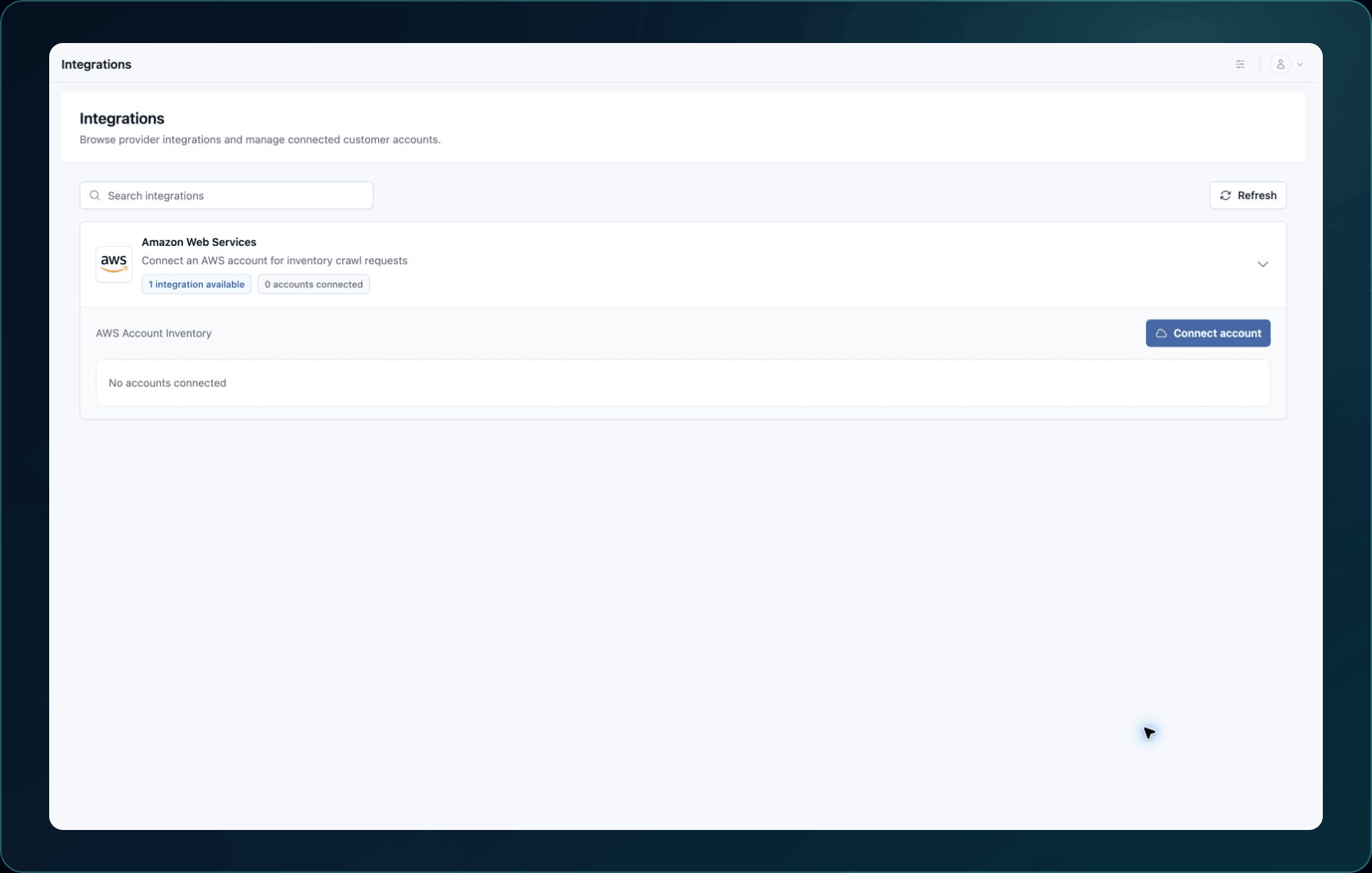
- Open Administration → Integrations (
/administration/integrations). - Find the provider you want to connect.
- Expand its card.
- Select the provider's connect action named in its adapter guide.
5. Enter a clear, unique connection name.
6. Enter each value marked required in the provider adapter. Copy account, tenant, region, role, or authorization identifiers from the source-system page named in that guide; do not infer them from a display name.
7. Review the Permissions and source-side resources listed in the setup summary.
8. Select the adapter's documented save or connect button once.
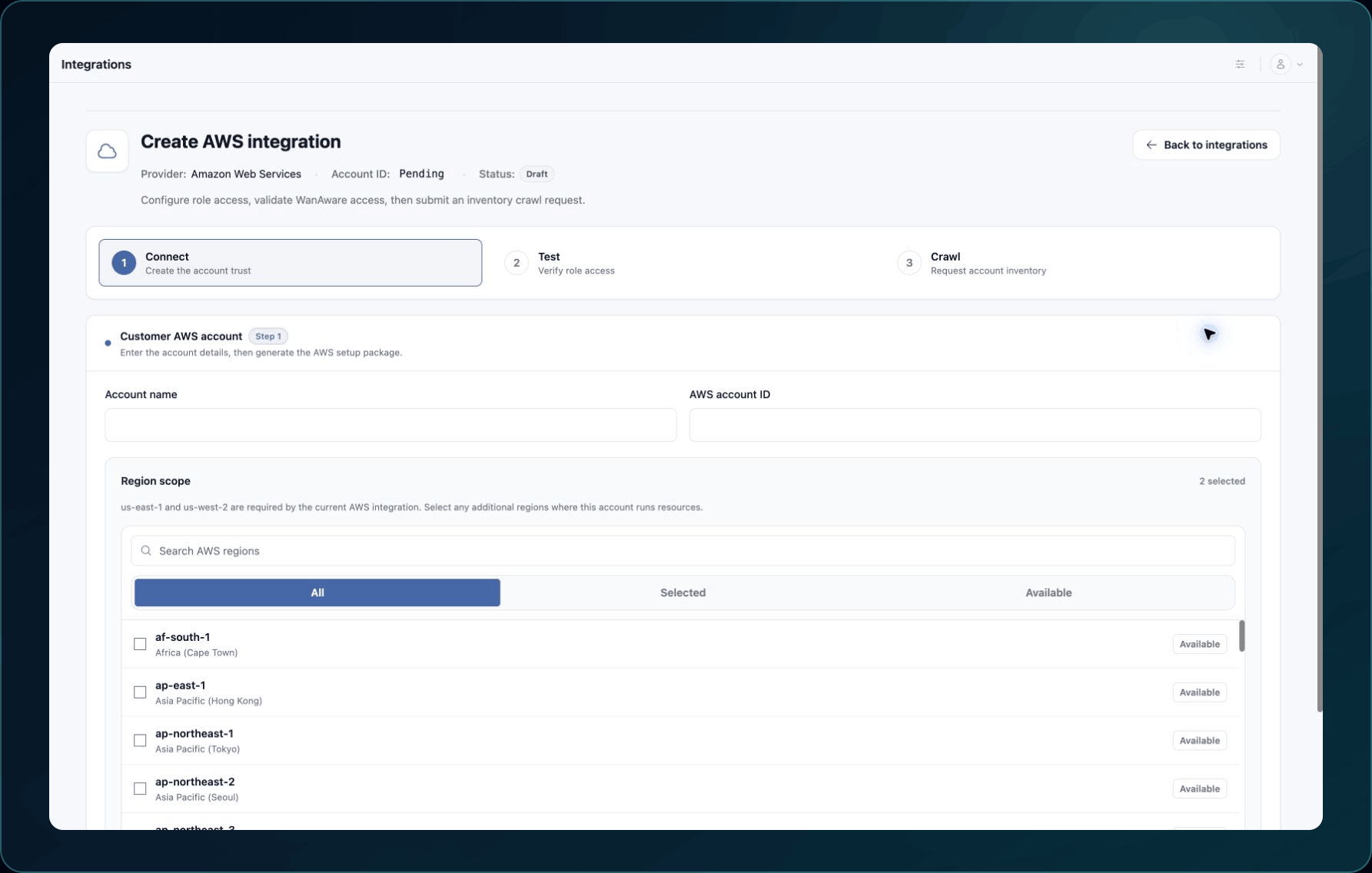
Expected result: The connection appears on the provider card with the account context entered during setup.
If a required field is unclear, stop and check the provider adapter. Do not guess an identifier or paste a secret into a general text field.
Test and collect
- If the provider card includes Test connection, select it once.
- Wait for a successful test before starting collection.
- Select the collection action named in the provider adapter. The page-level Refresh button reloads the displayed integration list; it does not start inventory collection.
- Wait for the request confirmation.
Expected result: WanAware accepts the collection request. Inventory collection can continue after you leave the page.
If the test or request fails, use An Integration does not connect or collect.
Check your result
- Wait for the collection to finish.
- Open Functions → Assets → Inventory.
- Clear filters and search for a known source record.
- Open it and confirm its name, Asset Type, provider, and source account context.
Consider the integration verified after a known record appears with the expected source context.
Undo this change
Do not remove a connection by guessing at a control. Removal behavior, imported-Asset impact, and source-side cleanup are provider-specific. Follow the adapter's verified removal procedure or contact Support before changing the connection.
Learn and continue
- Learn: About integrations
- In WanAware: Open Administration → Integrations (
/administration/integrations).
Next steps
Get help
Email [email protected] and include:
- Company, affected user, page URL, timestamp, and time zone
- Provider, Integration name or ID, and failed stage
- Reproduction steps and the exact error text
Never send passwords, credentials, tokens, private keys, or secret values.
Updated about 2 months ago