
Find, filter, and inspect Assets
Use the Table, Map, and Graph views without confusing a visual match with record identity.
Outcome: Locate the intended Asset, prove its identity, and choose the view that answers your question.
For: Customers who inspect Assets
Permission: read assets
Time: 2–5 minutes
Changes made: None
If you're stuck
- Confirm whether the record belongs in Inventory or Discovery.
- Clear the current search and filters, then search one stable identifier instead of a partial display name.
- Use Table to confirm identity before relying on Map or Graph placement.
- If a result is missing, check the selected Asset tab, source status, and permission before assuming the record was deleted.
Before you start
- Gather at least one stable identity value: exact name, source identifier, Asset Type, or another unique field.
- Remember that similarly named Assets can represent different resources.
- Export is not documented because the current released interface does not expose an enabled Asset export control.
Field and option guide
Find the correct record set
| Control | Use it when | Important limit |
|---|---|---|
| Discovery | The record was found or imported but still needs review. | A Discovery record does not appear in Inventory until it is moved. |
| Inventory | You need a maintained Asset for normal work. | Inventory does not include records that remain in Discovery. |
| Search | You know a visible name or identifier, such as edge-router-01. | Search scope can differ between Table, Map, and Graph. |
| Filters | You want a supported property such as Asset Type = Router. | Clear old filters before reporting a missing Asset. |
Choose a view
| View | Best for | Important limit |
|---|---|---|
| Table | Comparing identity, tags, source, and row actions. | Use the full Asset ID before acting on similar names. |
| Map | Finding Assets with saved location information. | An Asset without usable location data may not appear. |
| Graph | Exploring supported connections or groupings in the current scope. | Absence from Graph does not prove the Asset is absent from Inventory. |
| Actions | Opening released row-level actions. | Available actions depend on Role and record state. |
Interactive walkthrough
Open the walkthrough in a new window.
Find the correct record in Table
- Open Functions → Assets → Inventory (
/assets/inventory) or Discovery (/assets/discovery). - Select Table.
- Clear search text and active filters.
- Search the exact stable identifier.
- If more than one row remains, compare Type, Asset Name, Data Tags, Structure Tags, Elements/Collections, and Source.
- Open the likely match and confirm its Asset ID, Asset Type, source context, and schema details.
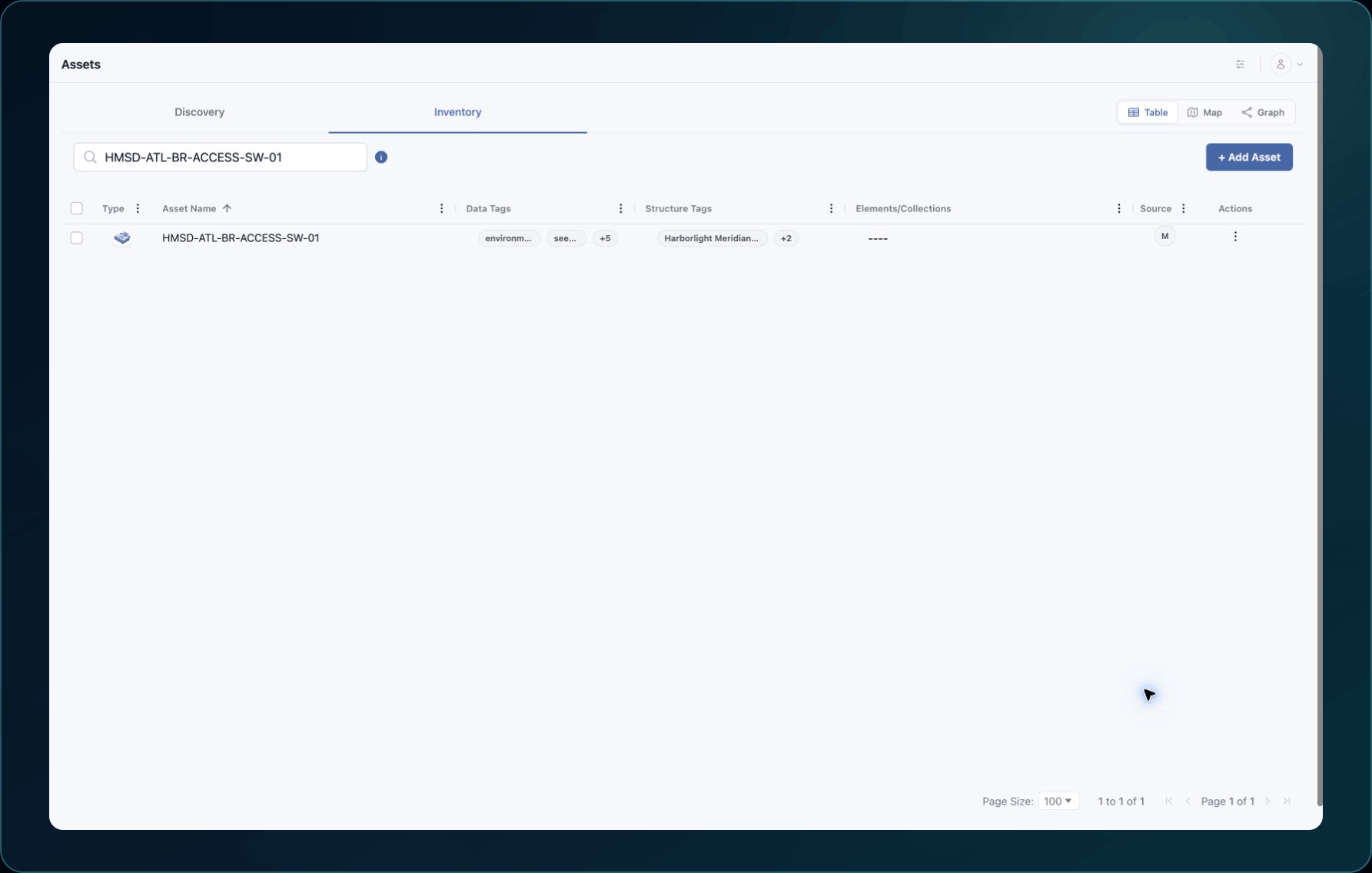
Expected result: One record matches both the visible identity and its stable source or Asset ID.
If no record matches, repeat the same search in the other Asset tab. Do not create a replacement until An Asset is missing, stale, or duplicated rules out a delayed or filtered record.
Use Map
- Keep the intended tab and filters selected.
- Select Map.
- Compare the visible count with Table.
- Select a marker or supported map item and confirm it opens the expected Asset.
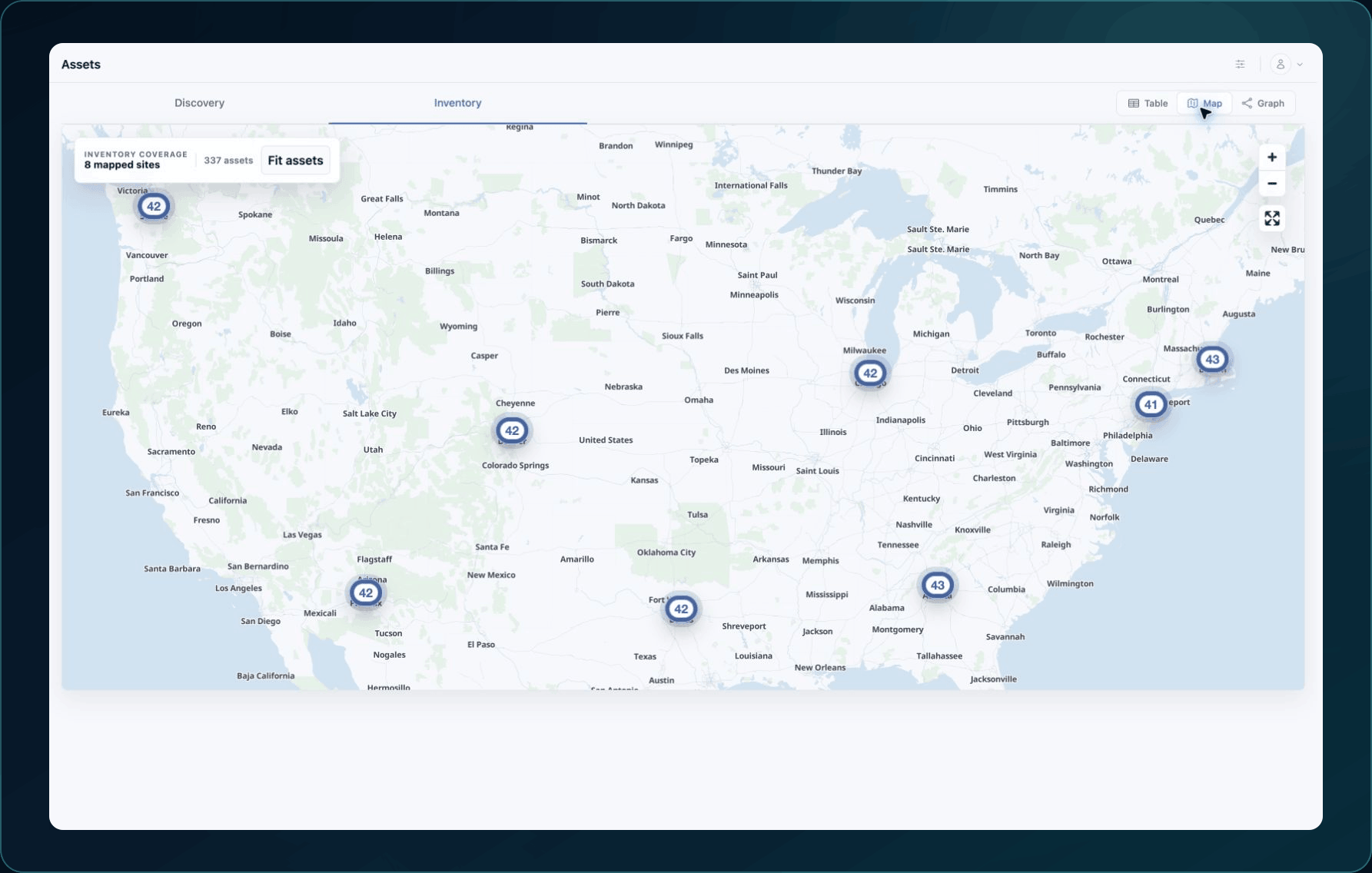
Expected result: The Map shows Assets that contain supported location data. The Table still lists Assets that lack usable location data.
Use Graph
- Select Graph from the Assets page.
- Apply the smallest useful search or filter scope.
- Select a node and verify its name and Asset identity before following an edge.
- Open the Asset's Relationship Graph for record-specific relationship investigation.
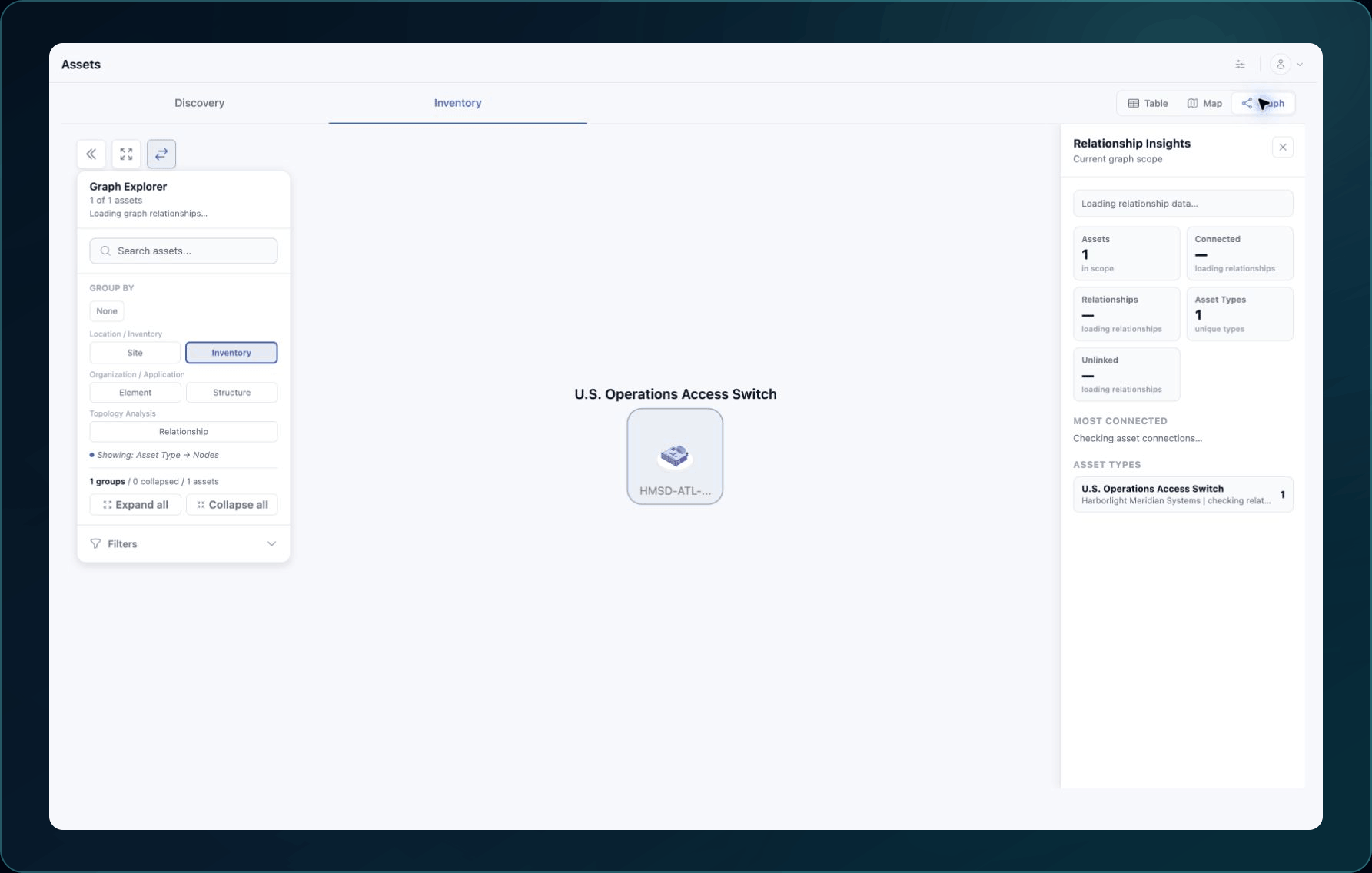
Expected result: The Graph presents supported connections for the current scope. Use the Table to confirm whether an Asset exists in Inventory.
Verify
Refresh the Asset detail page and confirm its ID, Asset Type, source, status, tags, and relevant fields still match the resource you intended. Return to Table and verify that clearing filters does not reveal a second record with the same identity.
Recover
Search and filter changes do not alter Assets. To recover from a confusing view, return to Table, clear search and filters, and reopen the correct tab. If a row action was used accidentally, follow the recovery guidance for that action immediately.
Learn and continue
- Learn: Product map and terminology
- In WanAware: Open
/assets/inventory.
Next steps
Get help
Email [email protected] and include:
- Company, affected user, page URL, timestamp, and time zone
- Expected Asset name or sanitized ID, source, selected tab, view, and filters
- A sanitized screenshot
Never send passwords, credentials, access tokens, secrets, or an unredacted data export.
Updated about 2 months ago