
Manage Data Tags and Structure Tags on an Asset
Use descriptive Data Tags and hierarchy-based Structure Tags without confusing their purposes.
Outcome: Apply the correct kind of tag and verify the Asset appears in the intended context.
For: Customer administrators and engineers
Permission: update assets
Time: 3–5 minutes
Changes made: Changes a shared Asset's descriptive or organizational tag assignments
If you're stuck
- Use a Data Tag for description and a Structure Tag for hierarchy placement.
- Search by exact tag name and verify the Structure path before selecting a similarly named tag.
- Save the unsaved-change bar before testing the Inventory filter.
Before you start
- Use a Data Tag for a descriptive label.
- Use a Structure Tag to attach the asset to an existing hierarchy node.
- Search existing tags before creating or applying a near-duplicate.
Field and option guide
| UI item | Use it for | Do not use it for | Verification |
|---|---|---|---|
| Data Tags | Descriptive labels such as lifecycle or ownership category | Attaching the Asset to a Structure | Asset persists in the matching Inventory filter |
| Structure Tags | Attaching the Asset to an existing hierarchy node | Free-form notes or deleting a Structure | Asset shows the intended Structure context |
| Unsaved-change bar | Saving a changed selection | Assuming the tag was stored immediately | Bar clears and tag remains after refresh |
Add or remove tags
- Open the intended asset and confirm its unique identifier.
- Find the Data Tags or Structure Tags control.
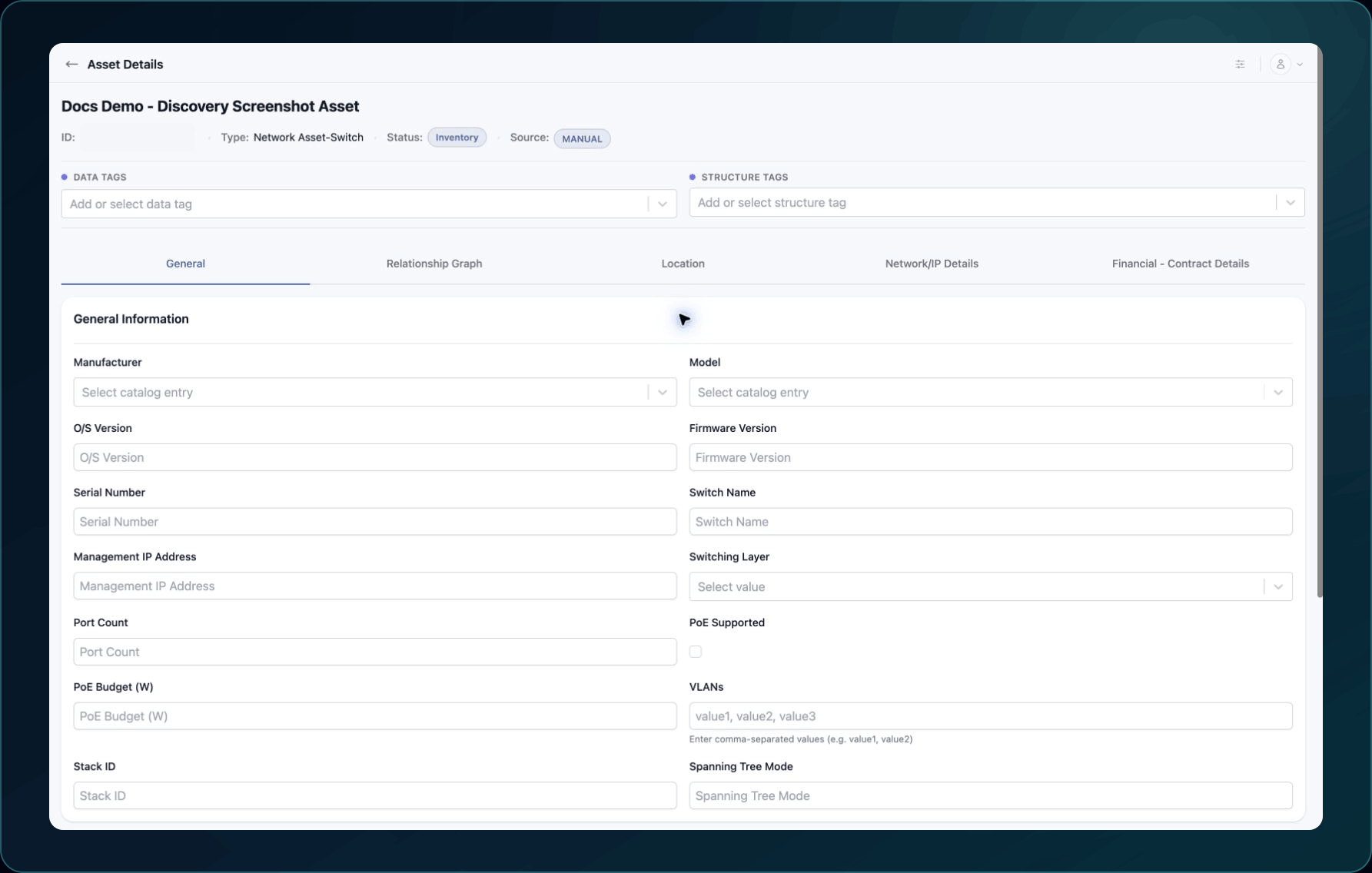
3. Search for the existing tag.
4. Select it to assign the tag, or clear it to remove the tag assignment.
5. Use the page's save action when an unsaved-change bar appears.
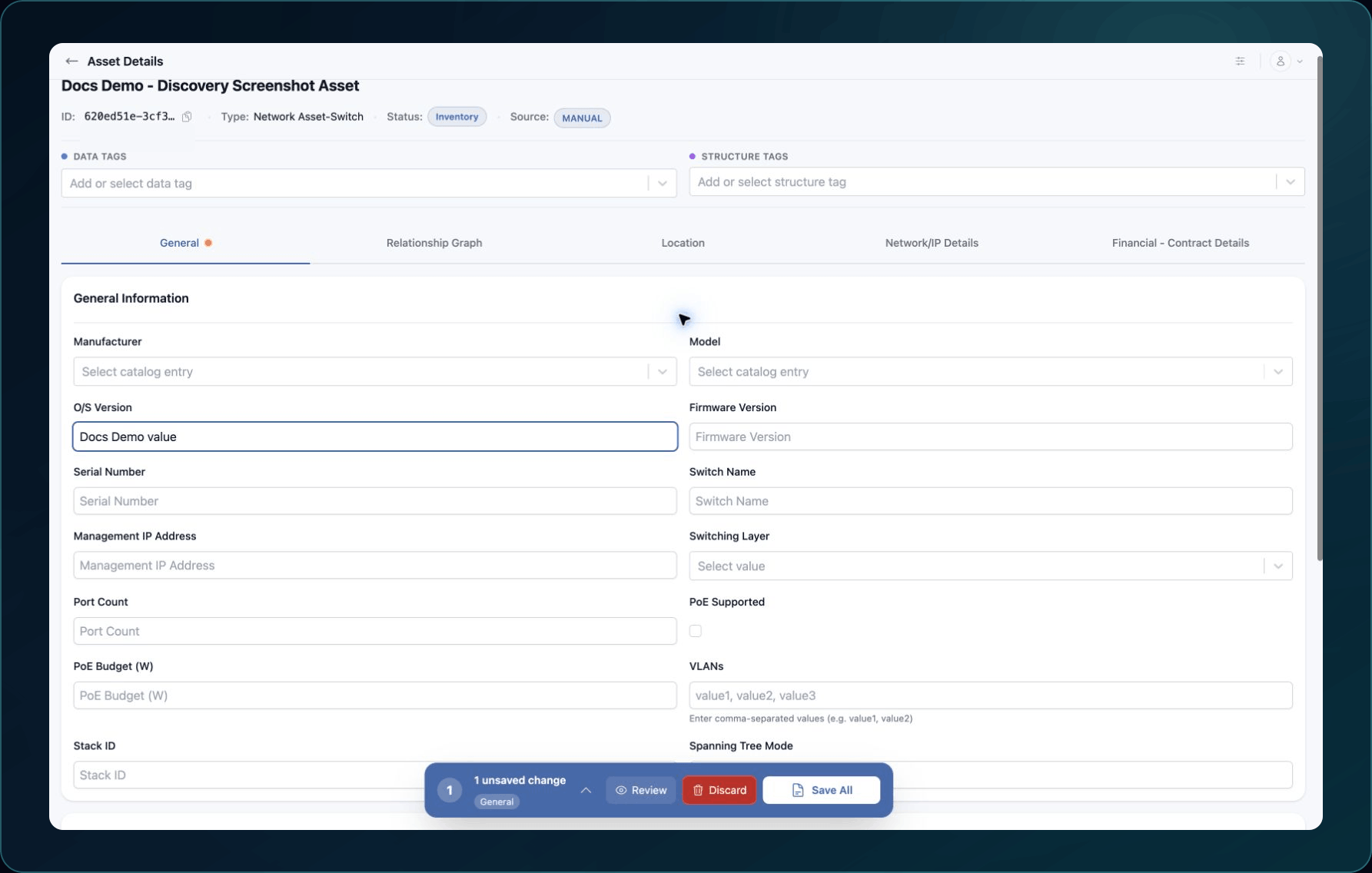
Expected result: The selected tags remain after a page refresh.
If a tag does not appear, confirm that it exists and belongs to the current company. Then confirm that your Role permits the tag assignment.
Check your result
Refresh the Asset, then use the Inventory filter for the selected tag. Confirm that the Asset appears once in the expected result.
Undo this change
Remove the tag you added or reapply the tag you removed. Save and verify the Asset again. To remove a Structure, follow the Structure deletion guidance instead.
Learn and continue
- Learn: Understand Structures, Elements, and Collections
- In WanAware: Open an Asset from Functions → Assets → Inventory (
/assets/inventory).
Next steps
Get help
Email [email protected] with your company, affected user, asset ID, tag name or ID, page URL, timestamp and time zone, and expected versus actual result. Never send passwords, credentials, tokens, or secret values.
Updated about 2 months ago