
Publish and verify an Asset Type
Review a completed draft, publish it deliberately, and test its catalog-backed fields on an asset.
Outcome: Publish an approved custom Asset Type and confirm that its fields and catalog choices work on an asset.
For: Customer administrators and data model owners
Permission: update asset_types_builder; verification also needs create assets or update assets
Time: 10–20 minutes
Changes made: Publishes a shared schema; the schema can become read-only
If you're stuck
- Confirm the intended Asset Type has Draft status and the correct ID.
- Save and reopen its Service Catalog before publishing.
- If the confirmation says the schema becomes read-only, stop unless Product has approved that exact draft.
Before you start
- Complete Product review of the name, description, sections, fields, dependencies, and validation.
- Save and verify the Service Catalog and compatibility.
- Record the approved draft configuration before publishing.
- Publication can make the custom schema read-only.
Status and action guide
| UI item | Meaning | Safe action |
|---|---|---|
| Draft | Sections and fields can still be reviewed and corrected | Finish schema and catalog verification |
| Publish | Starts the irreversible or restricted lifecycle transition | Select only for an approved draft |
| Publication confirmation | States the impact of publication | Read the complete message before confirming |
| Published | The Asset Type can be used for customer Assets | Verify fields and catalog choices on one sample Asset |
Publish the Asset Type
- Open Administration → Asset Types (
/administration/asset-types). - Select the intended draft and confirm its ID and Draft status.
- Review every section and field.
- Confirm catalog-backed fields have usable values in Service Catalog.
- Select Publish.
- Read the confirmation, including the read-only consequence.
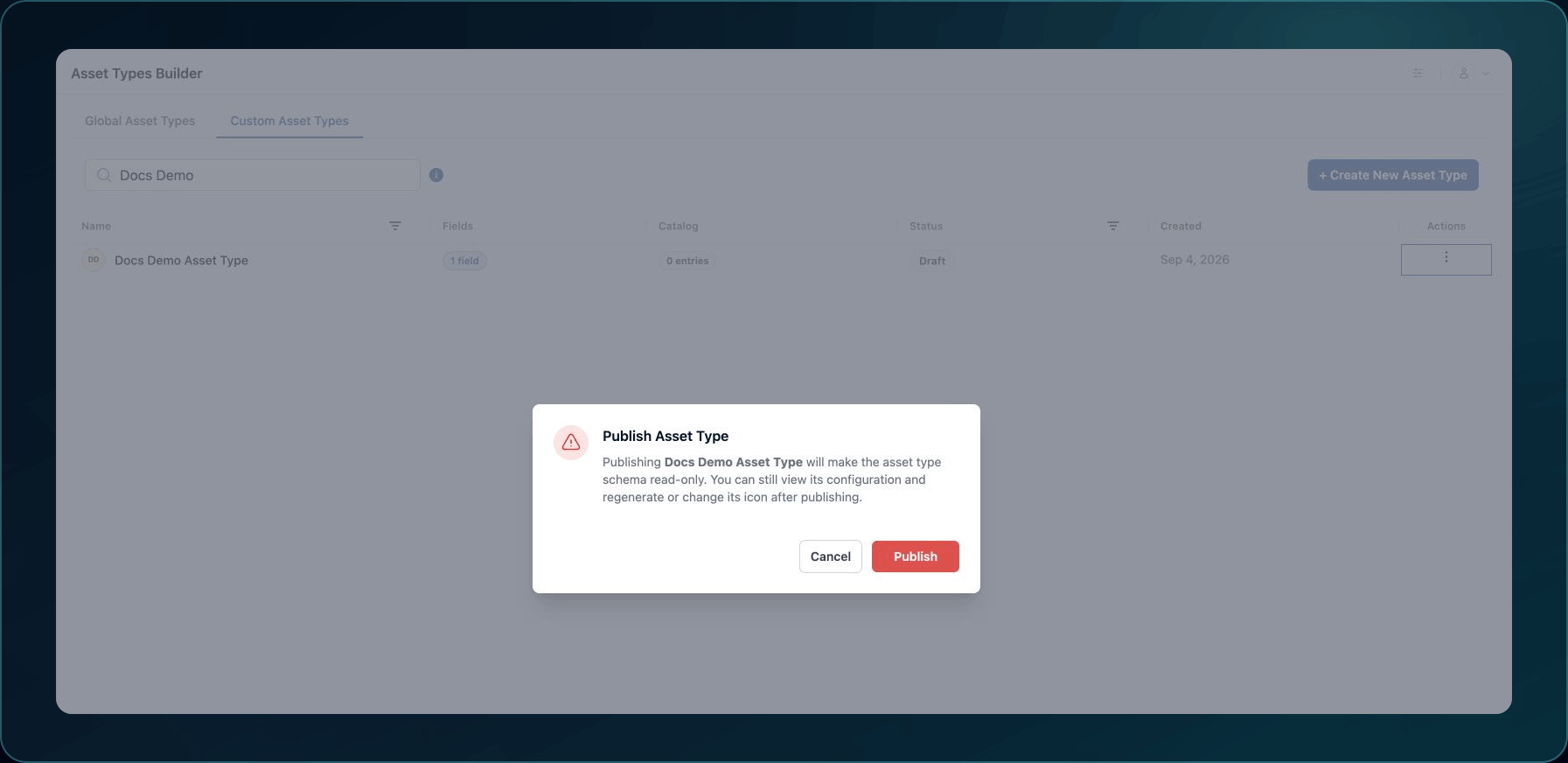
7. Confirm publication only when the configuration is approved.
Expected result: The Asset Type appears with Published status.
If publication fails, do not create a replacement. Use An Asset Type does not save or publish.
Verify with an asset
- Open Functions → Assets → Inventory (
/assets/inventory). Create or edit a clearly labeled test Asset of the published type. - Confirm its expected sections and fields appear.
- Select values in each catalog-backed field.
- Confirm dependent choices are compatible.
- Save the asset.
- Refresh and confirm the values remain.
Check your result
Ask a member with read assets to open the test Asset. Confirm that the member can see and understand the fields and saved values.
Undo this change
Publication may not be reversible through the customer interface. Do not delete a published Asset Type or its test assets to simulate an undo. Contact Support with the Asset Type ID if the published schema is wrong.
Learn and continue
- Learn: Understand Asset Types and Service Catalogs
- In WanAware: Open Administration → Asset Types (
/administration/asset-types).
Next steps
Get help
Email [email protected] and include:
- Company, affected user, page URL, timestamp, and time zone
- Asset Type ID and status
- Reproduction steps and the exact error
Never send passwords, credentials, tokens, or secret values.
Updated about 2 months ago