
Populate Asset details
Complete an asset's editable name, tags, schema fields, and catalog-backed selections.
Outcome: Complete an Asset's editable information and verify that every intended change was saved.
For: Customer administrators and engineers responsible for asset data
Permission: update assets
Time: 5–15 minutes
Changes made: Updates a shared asset record
If you're stuck
- Confirm the Asset's unique identifier before editing a similarly named record.
- Look for the unsaved-change bar before leaving a detail tab.
- If a field is missing, confirm the Asset Type and the field's dependency selections; do not type a catalog value into another field.
- A value supplied by an integration can return after the next collection. Fix the source rather than repeatedly overwriting it.
Before you start
- Confirm the Asset's identity and Asset Type.
- Gather approved values and their source.
- Know which fields may be refreshed by an integration.
- Do not place credentials, personal data, or secret values in names, tags, or free-text fields.
Field and option guide
| UI item | Purpose | Accepted value or choice | Where it appears later |
|---|---|---|---|
| Asset name edit | Corrects the customer-editable display name | A recognizable name; no passwords, tokens, or personal data | Inventory and Asset details |
| Data Tags | Adds descriptive labels without placing the Asset in a hierarchy | Select an existing approved tag or create only a genuinely new label | Inventory filters and Asset details |
| Structure Tags | Attaches the Asset to a Structure node | Select the exact existing hierarchy node | Structure context and Asset details |
| Schema section tabs | Groups fields defined by the Asset Type | Open every section that applies to the record | Asset detail tabs |
| Required field | Enforces a value before save | The format shown by the control | Saved Asset details |
| Dependent field | Limits choices from an earlier selection | Select the parent value first, then a compatible child | Saved Asset details |
| Catalog-backed field | Uses managed Service Catalog data | Select an existing catalog entry; do not invent a near-duplicate | Asset details and catalog reporting |
| Unsaved-change bar | Shows that the current edits are not stored | Save or deliberately discard before leaving | Clears after a successful save |
Edit the name and tags
- Open Functions → Assets → Inventory (
/assets/inventory) and select the Asset. - Confirm its name, Asset Type, and source identifier.
- Use the inline name edit control to correct the editable name.
- Add or remove Data Tags for descriptive labels.
- Add or remove Structure Tags only when the asset belongs in that hierarchy.
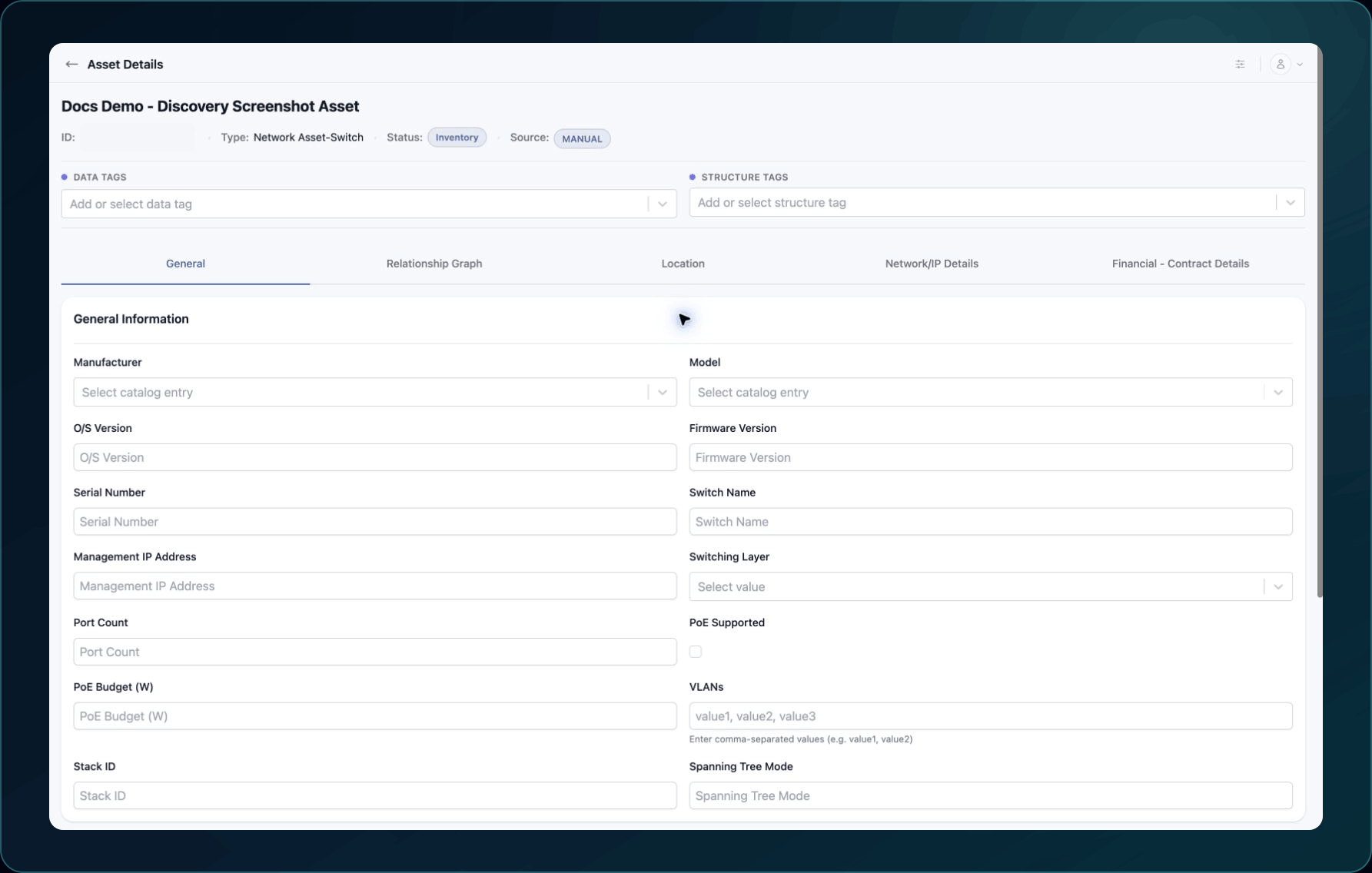
Expected result: WanAware shows an unsaved-change state or immediately confirms the supported tag action.
If a Structure Tag is unavailable, confirm that the Structure exists and your role can attach it.
Complete schema-driven details
- Open each editable detail tab shown for the Asset Type.
- Complete required fields first.
- Enter values in the format shown by the field.
- For a Service Catalog-backed field, select an approved catalog value instead of typing a near-duplicate.
- Review dependent choices after changing a manufacturer, model, component, or other parent value.
- Check the unsaved-change bar before leaving the page.
- Select the save action shown in the unsaved-change bar.
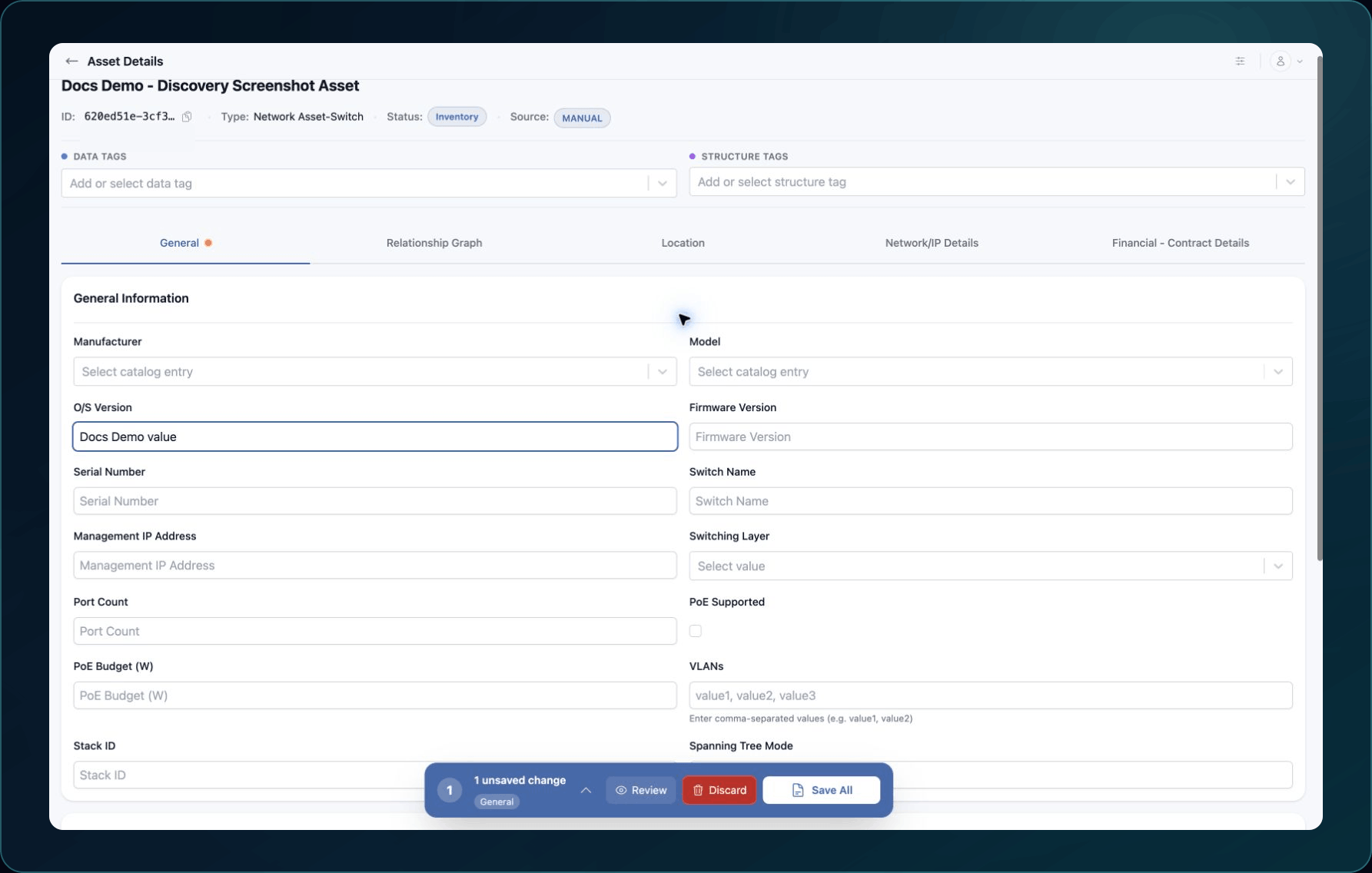
Expected result: The unsaved-change bar clears and the saved values remain visible.
If the page rejects a field, correct the value before navigating away. If an expected catalog choice is missing, see A Service Catalog entry does not save.
Check your result
- Refresh the asset page.
- Confirm the name, Data Tags, Structure Tags, and changed field values.
- Open any dependent field and confirm its selected value is still compatible.
- Ask a member with
read assetsto reopen the Asset when the change supports a shared workflow.
Undo this change
Restore the previous editable value and save again. Remove only the tag you added. If the source integration overwrites the field, correct the source or ask Support which value is authoritative before repeating the edit.
Learn and continue
- Learn: Understand Asset Types and Service Catalogs
- In WanAware: Open Functions → Assets → Inventory (
/assets/inventory), select an Asset, and use its editable detail tabs.
Next steps
Get help
Email [email protected] with your company, affected user, asset ID, Asset Type, field label, page URL, timestamp and time zone, reproduction steps, and expected versus actual value. Never send passwords, credentials, tokens, or secret values.
Updated about 2 months ago