
Create a custom Service Catalog
Open the catalog workspace for a draft custom Asset Type and save its first approved entry.
Outcome: Select a draft custom Asset Type, add an approved catalog entry, and save the catalog.
For: Customer administrators and data model owners
Permission: update service_catalog
Time: 10–20 minutes
Changes made: Creates shared catalog data for a draft Asset Type
If you're stuck
- Confirm the custom Asset Type is saved and still Draft.
- Select the Asset Type before selecting Add.
- Search the selected catalog for the same provider or manufacturer before adding another entry.
Before you start
- Complete the draft Asset Type's sections, fields, dependencies, and catalog support.
- Keep the Asset Type unpublished.
- Gather the approved catalog names and source references.
- Search for existing entries before adding a new one.
Field and option guide
| UI item | Purpose | What to select or enter | Where it appears later |
|---|---|---|---|
| Asset Type selector | Chooses the catalog workspace | The intended custom Asset Type with Draft status | Catalog heading and Asset fields |
| Add | Starts one catalog record | Select only after confirming the Asset Type | Entry form |
| Entry type | Establishes the record's role in the hierarchy | The supported provider, manufacturer, model, module, software, specification, or attribute type | Catalog hierarchy and compatible Asset choices |
| Name | Identifies the entry | Canonical approved name; avoid abbreviations that create duplicates | Catalog list and Asset selector |
| Description | Explains the entry | Short identifying context; no credentials or secret data | Entry details |
| Save | Stores the entry | Submit once after reviewing parent and type | Selected catalog after refresh |
Start the catalog
- Open Administration → Service Catalog.
- Use the catalog selector to choose the draft custom Asset Type.
- Confirm the selected type is the intended draft.
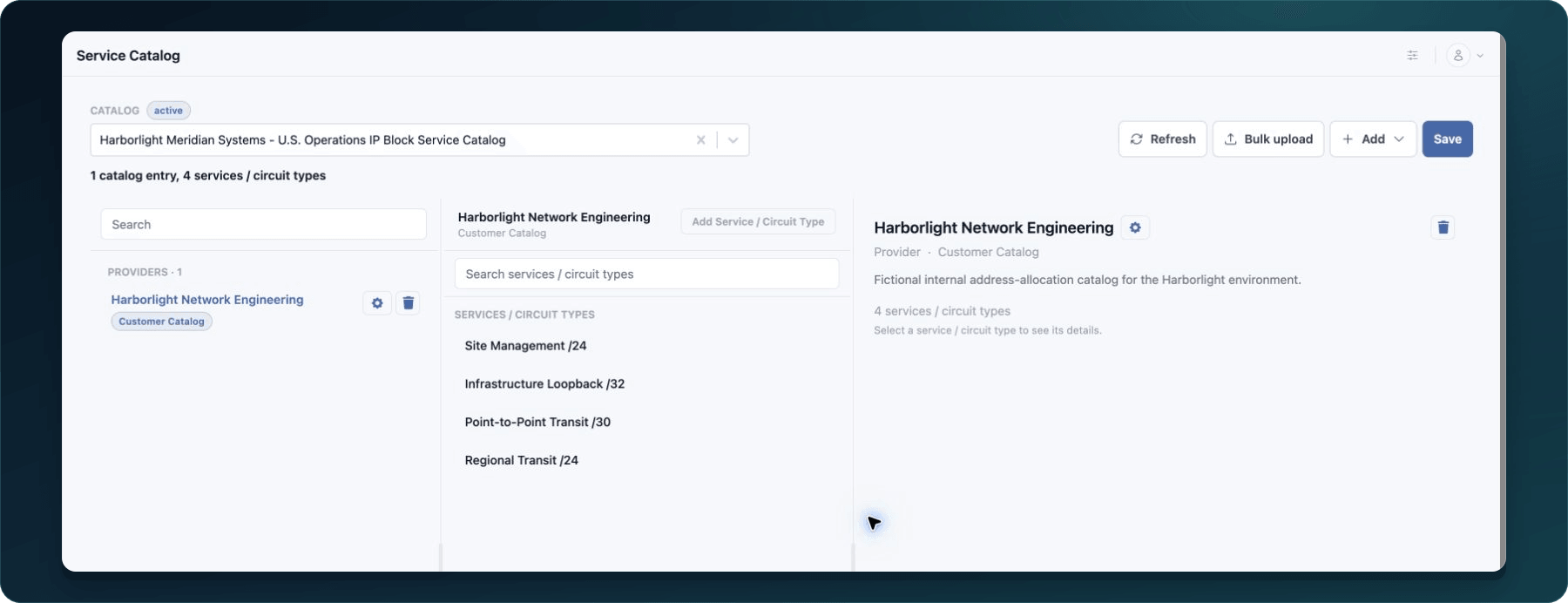
- Select Add.
- Choose the entry type required by the schema.
- Enter the canonical name and description.
- Add only approved specifications or attributes.
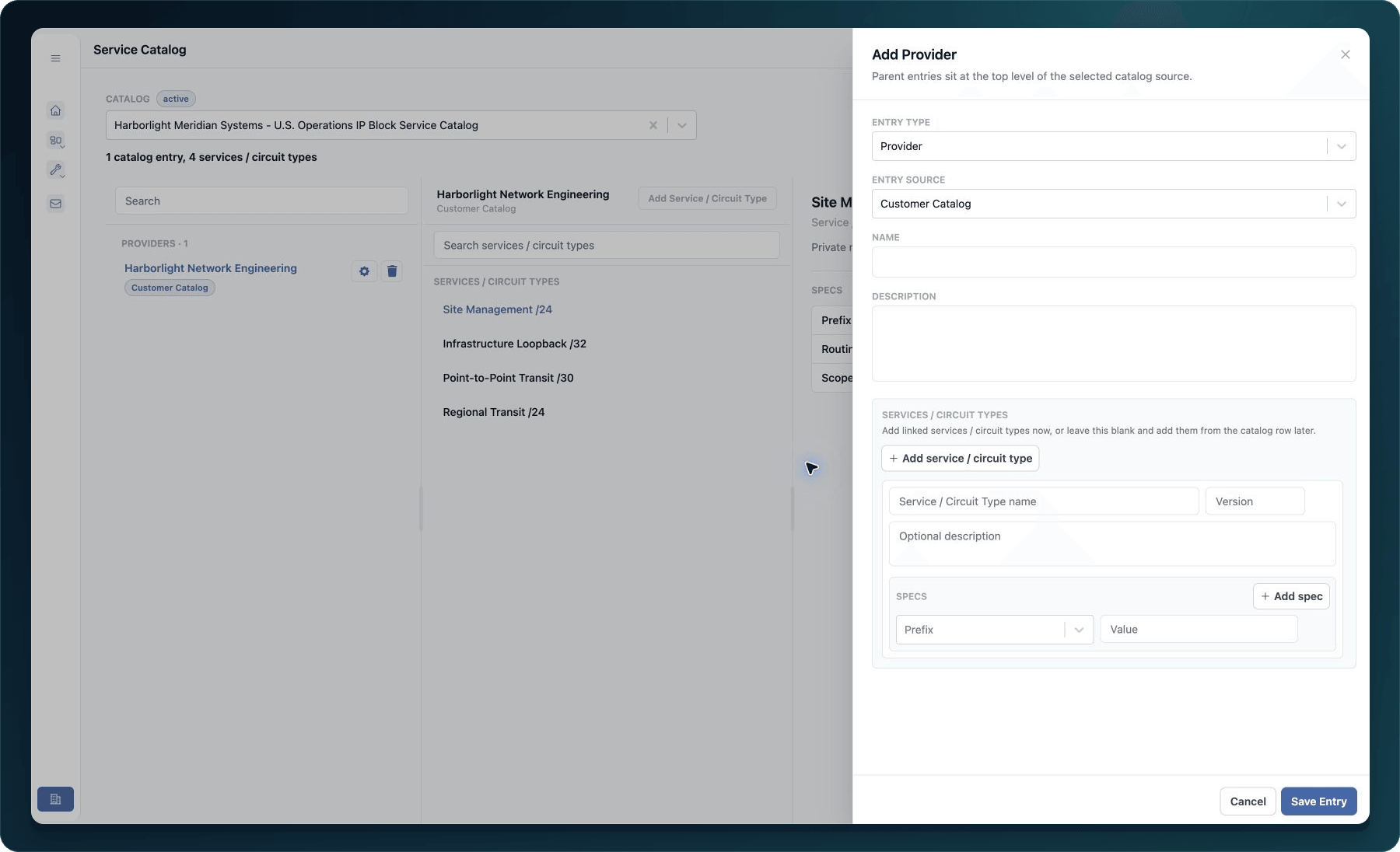
- Select Save.
Expected result: The entry appears in the selected Asset Type's catalog after a refresh.
If the Asset Type is unavailable, confirm that it was saved as a customer draft and that your role includes Service Catalog access. A published custom type may no longer allow catalog editing.
Check your result
- Select Refresh.
- Re-select the draft Asset Type.
- Find the entry by its exact name.
- Open it and confirm the saved details.
Undo this change
Edit or remove an unused custom entry only while the draft lifecycle permits it and after checking dependencies and compatibility. Do not remove an entry already selected by test or customer assets without an impact review.
Learn and continue
- Learn: Understand Asset Types and Service Catalogs
- In WanAware: Open
/administration/service-catalogin your WanAware workspace.
Next steps
Get help
Email [email protected] and include:
- Company, affected user, page URL, timestamp, and time zone
- Draft Asset Type ID, catalog entry name, and entry type
- Reproduction steps and the exact error
Never send passwords, credentials, tokens, or secret values.
Updated about 2 months ago