
Review Discovery and move Assets to Inventory
Review found Asset records, prevent duplicates, and promote selected records into the maintained Inventory.
Outcome: Confirm found records belong in the maintained set and move only the intended Assets to Inventory.
For: Customer administrators and engineers
Permission: update assets
Time: 5–15 minutes, plus background processing
Changes made: Changes selected Asset status from Discovery to Inventory
If you're stuck
- Clear old search text and filters, then reopen Functions → Assets → Discovery.
- If Move To Inventory is absent, select at least one row and confirm your Role has
update assets. - Search Inventory for the same name and source identifier before moving a possible duplicate.
- After submission, wait for processing, refresh both tabs, and avoid selecting the same rows again.
Before you start
- A record can be in Discovery because supported source data found it or because it was intentionally created for review.
- Decide which identity fields prove that the record is not already represented in Inventory.
- Inspect required details before promotion; moving a record does not supply missing business context.
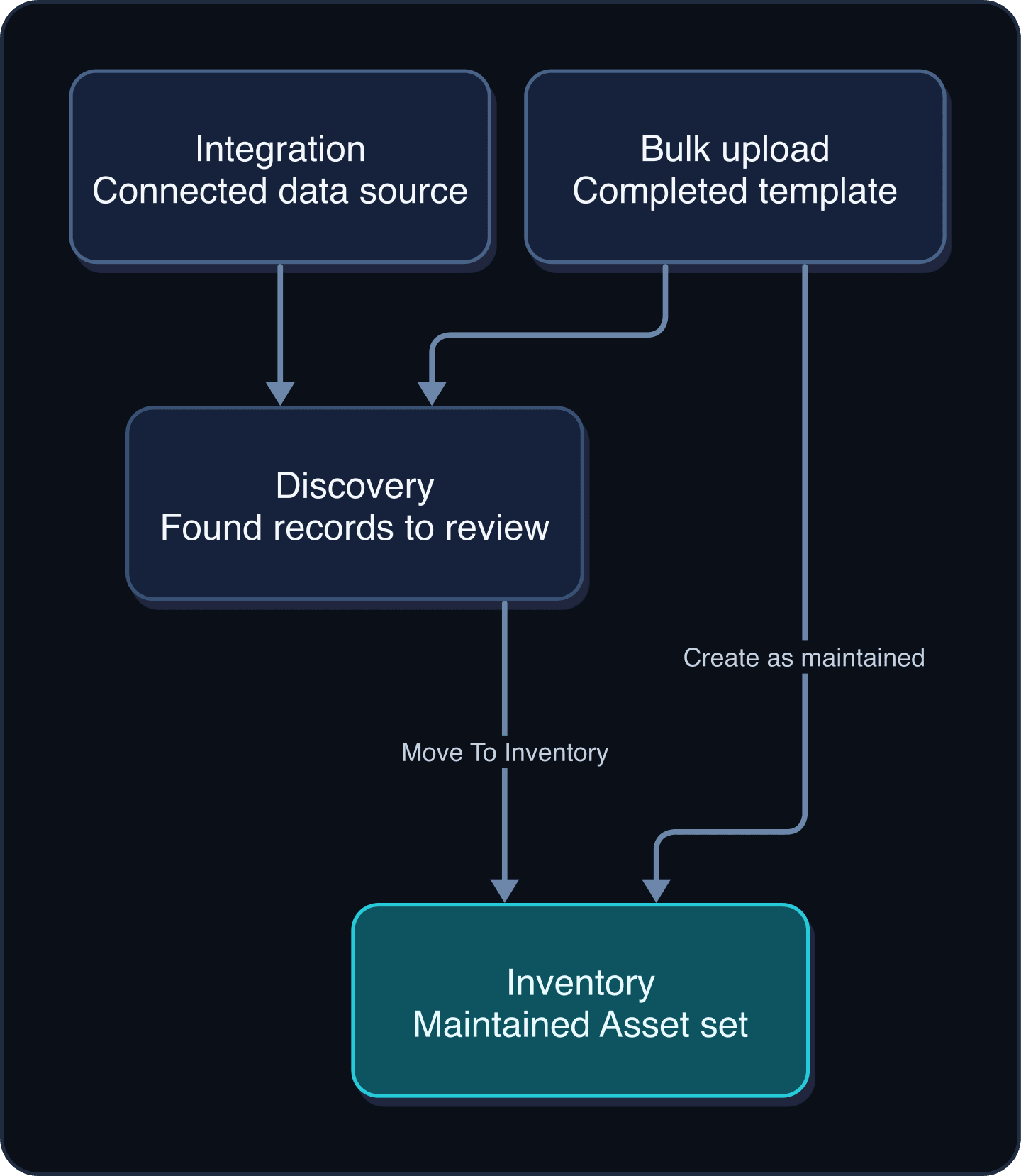
Field and option guide
Select records safely
| Control | What to check | Example |
|---|---|---|
| Discovery | Confirm you are reviewing found or imported records, not maintained Inventory. | Found router |
| Search | Use a name, stable identifier, or another visible identity value. | edge-router-01 |
| Row selection | Compare the full identity of every selected record and check for an existing Inventory match. | One reviewed row |
What happens next
| Action | Requirement | Expected result |
|---|---|---|
| Move To Inventory | At least one reviewed row and update assets. | The action enters background processing, then the Asset appears in Inventory and leaves Discovery. |
Review and move records
- Open Functions → Assets → Discovery (
/assets/discovery). - Search for a specific record and open it.
- Confirm its Asset Type, name, source identifier, tags, and required details.
- Open Inventory in a second tab or return to it and search the same identity values.
- If an Inventory record represents the same resource, stop and resolve the duplicate instead of promoting another copy.
- Return to Discovery and select the reviewed row or rows.
- Select Move To Inventory.
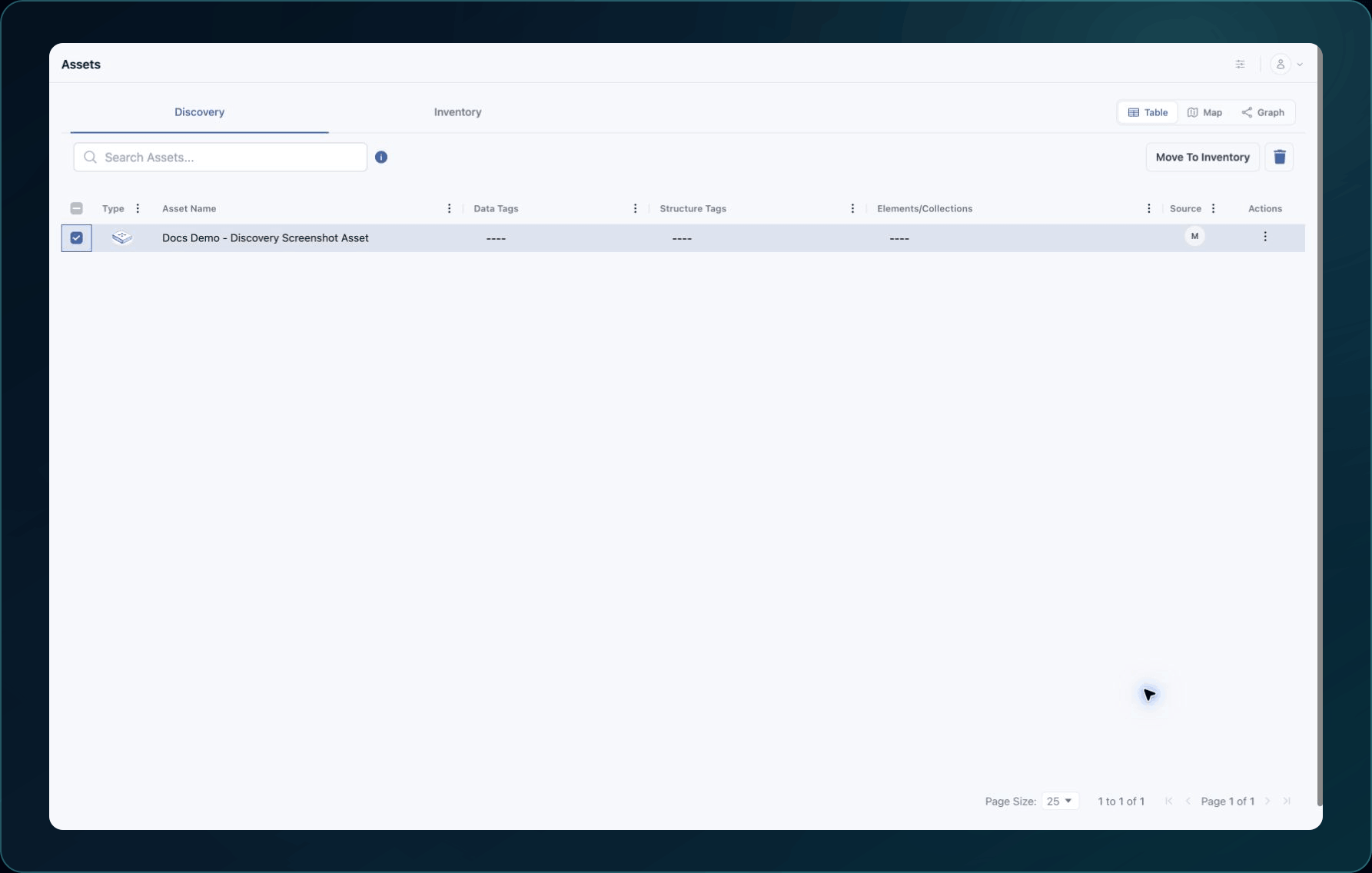
8. Confirm the action when prompted.
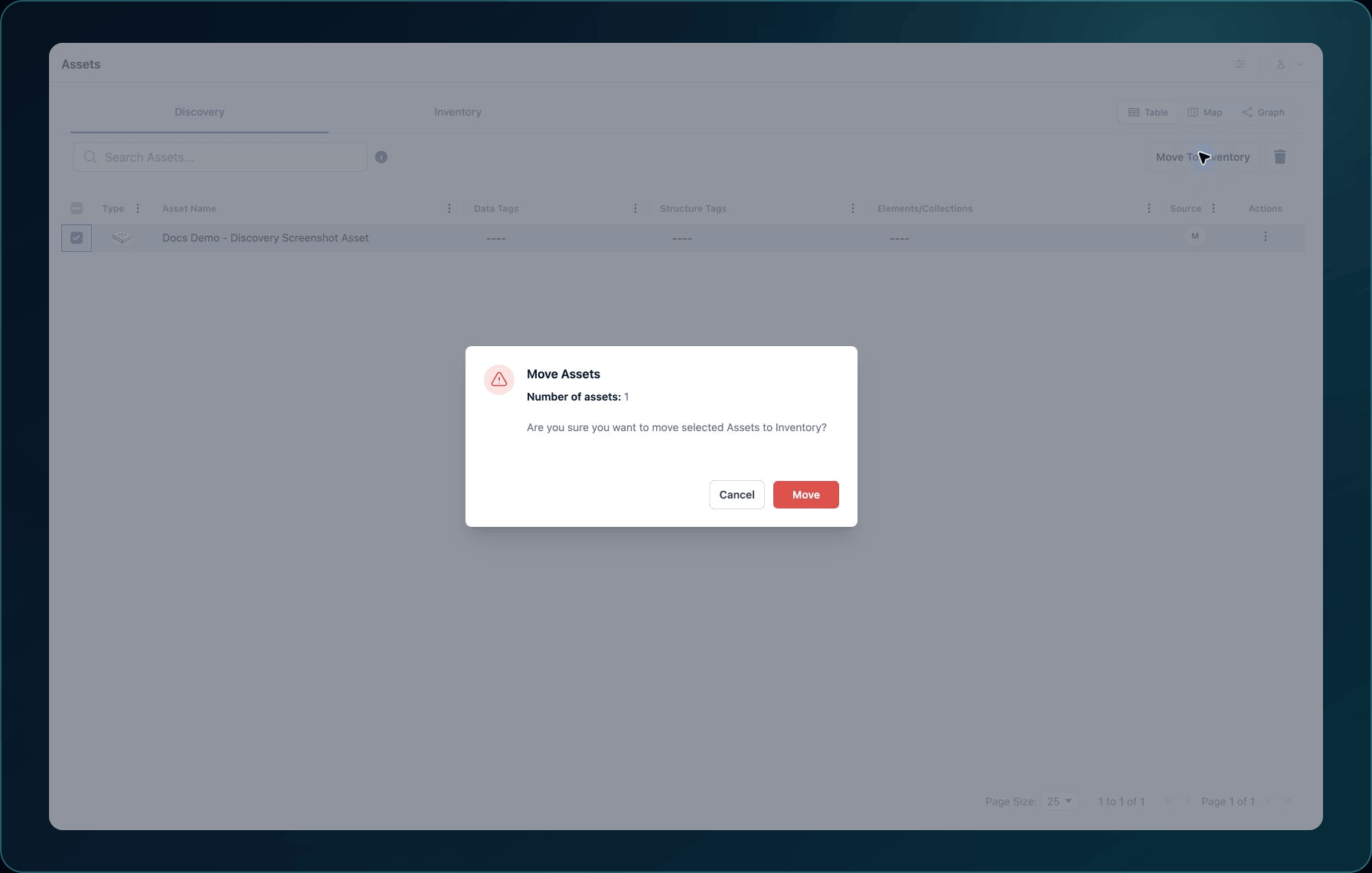
Expected result: WanAware accepts the request and processes the status change. The selected rows can remain visible briefly while background processing completes.
If only some rows move, record the remaining IDs and refresh before retrying. A partial result can mean one selected record no longer met the action requirements.
Verify
- Refresh Discovery and confirm the moved names are no longer present.
- Open Inventory, clear filters, and search for each moved Asset.
- Open a result and verify its status is Inventory and its details were preserved.
- If the record is missing from both tabs, wait for the current background job to finish, refresh once, and then escalate with its identifier.
Undo this change
Do not delete the Asset to reverse an accidental promotion. First confirm whether your released workspace provides an approved status-edit path for that record. If it does not, contact Support with the Asset ID and promotion timestamp so the record can be assessed without losing Relationships or attachments.
Learn and continue
- Learn: Product map and terminology
- In WanAware: Open
/assets/discovery.
Next steps
Get help
Email [email protected] with your company, affected user, selected Asset IDs, page URL, action timestamp and time zone, expected versus actual tab, reproduction steps, and a sanitized screenshot or exact error. Never send passwords, credentials, access tokens, or secret values.
Updated about 2 months ago