
Delete Assets safely
Check dependencies, delete only the intended Asset records, and verify the result without masking duplicates.
Outcome: Remove only confirmed obsolete Assets after recording their dependencies and verify that no unintended record was affected.
For: Customer administrators
Permission: delete assets
Time: 5–15 minutes
Changes made: Permanently removes selected shared Asset records and can affect their visible organization and Relationship context
If you're stuck
- If Delete is missing, confirm a row is selected and your Role has
delete assets. - Reopen the Asset and verify its ID—not only its display name.
- Record its Relationships, Structure Tags, and Element or Collection membership before deletion.
- If the Asset is integration-owned or appears duplicated, stop and determine the authoritative source before removing anything.
Before you start
- Deletion is not a rename, merge, status change, or duplicate-resolution shortcut.
- Save the Asset ID, source, Asset Type, relevant tags, Relationships, and attachments in the approved work record.
- Confirm the Asset is not needed by another user or process.
- Do not assume a deleted record can be restored; no restore action is documented for this release.
Field and option guide
Before opening Delete
| UI label | What to verify | Where to verify it |
|---|---|---|
| Selection checkbox | Every selected row has the intended Asset name and ID. | Inventory or Discovery table. |
| Actions | You have checked Relationships, Structure Tags, Collection membership, and source ownership. | Asset row and Asset details. |
Confirmation
| UI label | Required check | Expected result |
|---|---|---|
| Delete | Your Role has delete assets, and the Asset is safe to remove. | The confirmation dialog opens; nothing is deleted yet. |
| Confirmation count | The count exactly matches the reviewed selection. | After confirmation and processing, the record no longer appears in the original result set. |
Delete the Asset
- Open the Asset from Inventory or Discovery.
- Copy its stable Asset ID and confirm the Asset Type and source.
- Record current Relationships, Structure Tags, and Element or Collection membership.
- Return to the Asset table and select the exact row. For one record, you may instead use its Actions menu if Delete is present there.
- Select Delete.
- Read the confirmation message and verify the count and identity.
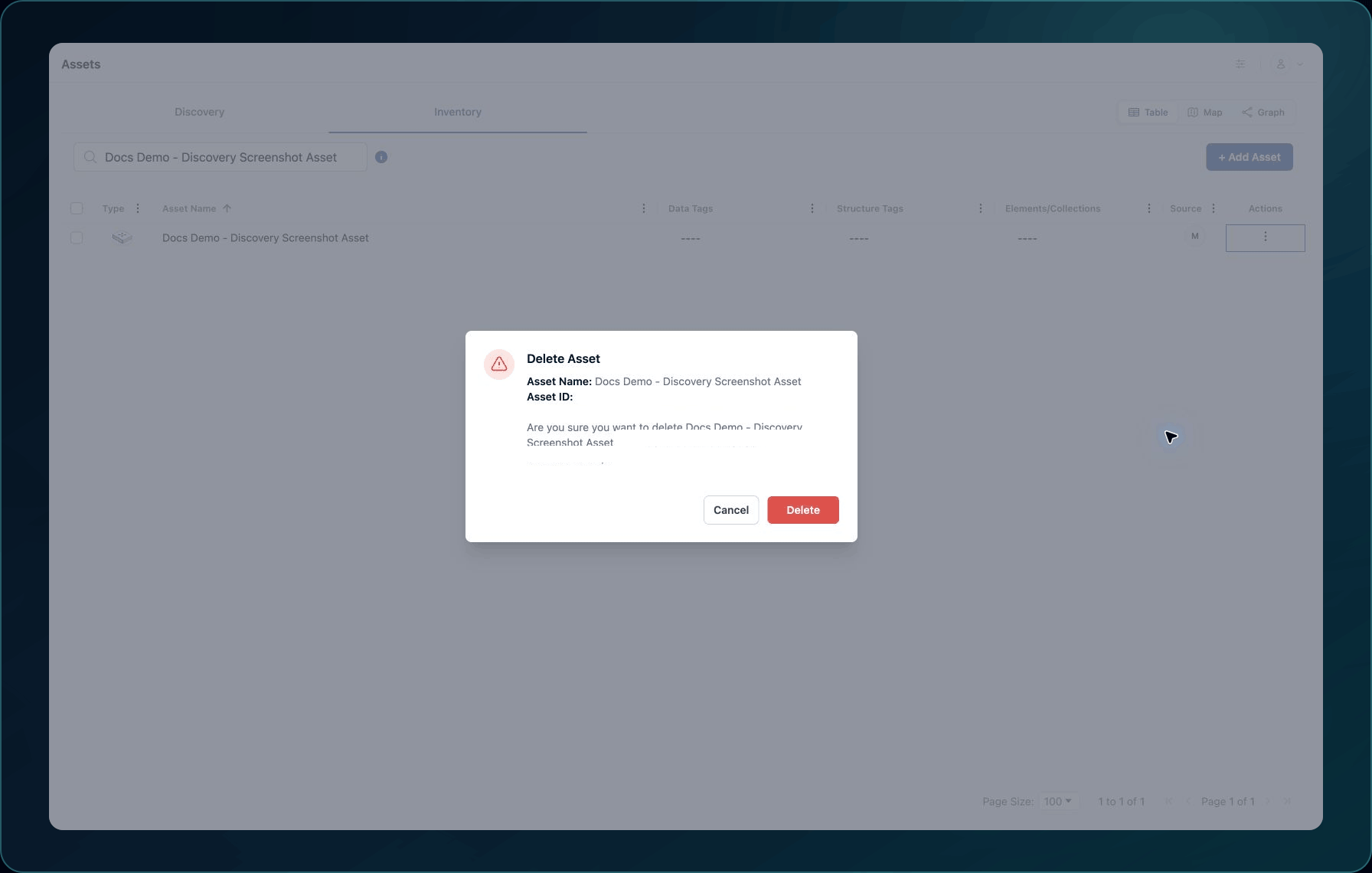
7. Confirm deletion.
Expected result: WanAware accepts the deletion and removes the Asset from the active table after processing.
If the confirmation scope is wrong, cancel without making changes and clear the selection. If submission is uncertain, refresh and search before sending the action again.
Verify
- Clear all filters and search Inventory and Discovery for the deleted Asset ID and name.
- Confirm similarly named Assets still exist.
- Reopen any related Element or Collection and verify only the deleted membership disappeared.
- Record the result in the approved work item.
Recover
There is no documented self-service restore for this release. If deletion was accidental, stop making related changes and contact Support immediately with the deleted Asset ID, source, page URL, and timestamp. If the source Integration recreates the record, compare its new identity and attachments before treating it as the same Asset.
Learn and continue
- Learn: Find, filter, and inspect Assets
- In WanAware: Open
/assets/inventoryor/assets/discoveryand select only the reviewed record.
Next steps
Get help
Email [email protected] with your company, affected user, Asset ID, Asset Type, source, page URL, deletion timestamp and time zone, reproduction steps, and expected versus actual result. Never send passwords, credentials, access tokens, or secret values.
Updated about 2 months ago