
Create and manage Structures
Add a valid Structure node and verify its location in the hierarchy.
Outcome: Create a Structure node of the correct type and place it in the intended hierarchy.
For: Customer administrators and environment model owners
Permission: create structures; update structures or delete structures for those actions
Time: 5–10 minutes
Changes made: Creates or changes a shared hierarchy node
If you're stuck
- Search the complete hierarchy for the exact name before adding a node.
- If a parent cannot be selected, confirm the new node's Structure Type is valid at that level.
- Do not delete a Structure to detach an Element or Collection; remove its Structure Tag instead.
Before you start
- Search the hierarchy for the intended name and common variations.
- Choose the supported type that matches the concept: Company, Organization, Group, or Vendor.
- Identify the correct parent and owner.
- Use a clearly labeled test node when you are learning or validating this workflow.
Field and option guide
| UI item | Purpose | What to choose or enter | Verification |
|---|---|---|---|
| Structure Type | Defines the node's role | Company, Organization, Group, or Vendor, matching the real hierarchy | Node displays the intended type |
| Name | Identifies the node | Unique, durable organizational name | Search returns one node |
| Parent or placement | Places the node in the hierarchy | Exact existing parent, confirmed by name and ID | Node appears under that parent |
| Placement preview | Shows the pending hierarchy path | Read the complete path before save | Saved path matches the preview |
Create a Structure
- Open Functions → Structures.
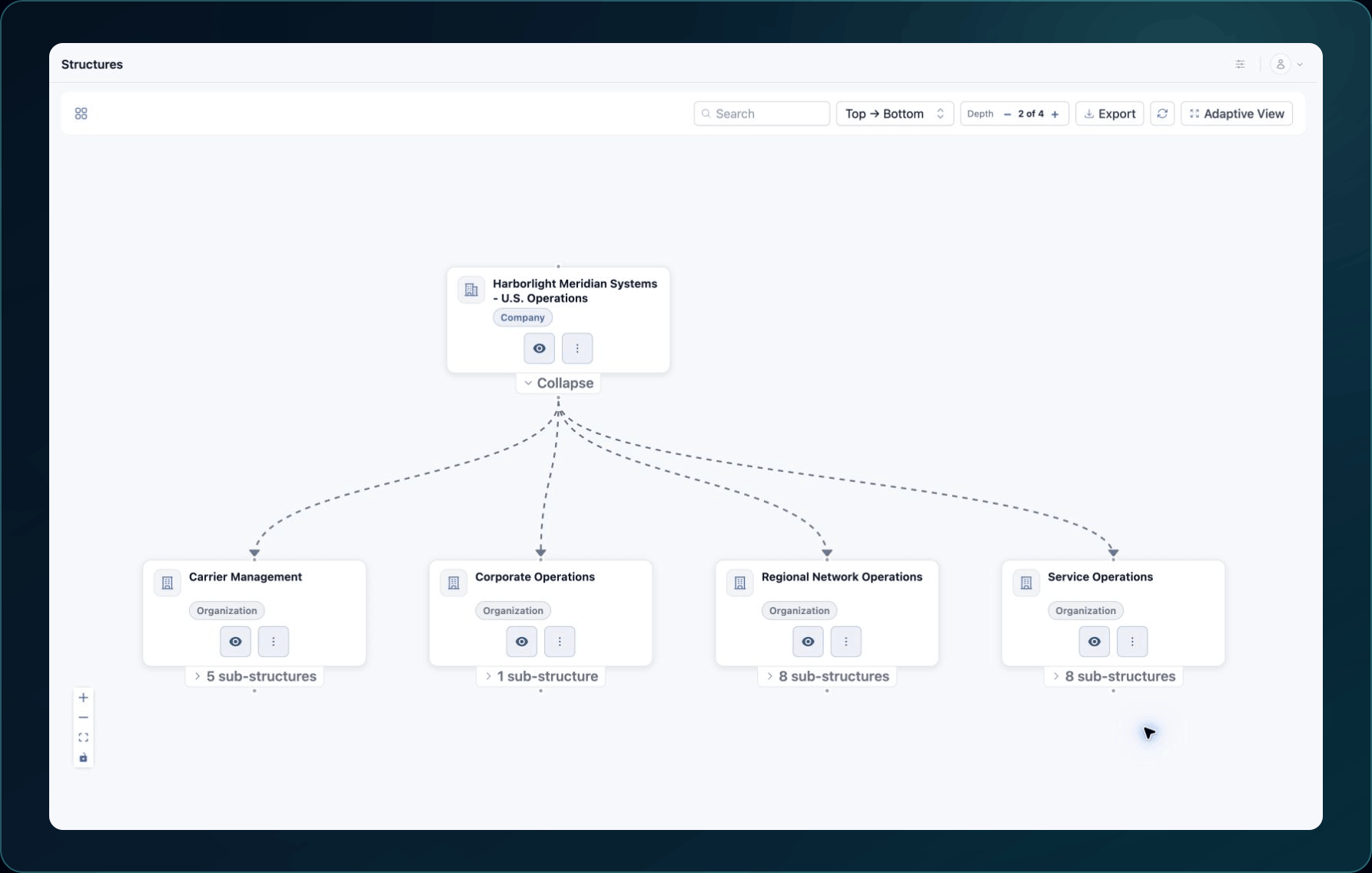
2. Select Add Structure.
3. Choose the Structure Type.
4. Enter a clear Name.
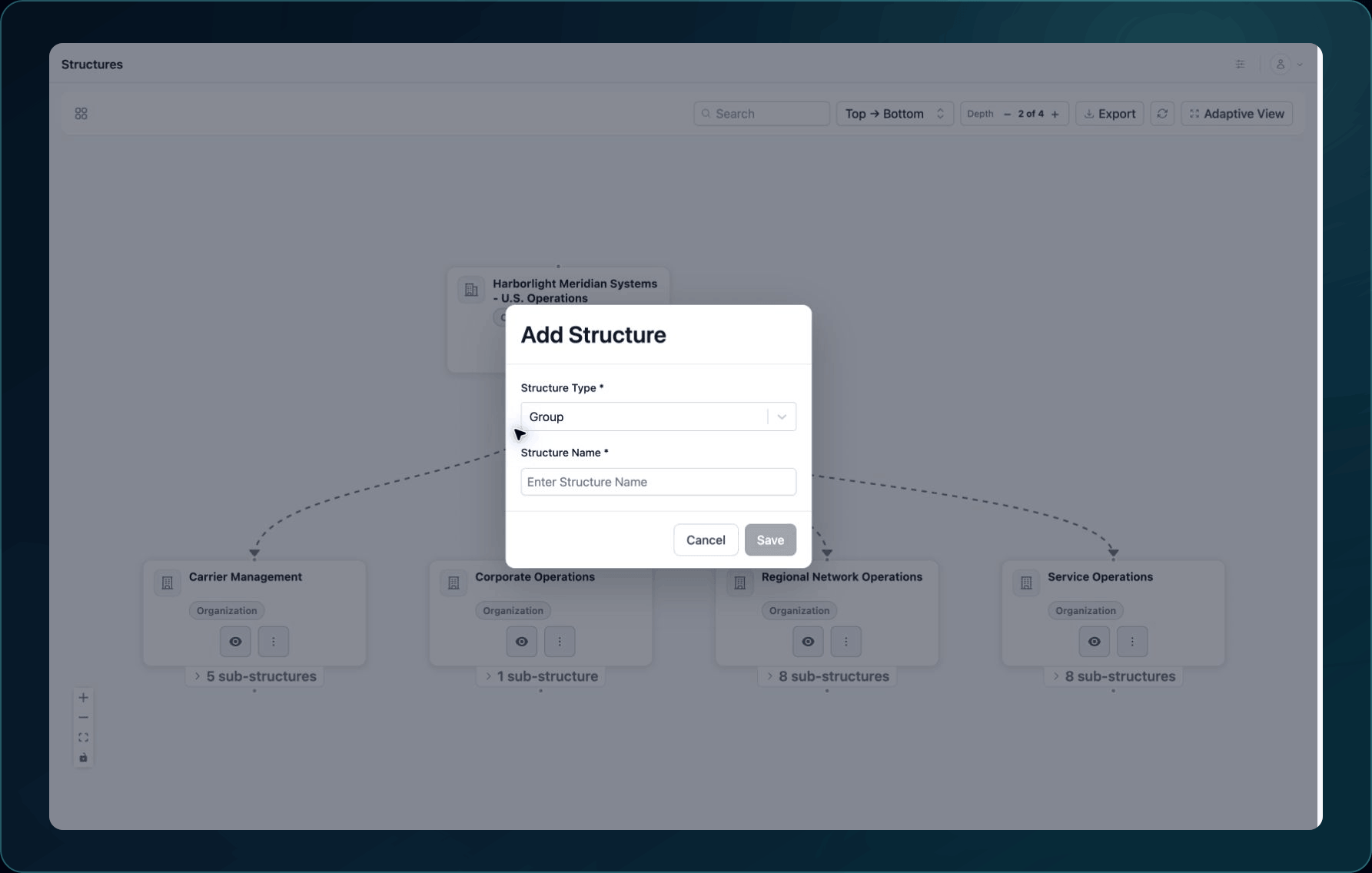
5. Select the intended parent shown by the form for that Structure Type.
6. Review the placement preview.
7. Select Save.
Expected result: The new node appears once under the intended parent.
If a parent cannot be selected, the type may not be valid at that level. Choose a valid placement instead of creating a duplicate elsewhere.
Edit a Structure
- Select the existing node.
- Open its edit action.
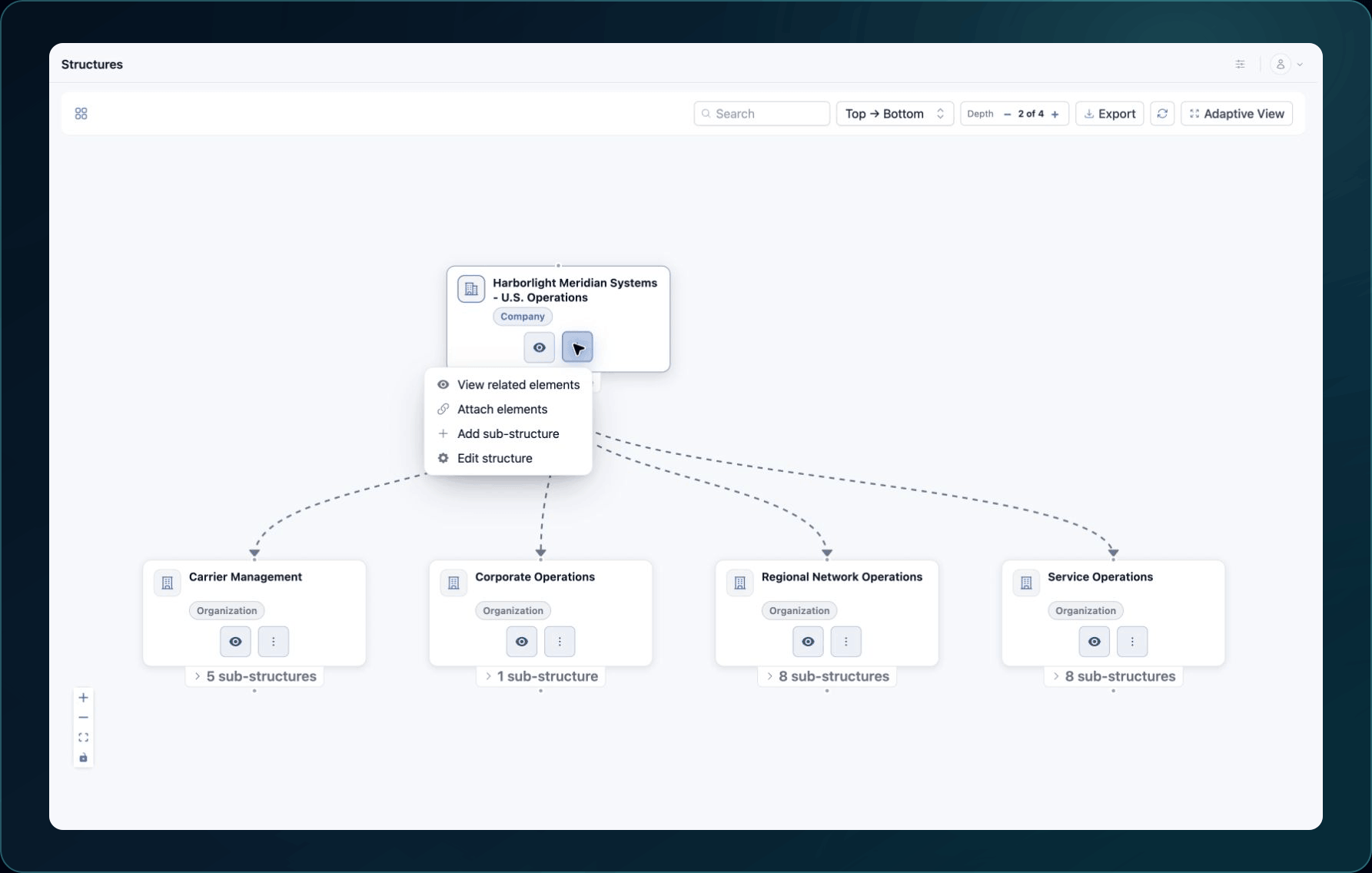
3. Confirm the node's ID and attachments.
4. Change only the approved name or supported setting.
5. Select Save and reopen the node.
Check your result
Search for the exact name, expand its parent, and confirm the type, location, and child records. Then check an attached Element or Collection if one already exists.
Undo this change
Restore the previous editable value when possible. Before removing a Structure, detach its Elements and Collections and review its child nodes. Do not delete the attached assets themselves.
Learn and continue
- Learn: Understand Structures, Elements, and Collections
- In WanAware: Open
/structuresin your WanAware workspace.
Next steps
Get help
Email [email protected] and include:
- Company, affected user, page URL, timestamp, and time zone
- Structure name and ID and the intended parent ID
- Reproduction steps and expected versus actual placement
Never send passwords, credentials, tokens, or secret values.
Updated about 2 months ago