
View Asset Relationships
Read an asset's Relationship Graph and open connected context.
Outcome: Identify how one Asset is connected to another resource and open the connected record.
For: Customer administrators, engineers, and support staff
Permission: read assets
Time: About 5 minutes
Changes made: None
If you're stuck
- Clear Filters and reduce Group by before treating a node as missing.
- Confirm both Assets exist in Inventory and use the correct unique IDs.
- Relationship Graph is for exploring supported relationships; it does not provide arbitrary relationship drawing.
Before you start
Find a known asset in Functions → Assets → Inventory and verify its identity.
View and control guide
| UI item | Scope | What it changes |
|---|---|---|
| Asset Relationship Graph | One focused Asset and connected records | View only; selecting a node changes focus |
| Inventory Graph | Broader Inventory graph | View only; can show more records |
| Relationship depth | Number of connected levels around the focused Asset | View only; higher depth can make the graph crowded |
| Filters | Visible nodes by supported record values | View only; hidden nodes still exist |
| Group by | Visual organization | View only; does not create relationships |
| Clear All Filters | Removes active graph filters | Restores the unfiltered visible result |
Explore the graph
- Select Relationship Graph in the asset details.
- Locate the focused asset.
- Follow a connecting line to a neighboring node.
- Select the neighboring node to review its label and available details.
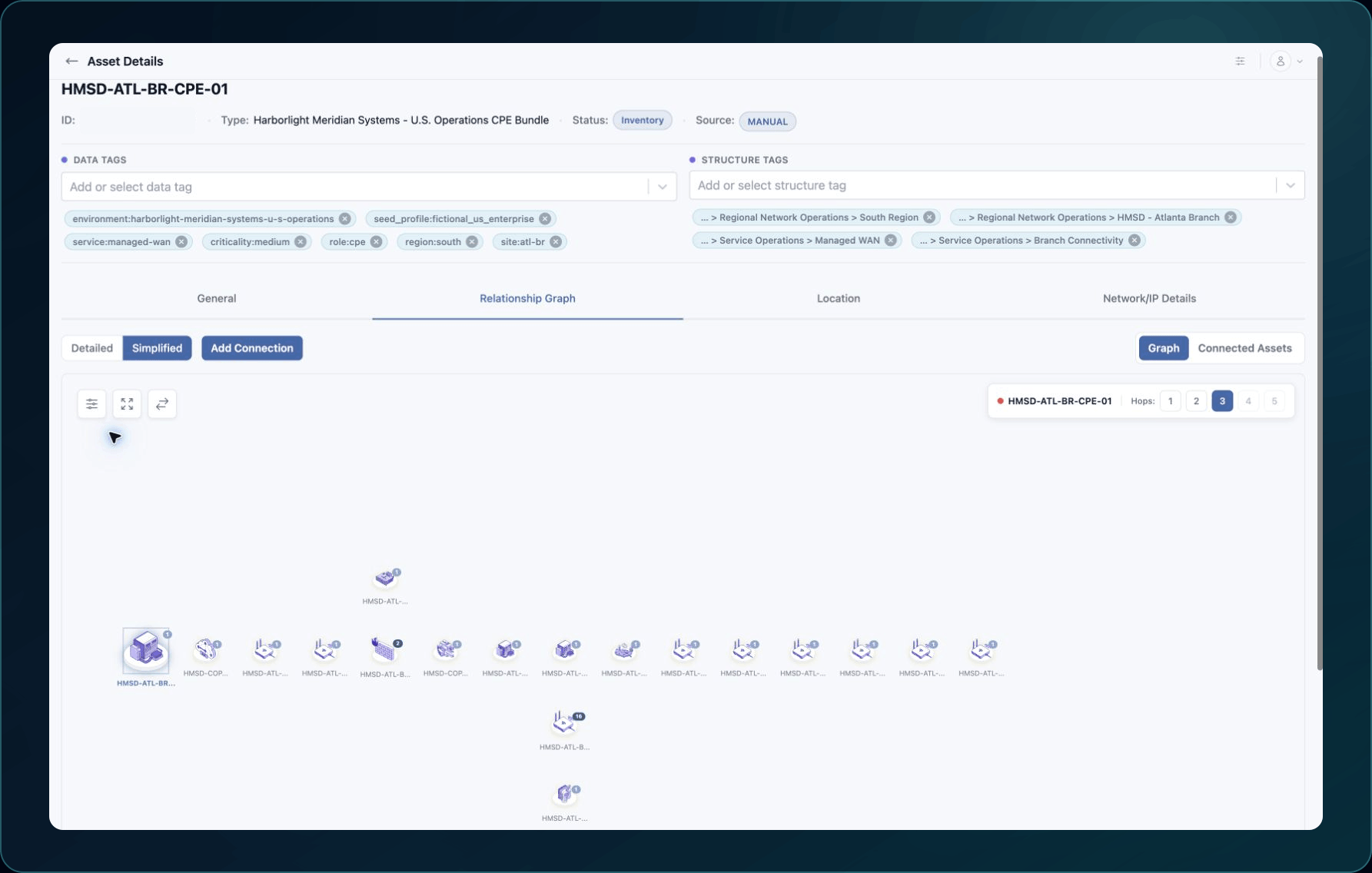
5. Change relationship depth only when more context is needed.
6. Use search or focus controls to return to a known resource.
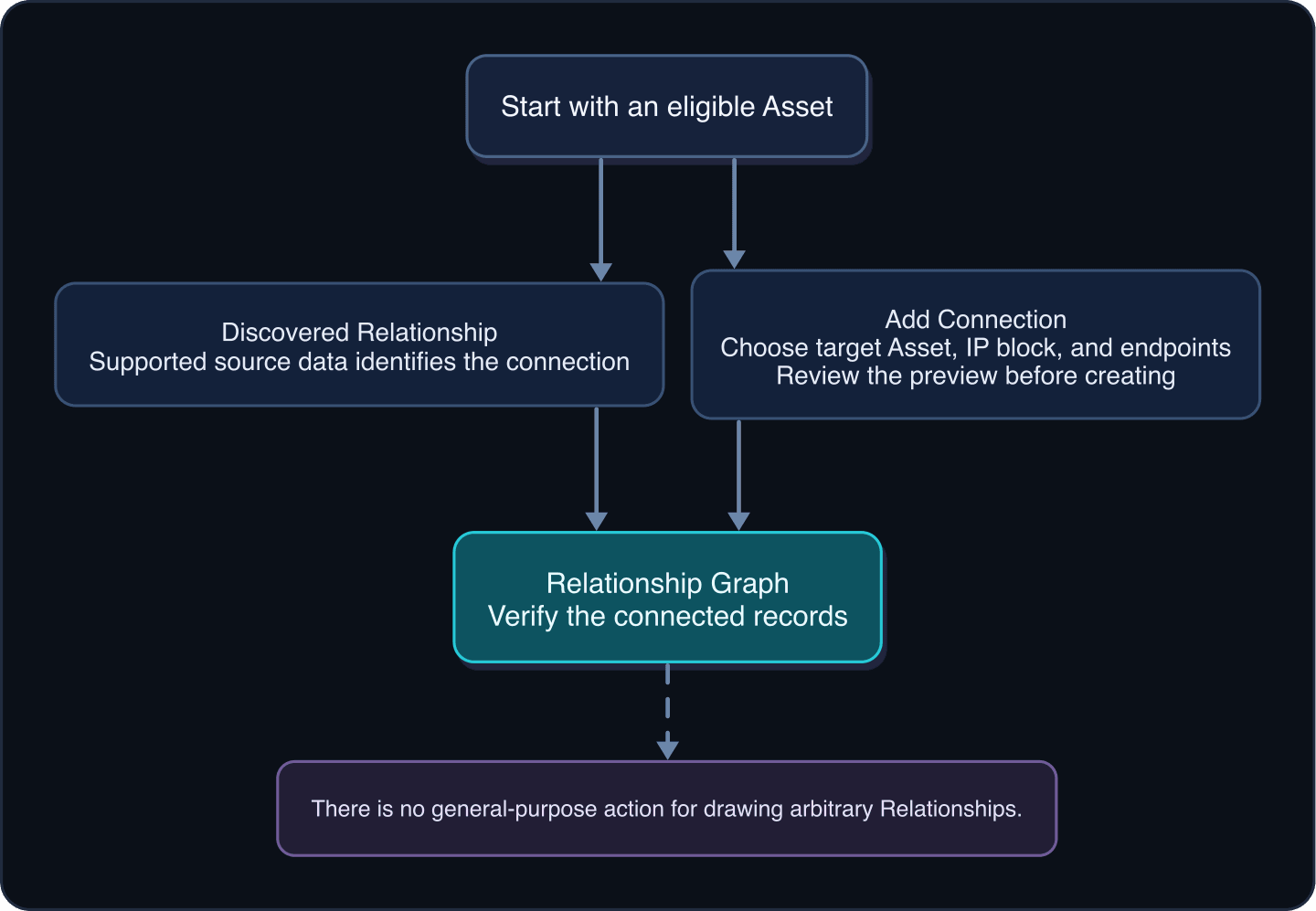
Expected result: You can name the focused asset, one connected resource, and the represented relationship.
Use the broader graph
- Return to Assets and select Graph.
- Use Filters to narrow by supported Asset Type, Site, Structure, or Element values.
- Use Group by to organize the view.
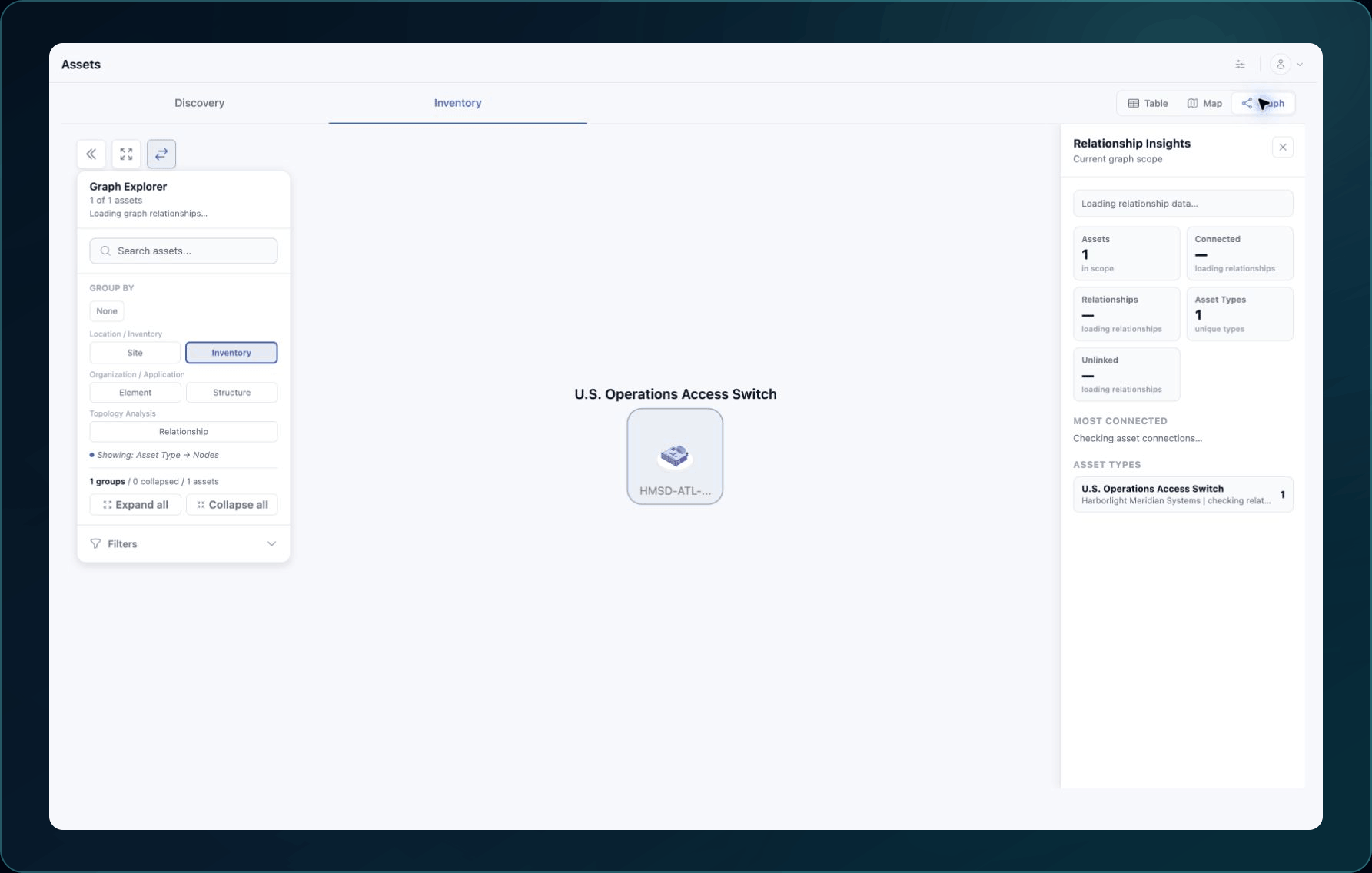
4. Select Clear All Filters before treating an absent node as missing data.
Grouping and filtering change only the view. They do not create or remove relationships.
Check your result
Open the connected asset and confirm its name, Asset Type, and source context match the selected node.
Recover from an empty or surprising graph
- Confirm both expected assets exist.
- Wait for active ingestion and relationship processing to finish.
- Clear graph filters and reduce grouping.
- Compare the graph with source properties.
- Use A Relationship is missing or unexpected.
Learn and continue
- Learn: Relationship Discovery Engine
- In WanAware: Open an asset in
/assets/inventoryand select Relationship Graph.
Next steps
Get help
Email [email protected] with your company, affected user, both sanitized asset IDs, page URL, graph depth, filters, timestamp and time zone, and a screenshot. Never send passwords, credentials, tokens, or secret values.
Updated about 2 months ago