
Add or import Assets
Create one asset manually or upload a validated file of assets.
Choose the workflow that matches the number of Assets and the source of truth. Both paths require create assets.
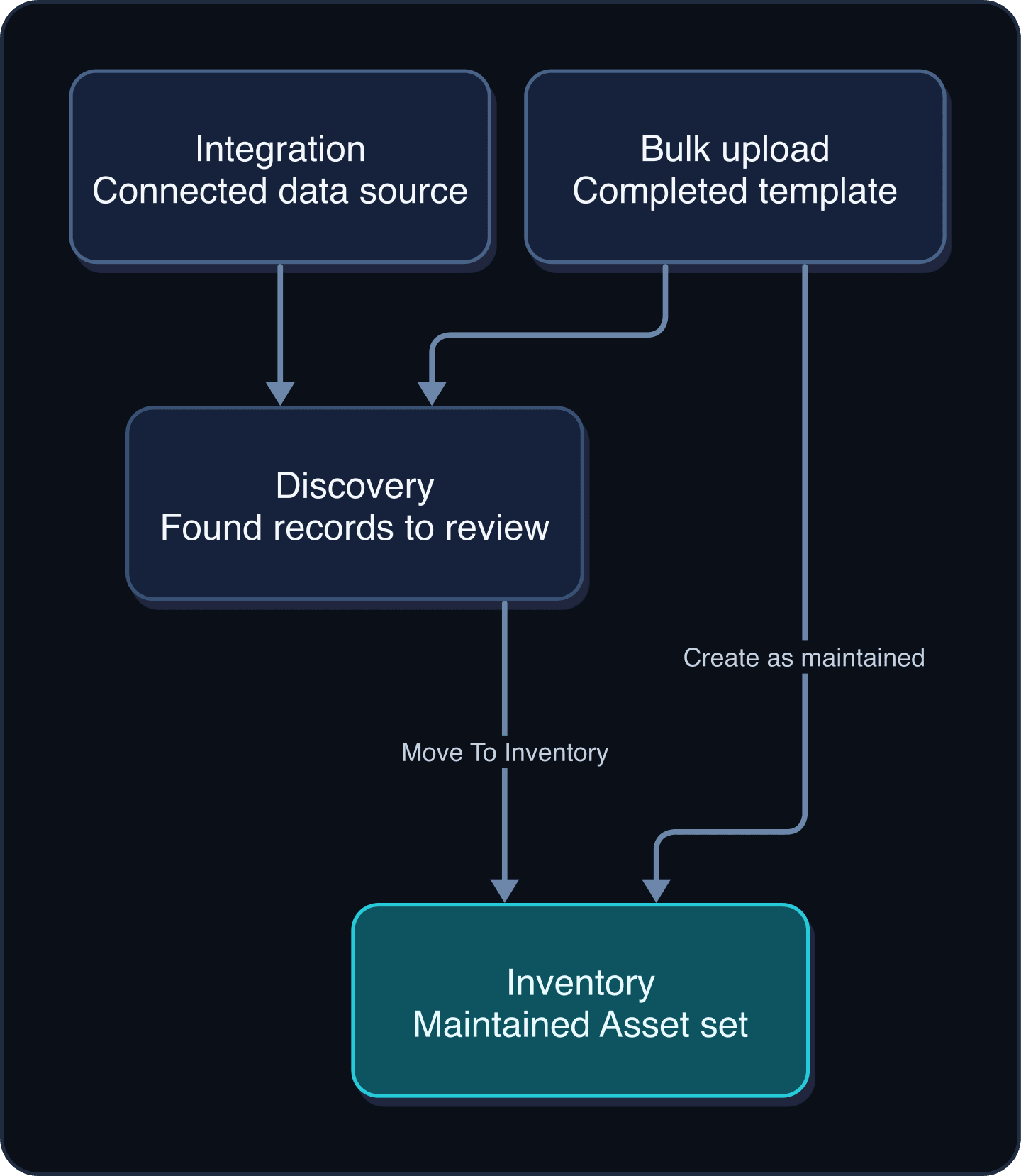
| Goal | Use | Important checkpoint |
|---|---|---|
| Create one record and enter its details now | Add an Asset | Verify the exact name, Asset Type, and initial status after refresh. |
| Create many records from one Asset Type | Bulk upload Assets | Resolve missing or unknown columns, then reconcile every result state. |
| Review found records before maintaining them | Review Discovery and move Assets to Inventory | Search Inventory for a duplicate before promotion. |
| Bring records from a supported external source | Add an Integration | Verify connection status, then find imported records by stable identity. |
Use manual creation for a small number of records or a one-off correction. Use bulk upload when a current template represents one Asset per row. Use an Integration when an external system remains the source of inventory data.
Regardless of path, search first. A matching display name is not enough to prove two records are different; compare Asset Type, source, and stable identifiers.
Learn and continue
- Learn: Understand Asset Types and Service Catalogs
- In WanAware: Open
/assets/inventory, then select + Add Asset.
Next steps
Get help
Email [email protected] and include:
- Company, affected user, page URL, import timestamp, and time zone
- Asset Type, row number, or Asset ID
- Reproduction steps and the exact validation text
Never attach credentials, tokens, secrets, or customer-sensitive data.
Updated about 2 months ago
Did this page help you?