
Add catalog entries and compatibility
Add supported catalog records and define which models, components, or software work together.
Outcome: Build the managed choices needed by a draft Asset Type and verify their compatibility relationships.
For: Customer administrators and data model owners
Permission: update service_catalog
Time: 15–30 minutes
Changes made: Adds or changes shared catalog entries and compatibility
If you're stuck
- Confirm the selected Asset Type is the intended customer draft.
- Add and save the parent entry before trying to add its Model, Module, or Software child.
- Search by canonical name and provider ID before creating a near-duplicate.
Before you start
- Select the intended custom Asset Type and confirm its status is Draft.
- Agree on naming conventions and sources.
- Start with one complete manufacturer or provider family.
- Confirm which parent record is required before adding a Model, Module, or Software item.
Field and relationship guide
| Entry or setting | Purpose | Required context | Verification |
|---|---|---|---|
| Provider or Manufacturer | Top-level catalog identity | Canonical name and source reference | Appears once at the catalog root |
| Model | Product or offering under a parent | Saved Provider or Manufacturer | Appears under the intended parent |
| Module or Software | Component or software choice | Supported saved parent | Appears under that parent, not at the catalog root |
| Specification | Structured technical characteristic | Entry whose schema accepts that specification | Reopens with the saved value and unit |
| Attribute | Additional managed characteristic | Entry and supported attribute key | Reopens on the intended entry |
| Compatibility | Restricts valid combinations | Both related catalog entries must already exist | Dependent Asset field shows only approved choices |
Add entries
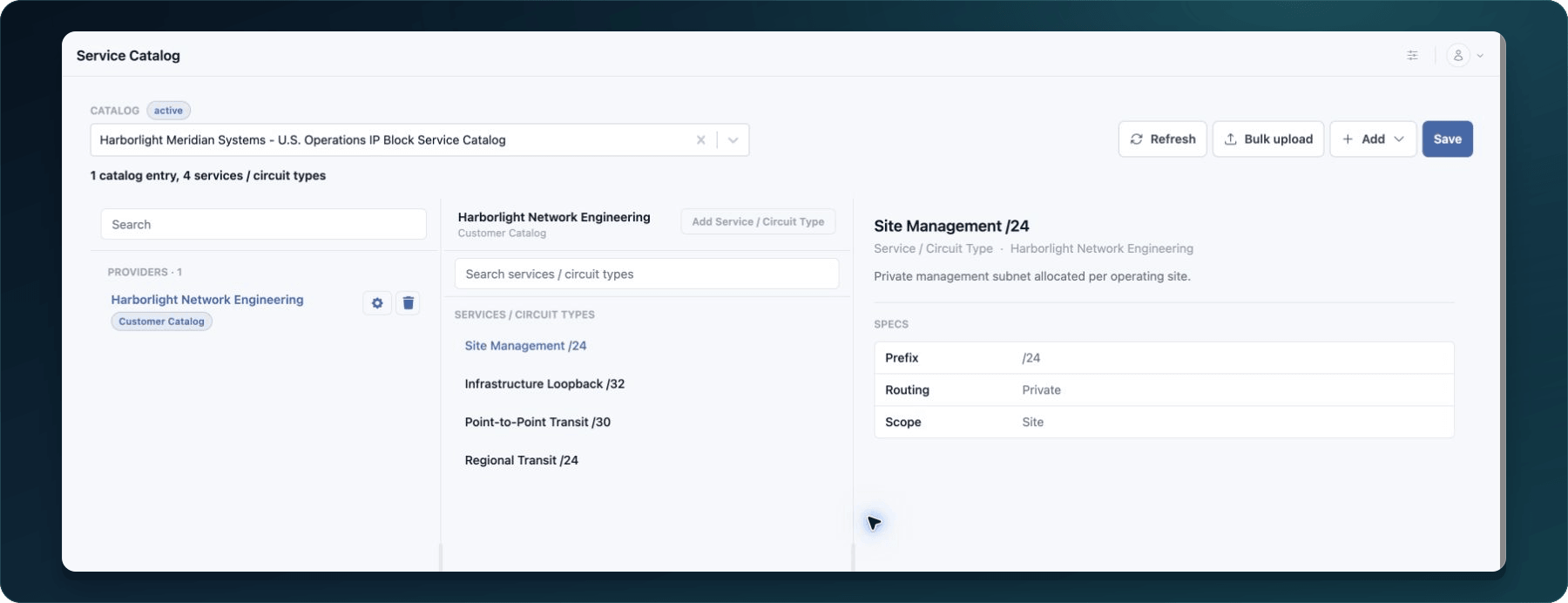
- Open Administration → Service Catalog and select the draft Asset Type.
- Select Add.
- Choose an available top-level type such as Manufacturer, Provider, Carrier, or Carrier Loop.
- Enter its name, description, and approved custom data.
- Save the entry.
- Select the saved Provider or Manufacturer that owns the product, then add Model if that parent exposes the action.
- Under the required manufacturer context, add Module or Software where supported.
- Add the available specifications and catalog attributes.
- Save after each coherent group of changes.
Expected result: The hierarchy shows each entry under the intended parent with its saved details.
If an option is absent, first select the parent that makes the child type valid. Do not create a differently named substitute.
Define compatibility
- Open the catalog entry that provides compatibility settings.
- Search for the supported models or components.
- Select only combinations approved for the customer workflow.
- Save the entry.
- Reopen it and confirm the selected compatible items remain.
Expected result: Asset fields can present compatible downstream choices based on the selected parent value.
Check your result
Use a documentation-only asset after the catalog is saved. Select the parent catalog value and confirm the expected compatible options appear without near-duplicates.
Undo this change
Remove an incorrect compatibility selection and save again. Before editing or removing a catalog record, confirm whether it is used by any asset or dependent entry.
Learn and continue
- Learn: Understand Asset Types and Service Catalogs
- In WanAware: Open
/administration/service-catalogand select the draft Asset Type.
Next steps
Get help
Email [email protected] and include:
- Company, affected user, page URL, timestamp, and time zone
- Asset Type ID, entry IDs, and expected compatibility
- Reproduction steps and the exact error
Never send passwords, credentials, tokens, or secret values.
Updated about 2 months ago