
Manage company settings
Review and update the released company-level settings available to your administrator role.
Outcome: Update an approved company setting and confirm the shared result.
For: Customer administrators
Permission: view general, view company_information, and update company_information
Time: 5–10 minutes
Changes made: Updates settings shared by company members
If you're stuck
- Administration → General requires both
view generalandview company_information. - If fields are visible but read-only, confirm
update company_information. - Record the current value before changing Name or either company logo.
Before you start
- Confirm the company workspace shown in the page.
- Record the current value.
- Get approval from the setting owner.
- Do not place credentials, secrets, or unnecessary personal data in company fields.
Field and option guide
| UI item | Purpose | Format or limit | Where it appears later |
|---|---|---|---|
| Name | Company display name | Required; use the approved legal or operating name | Company and account context |
| Subdomain | Shows the company's workspace address | Verify the displayed value; do not assume changing the name changes it | Workspace URL |
| Dark Mode Logo | Logo shown against dark surfaces | PNG or JPG preferred; file limit shown by the uploader | Dark appearance |
| Light Mode Logo | Logo shown against light surfaces | PNG or JPG preferred; file limit shown by the uploader | Light appearance |
| Save | Stores approved changes | Select once after previewing values and logos | General settings after refresh |
Update a setting
- Open Administration → General.
- Open Organization Information.
- Confirm the company name or identifier.
- Change only the approved field.
- Preview logo cropping and contrast before accepting an uploaded image.
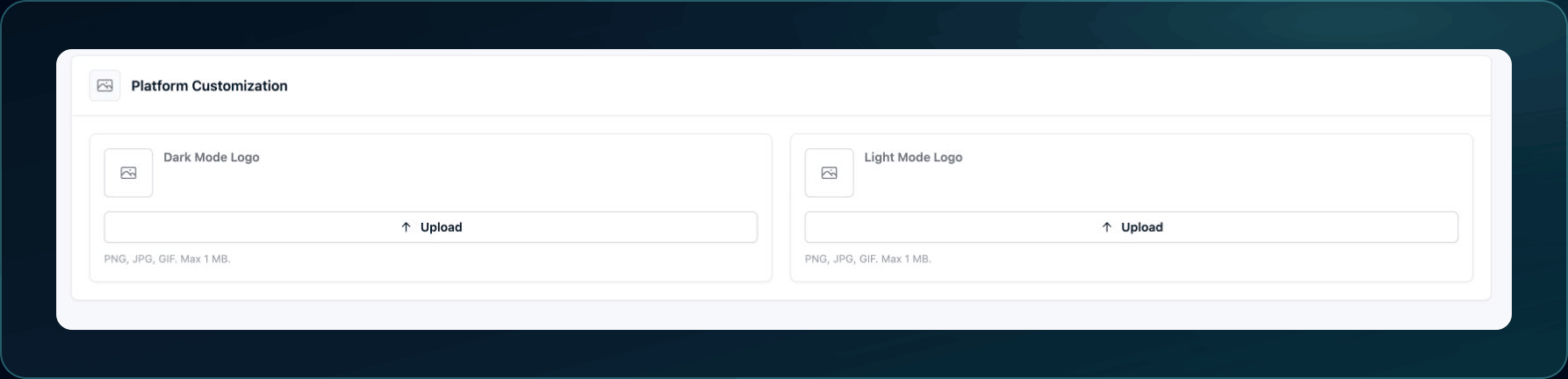
6. Select Save.
Expected result: WanAware confirms the save and the value remains after refresh.
If the field is read-only, ask an administrator to confirm the permission and whether Support must make the change.
Check your result
Refresh the page and confirm the saved value. Ask a second permitted user to check any setting intended to affect all members.
Undo this change
Restore the recorded value and save again. Contact Support if the setting has no edit control or its effect cannot be reversed safely.
Learn and continue
- Learn: Understand Roles and Permissions
- In WanAware: Open
/administration/general/companyin your WanAware workspace.
Next steps
Get help
Email [email protected] with your company, affected user, field label, previous and intended sanitized values, page URL, timestamp and time zone, and exact error. Never send passwords, credentials, tokens, or secret values.
Updated about 2 months ago