
Manage your profile and security
Update your personal profile and use the released security settings for your account.
Outcome: Update a personal profile or security setting and verify that your account remains accessible.
For: Signed-in WanAware members
Permission: view my_profile_general or view my_profile_security; the matching update permission for changes
Time: 5–10 minutes
Changes made: Changes your own account information or sign-in security
If you're stuck
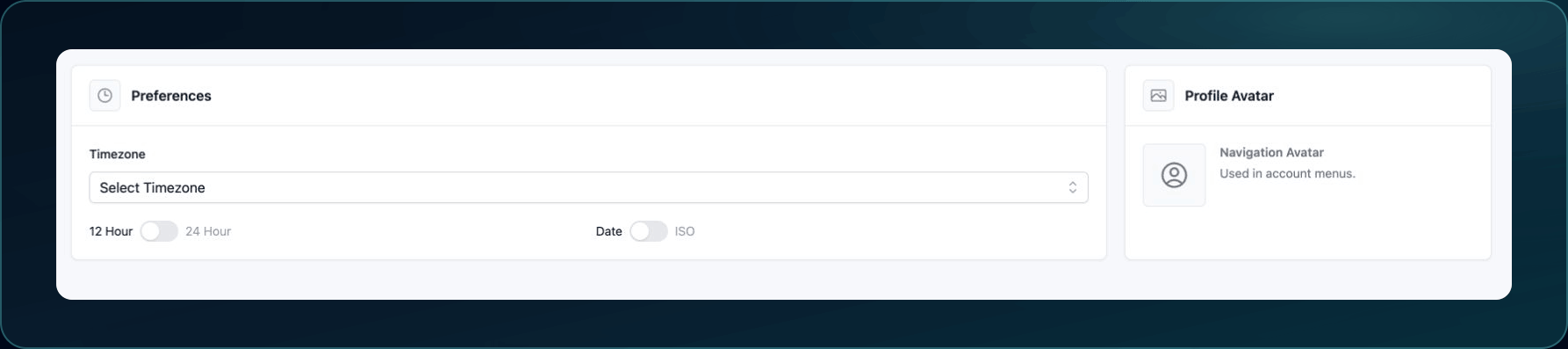
- Use General for your name, time zone, time format, date format, and avatar. Your email address is read-only.
- Use Security for two-factor authentication and password actions.
- If a verification code fails, correct device time and use the newest code.
- Keep the current session open until a second sign-in test succeeds.
Before you start
- Confirm you are signed in as the intended user.
- Keep access to your current sign-in method.
- If your company uses an external identity provider, it may manage your password and two-factor authentication outside WanAware.
- Never share a password, recovery code, or MFA code with Support.
Field and option guide
| UI item | Purpose | Required state or accepted value | Where the value appears |
|---|---|---|---|
| Full Name | Sets your displayed name | Required | Profile details and other places that identify your account |
| Identifies your account and sign-in address | Read-only on this page | Profile details and sign-in flows | |
| Timezone | Controls the time zone used for displayed dates and times | Select one listed time zone | Time-based values throughout your workspace |
| 12 Hour or 24 Hour | Controls the displayed time format | Select one | Time-based values throughout your workspace |
| Date or ISO | Controls the displayed date format | Select one | Date-based values throughout your workspace |
| Change avatar | Replaces your profile image | JPG, GIF, or PNG; maximum 1 MB | Your profile menu and profile details |
| Current Password | Confirms that you can change the current password | Your current WanAware password | Used only during the password change |
| New Password | Sets the replacement password | At least 12 characters with uppercase, lowercase, digit, and special characters | Your next password-based sign-in |
| Confirm New Password | Prevents password entry mistakes | Must exactly match New Password | Used only during the password change |
| Authenticator App | Adds an app-based second factor | Current six-digit code from a supported authenticator | Required during sign-in after enrollment |
| Recovery Codes | Provides one-time access if the authenticator is unavailable | Store each code securely; each code works once | Two-factor recovery during sign-in |
Update your profile
- Open your profile menu.
- Select General.
- Change Full Name, Timezone, the time format, or the date format.
- To change your avatar, select Change avatar and choose a supported image no larger than 1 MB.
5. Select Save.
Expected result: WanAware displays Profile updated successfully.
- Refresh General and confirm that each saved value remains selected.
Your email address is read-only. Contact your administrator if the displayed address is wrong.
If Change avatar is absent, your identity provider manages the profile image.
Change your password
This option appears only when WanAware manages your password.
- Open your profile menu and select Security.
- In Change Password, enter your Current Password.
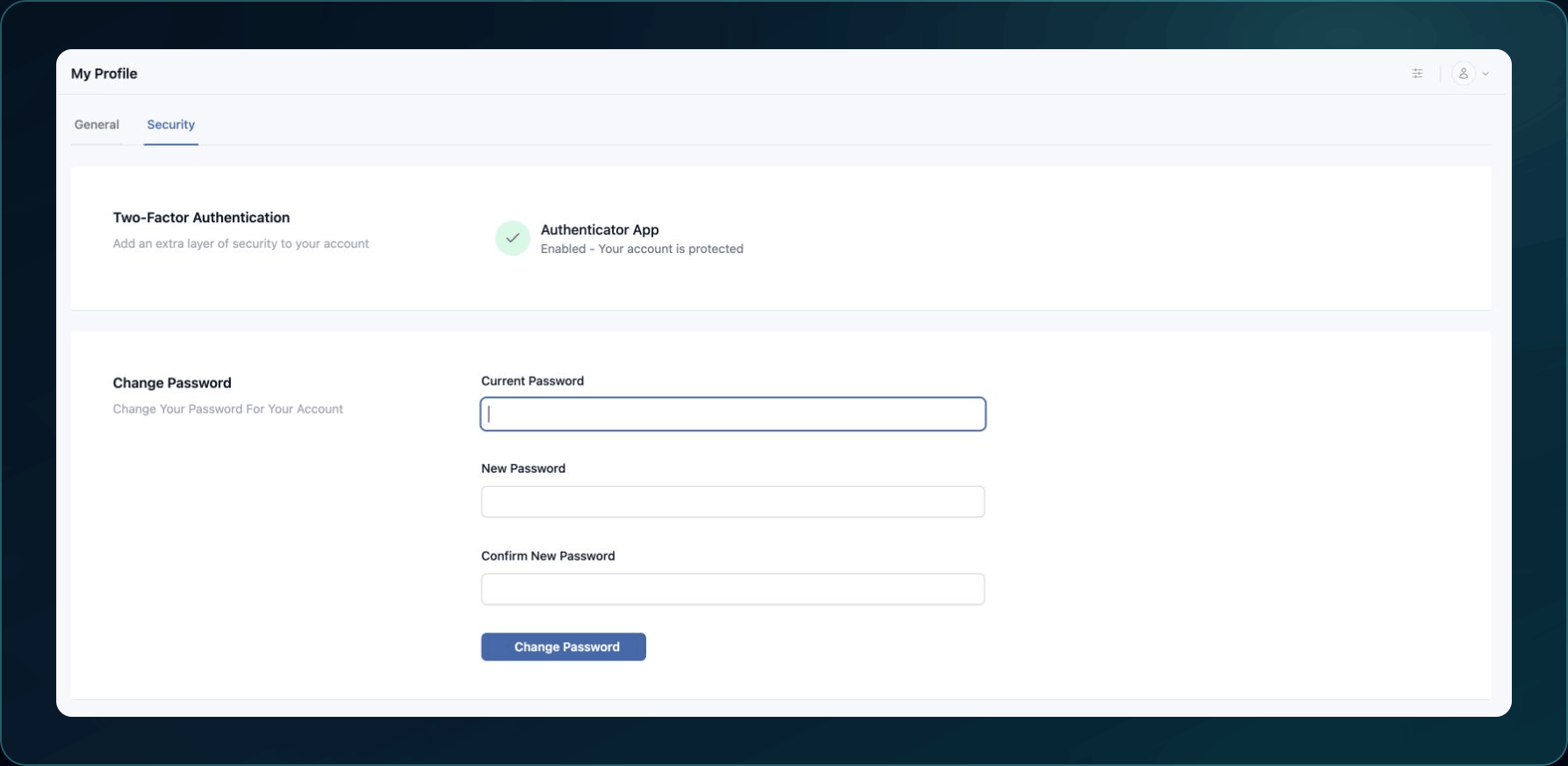
3. Enter a New Password with at least 12 characters.
4. Include at least one uppercase letter, one lowercase letter, one digit, and one special character.
5. Enter the same value in Confirm New Password.
6. Confirm that the page displays New Password Meets Password Requirements.
7. Select Change Password.
Expected result: WanAware accepts the change without displaying an error.
If the page says you used the password before, choose a password you have not used for this account.
If the change fails, re-enter Current Password and check both new-password fields for a mismatch.
Enable two-factor authentication
If Security says to set up two-factor authentication during sign-in, your identity provider owns this workflow. Sign out only after confirming that you can complete its next sign-in flow.
When WanAware displays Enable:
- Open your profile menu and select Security.
- Under Two-Factor Authentication, find Authenticator App.
- Select Enable.
- Select Get started.
- In Google Authenticator, Microsoft Authenticator, Duo, or another compatible app, add an account by scanning the QR code.
- Enter the current six-digit code from the authenticator app.
- Continue to Recovery Codes.
- Select Copy or Download, then store the codes in a secure location.
- Select I have saved these codes securely to finish enrollment.
Expected result: Authenticator App displays Enabled - Your account is protected.
If a code does not work, confirm that the device clock is automatic. Wait for a new code, then enter it once.
Do not scan the QR code into more than one account in the same authenticator app. Confirm the WanAware account label before entering a code.
Regenerate recovery codes
Regeneration invalidates the previous recovery-code set.
- Open Security.
- Find Recovery Codes.
- Select Regenerate.
- Select Copy or Download and store the new codes securely.
- Remove the old codes from your password manager or secure storage.
Expected result: WanAware displays Recovery codes regenerated and shows the new set.
Disable two-factor authentication
Disable two-factor authentication only when your company policy allows it.
- Open Security.
- Under Authenticator App, select Disable.
- Review the Disable Two-Factor Authentication? confirmation.
- Confirm the action.
Expected result: Authenticator App displays Not enabled - Protect your account with 2FA.
If Disable is unavailable, your organization requires MFA. Ask an administrator about the applicable policy.
Check your result
Open a private browser session and sign in with the updated password or authenticator. Keep the original session open until this test succeeds.
If the new sign-in fails, return to the original session and review I cannot sign in, reset my password, or complete MFA.
Undo this change
Restore an editable profile value through General.
You cannot recover a previous password or recovery-code set. If you lose every working sign-in method, contact Support from a trusted company address.
Learn and continue
- Learn: Understand Roles and Permissions
- In WanAware: Open
/profile/generalor/profile/securityin your WanAware workspace.
Next steps
Get help
Email [email protected] with your company, affected user email, page URL, timestamp and time zone, attempted action, and exact error. Never send passwords, MFA codes, recovery codes, invitation tokens, credentials, or access tokens.
Updated about 2 months ago