
Create and edit Roles
Build a customer Role from exact Permissions and verify that it grants only the intended access.
Outcome: Create or update a customer Role with the smallest set of Permissions needed for a job.
For: Customer administrators
Permission: read roles and create roles; use update roles to edit an existing customer Role
Time: 5–10 minutes
Changes made: Creates or changes access that can be assigned to company members
If you're stuck
- Confirm you are in Administration → IAM → Roles, not the Users list.
- If Create Role is missing, confirm
create roles. - If an existing Role cannot be edited, check whether it is a system Role. System Role Permissions are managed by WanAware.
Before you start
- Write down the pages and actions the person must use; do not copy an administrator Role by default.
- Keep another active administrator with IAM access before reducing your own permissions.
- Review the navigation permission map for Permissions whose names differ from their UI labels.
Field and option guide
| UI label | Purpose | What to enter or select | Where it appears later |
|---|---|---|---|
| Name | Identifies the access profile | A unique, job-based name such as Asset reviewer | Role list and member assignment |
| Permissions | Controls visible areas and allowed actions | Only the action resource pairs the job requires | The member's navigation and available controls |
| Create Role | Saves a new customer Role | Select after reviewing the name and Permissions | Role list |
Create a Role
- Open Administration → IAM → Roles.
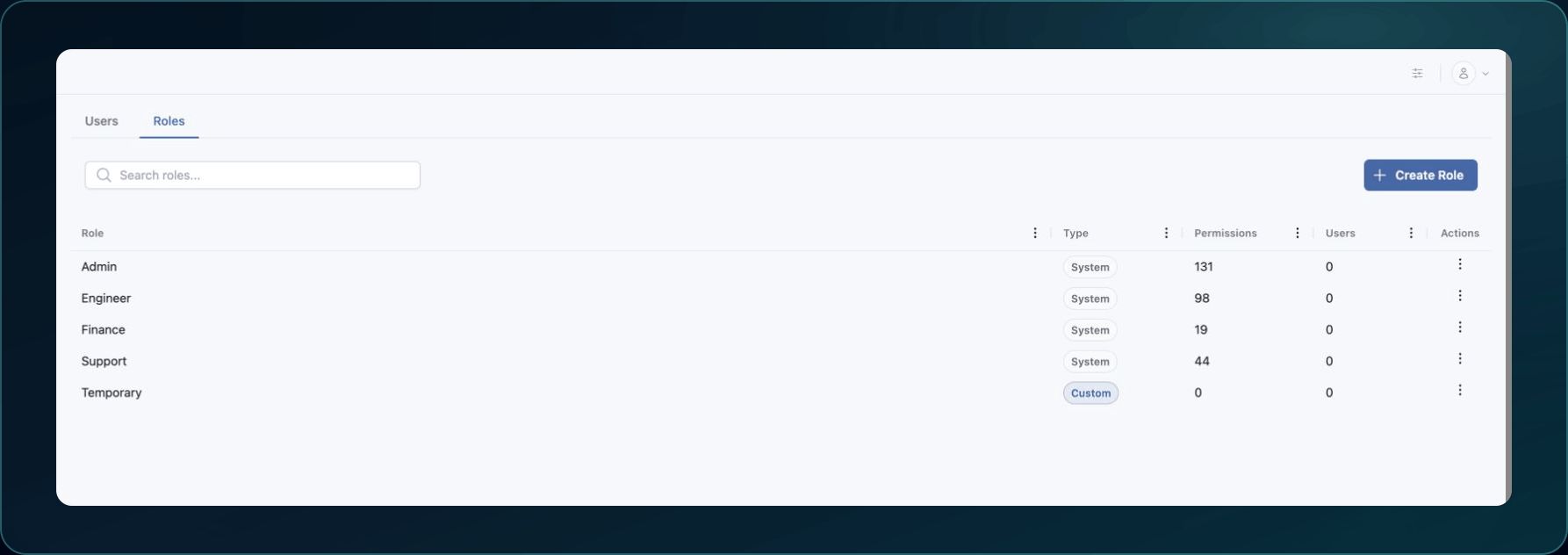
2. Select Create Role.
3. Enter Name using a job or responsibility, not a person's name.
4. In Permissions, expand each product area and select the required actions.
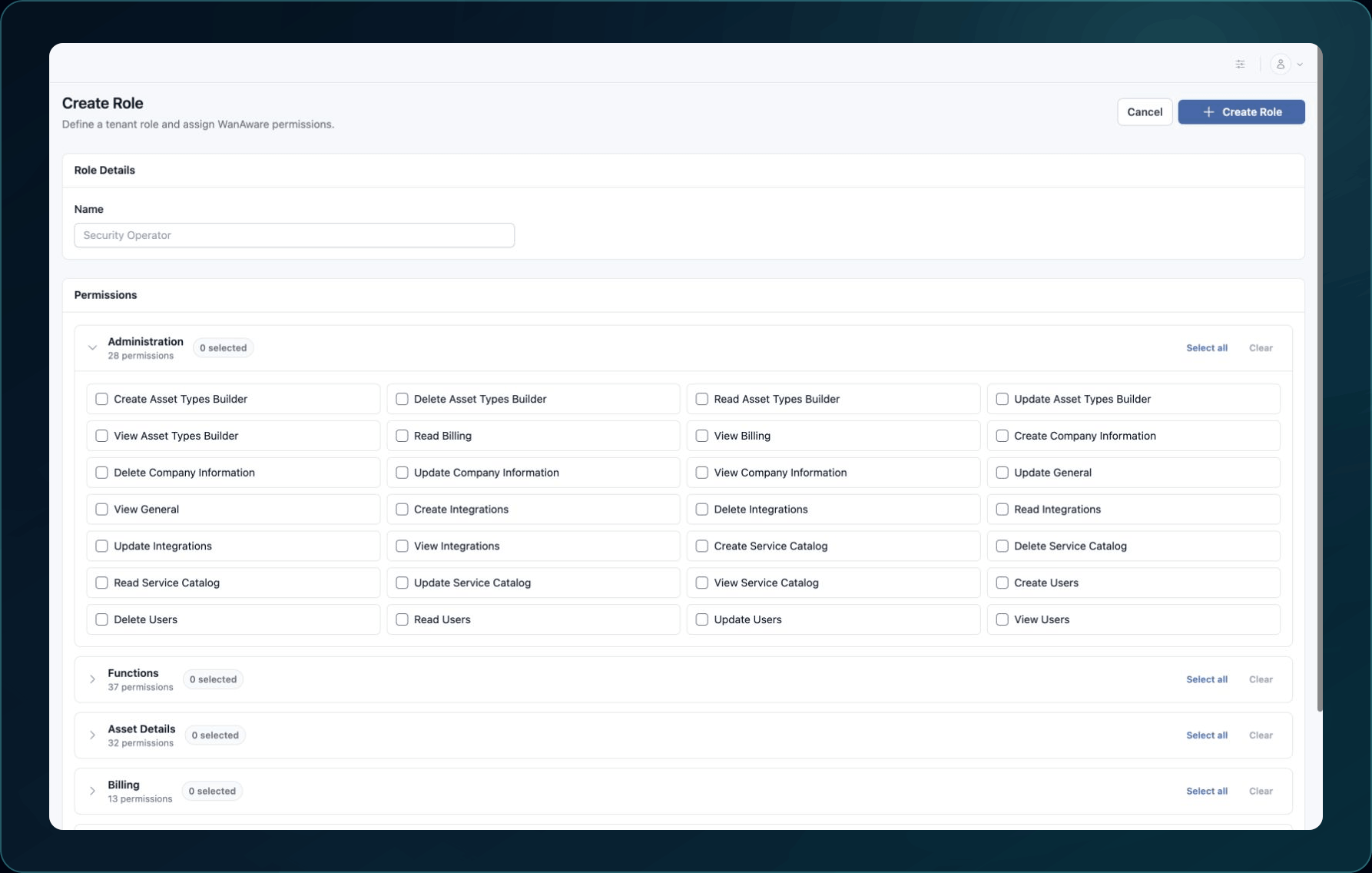
5. Recheck navigation dependencies. For example, Billing requires all four read permissions listed in Understand billing.
6. Select Create Role.
Expected result: The Role opens or appears in the Roles list with the selected Permissions.
If saving fails, keep the page open, copy the Name and selected Permission list, and check for a duplicate name or a Permission that your own account cannot assign.
Edit a customer Role
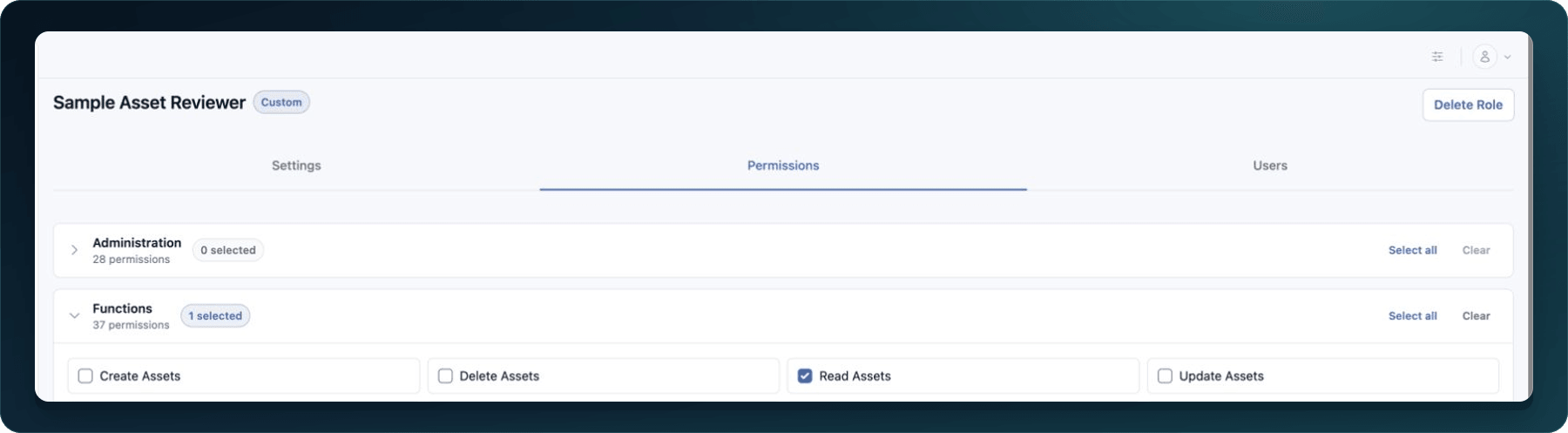
- Open the Role from Administration → IAM → Roles.
- Open Permissions.
- Add or remove only the required Permission entries.
- Save the Role.
Expected result: Reopening the Role shows the revised Permission list.
Changing a Role can alter access for every member assigned to it. Verify at least one affected member before making additional changes.
Verify the Role
Assign the Role to a test member with the intended responsibilities. Have that member sign in again, open one required page, complete one permitted action, and confirm an unrelated administration action is absent.
Undo this change
To reverse a Permission change, restore the previous Permission list and save again.
To remove a customer Role that is no longer needed:
- Move every assigned member to an approved replacement Role.
- Open the unused Role from Administration → IAM → Roles.
- Select Delete Role.
- Confirm that the dialog names the intended customer Role and states that deletion cannot be undone.

- Select Delete.
Expected result: WanAware reports Role deleted, returns to the Roles list, and the deleted Role no longer appears. If members still depend on the Role or its impact is unclear, select Cancel and review the Users tab first.
Learn and continue
- Learn: Understand Roles and Permissions
- In WanAware: Open
/administration/iam/rolesin your WanAware workspace.
Next steps
Get help
Email [email protected] with your company, affected user, Role name, Permission names, page URL, timestamp and time zone, reproduction steps, and exact error. Never send passwords, invitation links, credentials, or access tokens.
Updated about 2 months ago