
Add a supported network connection
Use Add Connection for eligible assets and verify the resulting relationship.
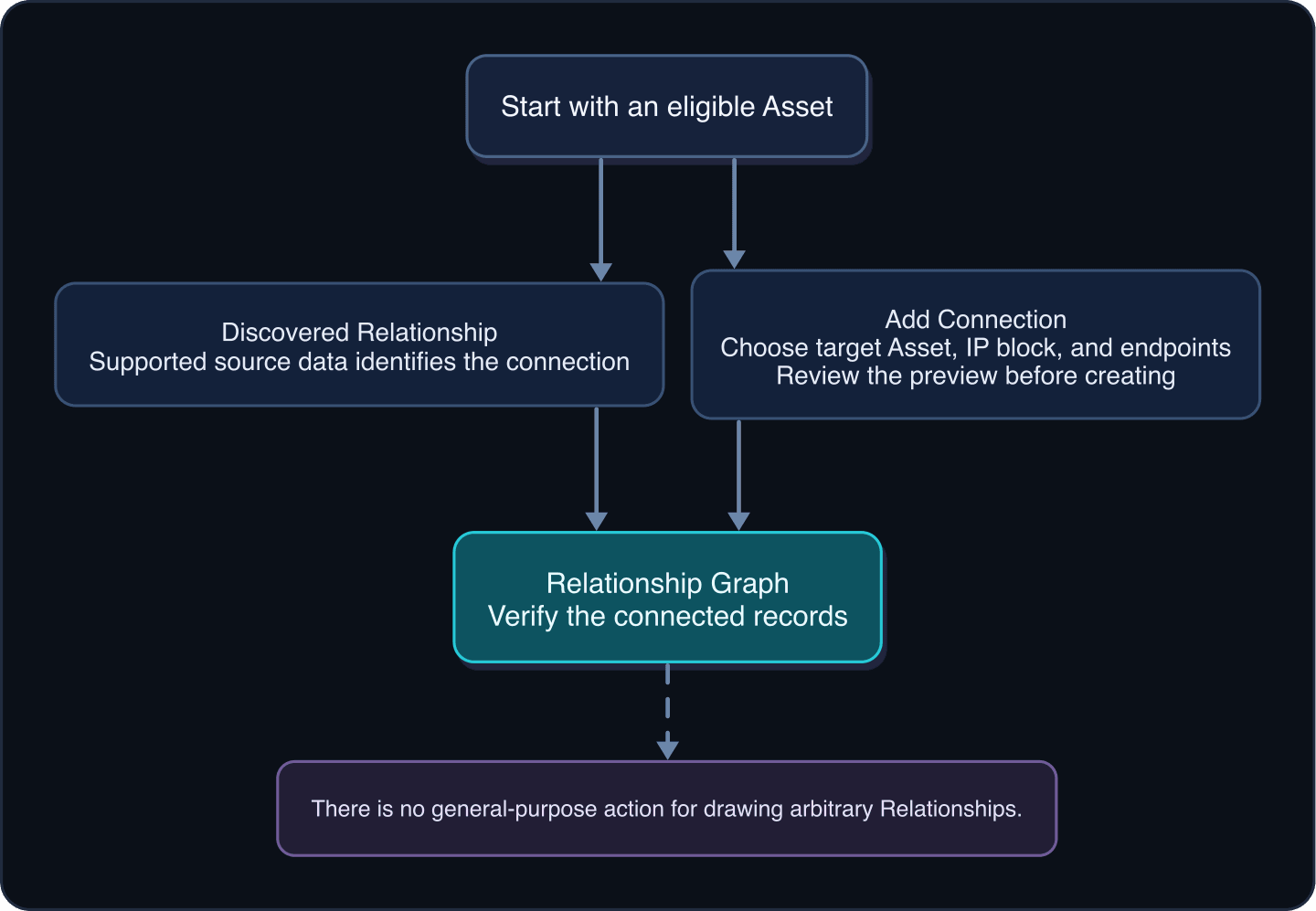
Outcome: Connect two supported network Assets through Add Connection and verify the Relationship.
For: Customer administrators and network engineers
Permission: update assets
Time: 5–10 minutes
Changes made: May create an IP block or endpoint information and creates a shared network relationship
If you're stuck
- Add Connection appears only on Asset Types that support the network connection workflow.
- Confirm the source and target are different Assets before entering endpoint data.
- Stop at Preview Connection if the IP block, endpoint direction, or Asset identity is wrong.
Before you start
- Confirm both Assets exist and represent different resources.
- Gather the approved IP block and endpoint details.
- Check the current Relationship Graph to avoid a duplicate connection.
- Treat a visible Add Connection action as the eligibility check. WanAware does not provide a general action for arbitrary Relationship drawing.
Field and option guide
| UI item | Purpose | What to verify | Where it appears later |
|---|---|---|---|
| Source asset | Starting side of the connection | Name, Asset Type, and unique ID | Preview and Relationship Graph |
| Target asset | Other side of the connection | Different eligible Asset, confirmed by unique ID | Preview and Relationship Graph |
| IP block | Network range associated with the connection | Existing approved block or the exact new block details accepted by the form | Connection preview and related details |
| Endpoints | Source and target interface or address context | Correct value on the correct side; no accidental reversal | Connection preview |
| Preview Connection | Final pre-creation review | Source, target, block, and endpoints all match the approved design | No data change yet |
| Create Connection | Creates the reviewed network relationship | Select once after preview verification | Relationship Graph |
Create the connection
- Open a source Asset that displays Add Connection.
- Select Add Connection.
- If prompted for a source asset, confirm the correct source.
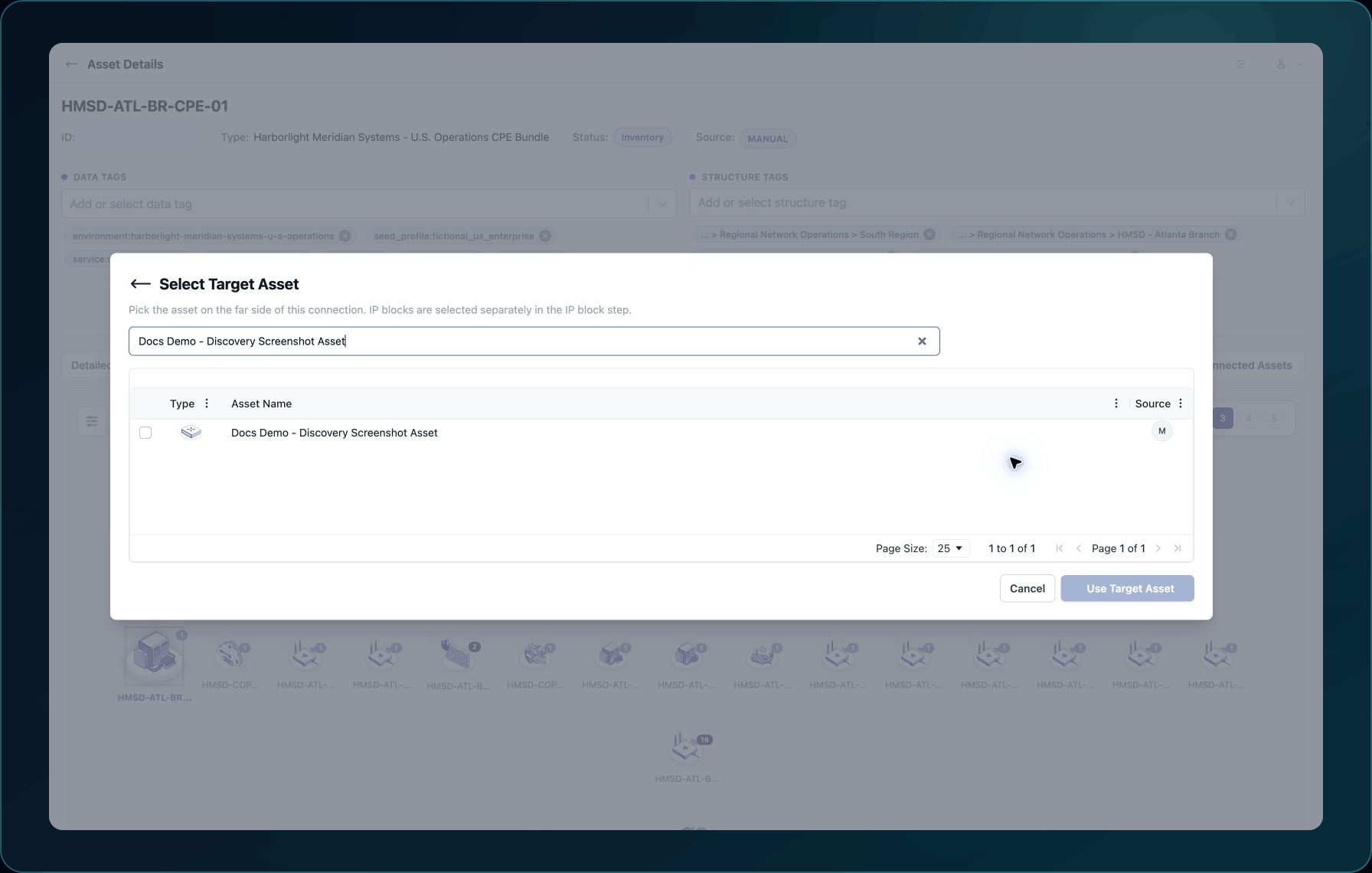
- In Target asset, search for and select the other asset.
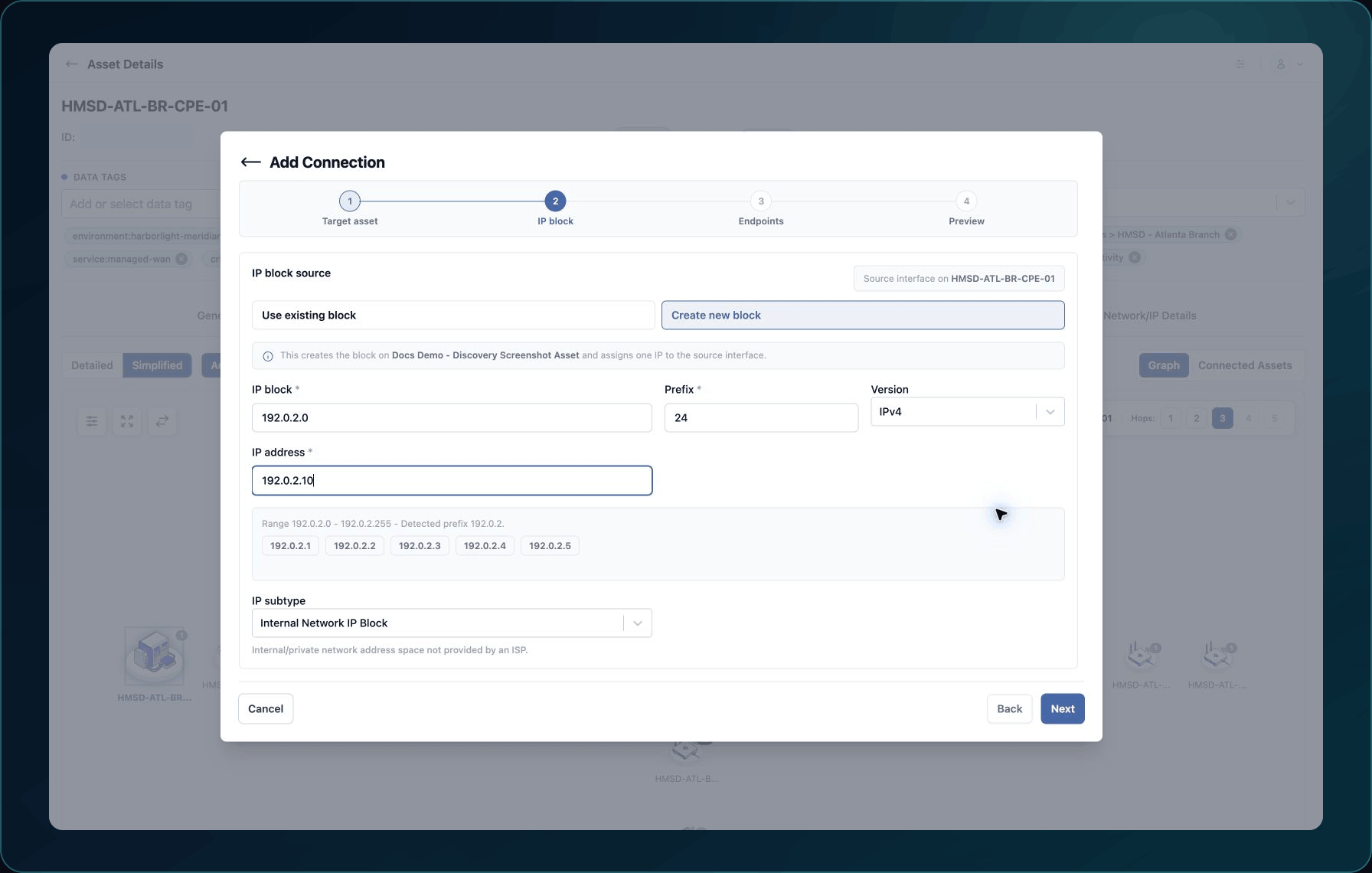
5. In IP block, select an existing block or enter the supported new-block details.
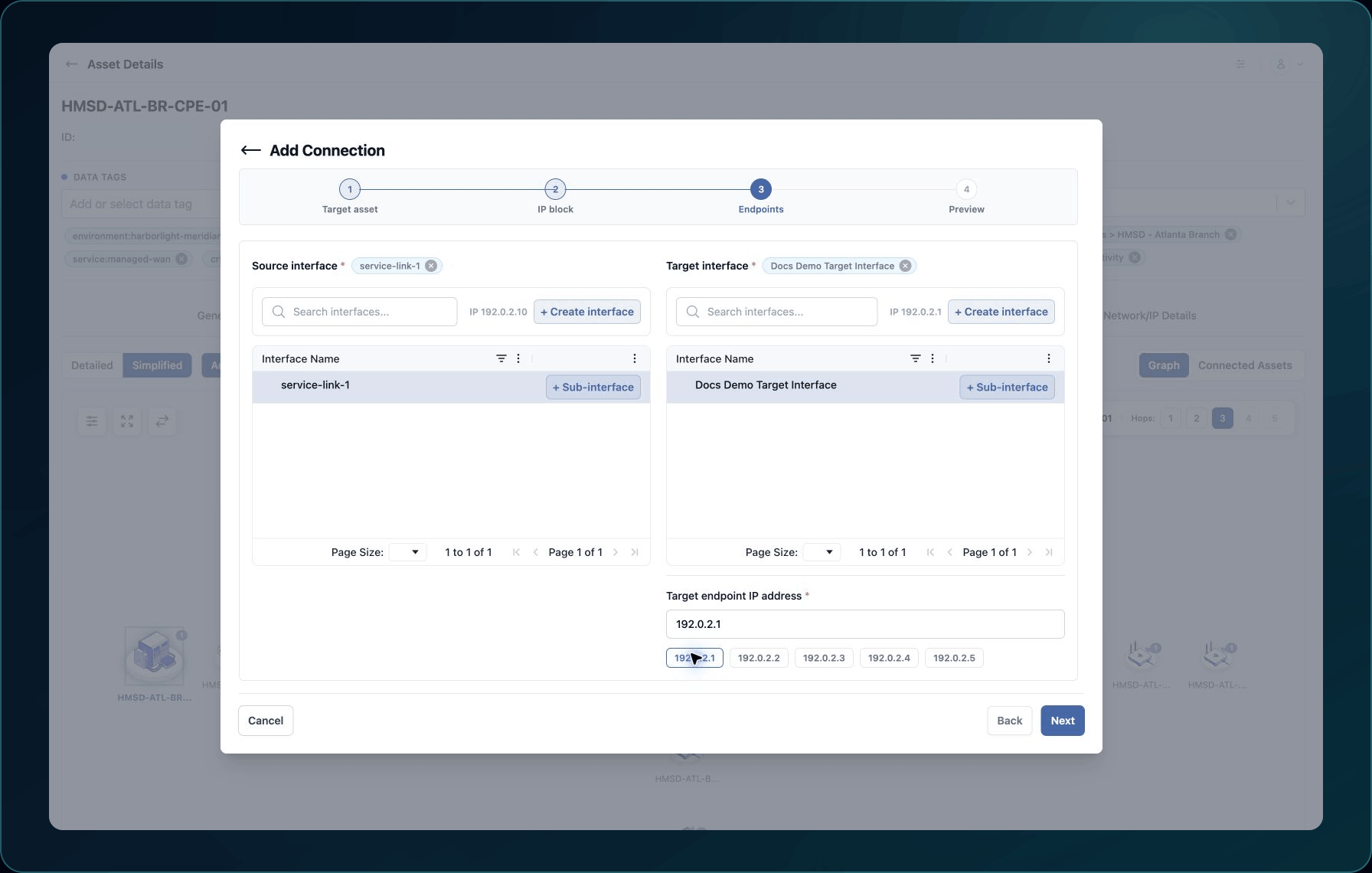
6. In Endpoints, select or enter the source and target endpoint information.
7. Select Preview Connection.
8. Review the source, target, IP block, and both endpoints.
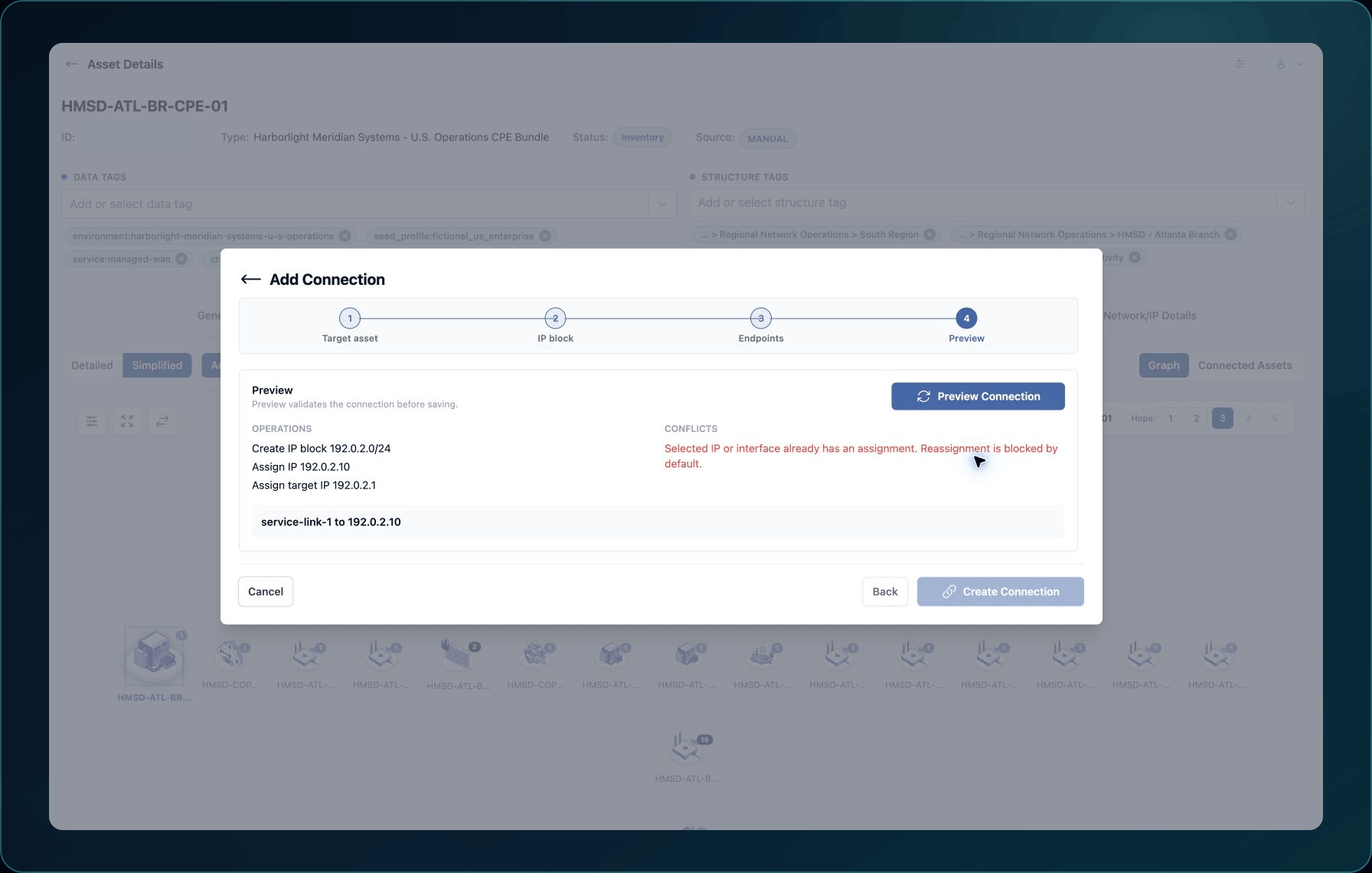
9. Select Create Connection.
Expected result: WanAware shows Network connection created.
If you selected the same Asset twice, return to Target asset and choose a different record.
If endpoint addresses are reversed or duplicated, correct Endpoints before selecting Create Connection.
If a required field is unavailable, stop and contact Support. Do not create the connection with substitute data.
Check your result
- Open the source asset's Relationship Graph.
- Clear graph filters.
- Find the target asset and select it.
- Confirm the source and target details match the preview.
Undo this change
Use the Remove Connection action only after confirming the affected Relationship, endpoints, and IP block. Do not delete an Asset to remove a connection.
If Remove Connection is absent, contact Support before changing an endpoint or shared IP block.
Learn and continue
- Learn: Relationship Discovery Engine
- In WanAware: Open a supported Asset in Functions → Assets → Inventory (
/assets/inventory) and select Add Connection.
Next steps
Get help
Email [email protected] with your company, affected user, sanitized source and target asset IDs, page URL, failed step, timestamp and time zone, reproduction steps, and exact error. Never send passwords, credentials, tokens, or secret values.
Updated about 2 months ago