
Create a custom Asset Type
Start a custom Asset Type with AI, a template, or a blank schema and keep it as a draft.
Outcome: Create a named custom Asset Type and save it as a draft for further configuration.
For: Customer administrators and data model owners
Permission: create asset_types_builder
Time: 5–15 minutes
Changes made: Creates a shared draft schema
If you're stuck
- Search the Asset Type list by exact name before creating another draft.
- Keep the new type in Draft status until its fields and Service Catalog have been verified.
- Treat AI- or template-generated fields as suggestions; remove anything the customer workflow does not require.
Before you start
- Search existing Asset Types for the same concept.
- Write a one-sentence purpose and identify the first Asset that uses this type.
- Choose a durable customer-facing name.
- Use a clearly labeled test type when you are learning or validating this workflow.
Starting option and field guide
| UI item | Use it for | Required review |
|---|---|---|
| Generate with AI | A suggested first schema from a written business purpose | Review every generated section, field, required setting, and dependency |
| Utilize a Template | A released template close to the intended record | Remove irrelevant fields and verify terminology |
| Start from Scratch | A small or purpose-built schema | Add only the required sections and fields |
| Name | Customer-facing Asset Type identity | Unique, durable record-type name |
| Description | Boundary for what belongs in this type | State what the type represents and excludes |
| Save Draft | Saves without publishing | Confirm the result remains Draft |
Choose a starting option
- Open Administration → Asset Types.
- Select + Create New Asset Type.
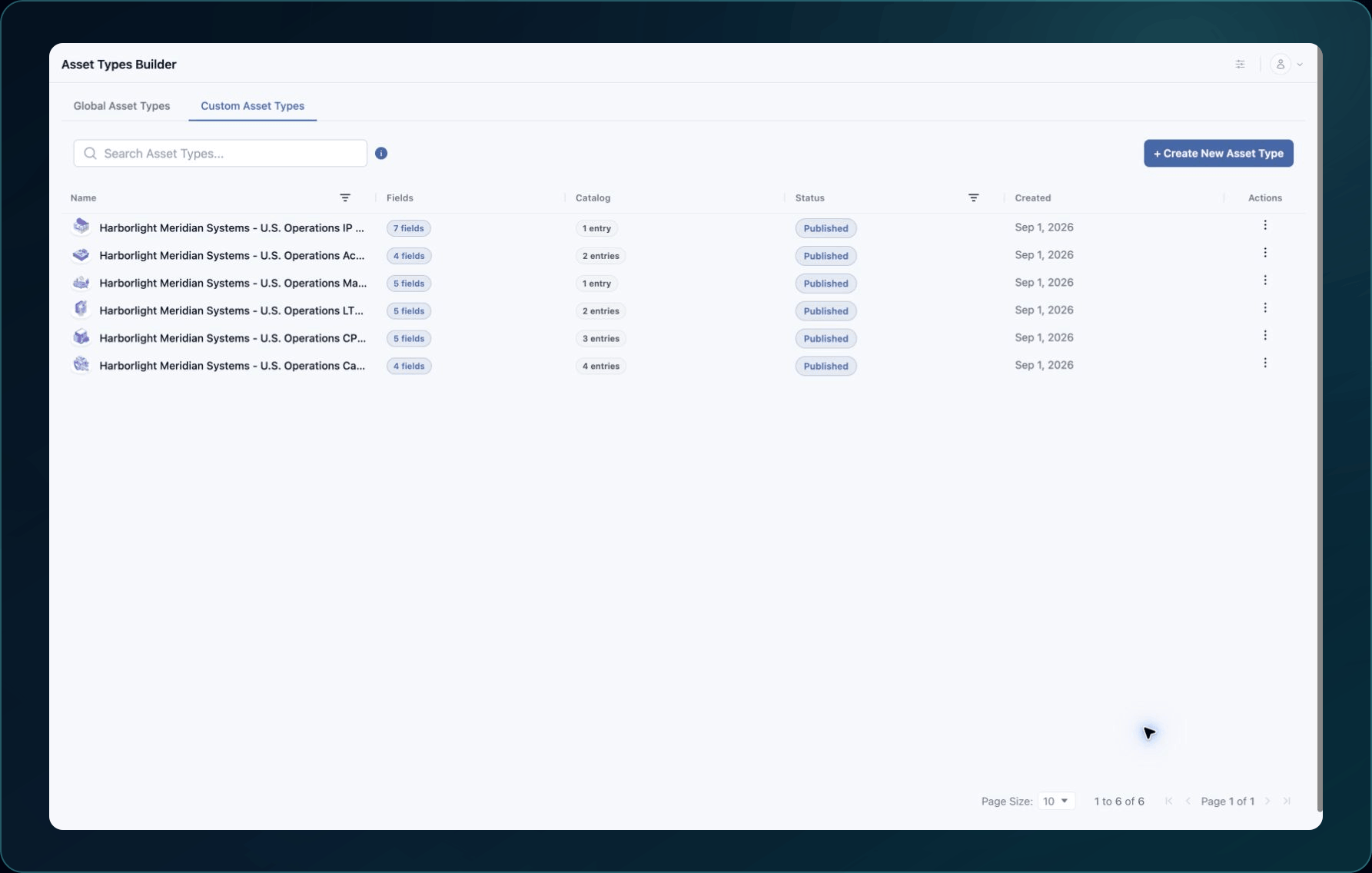
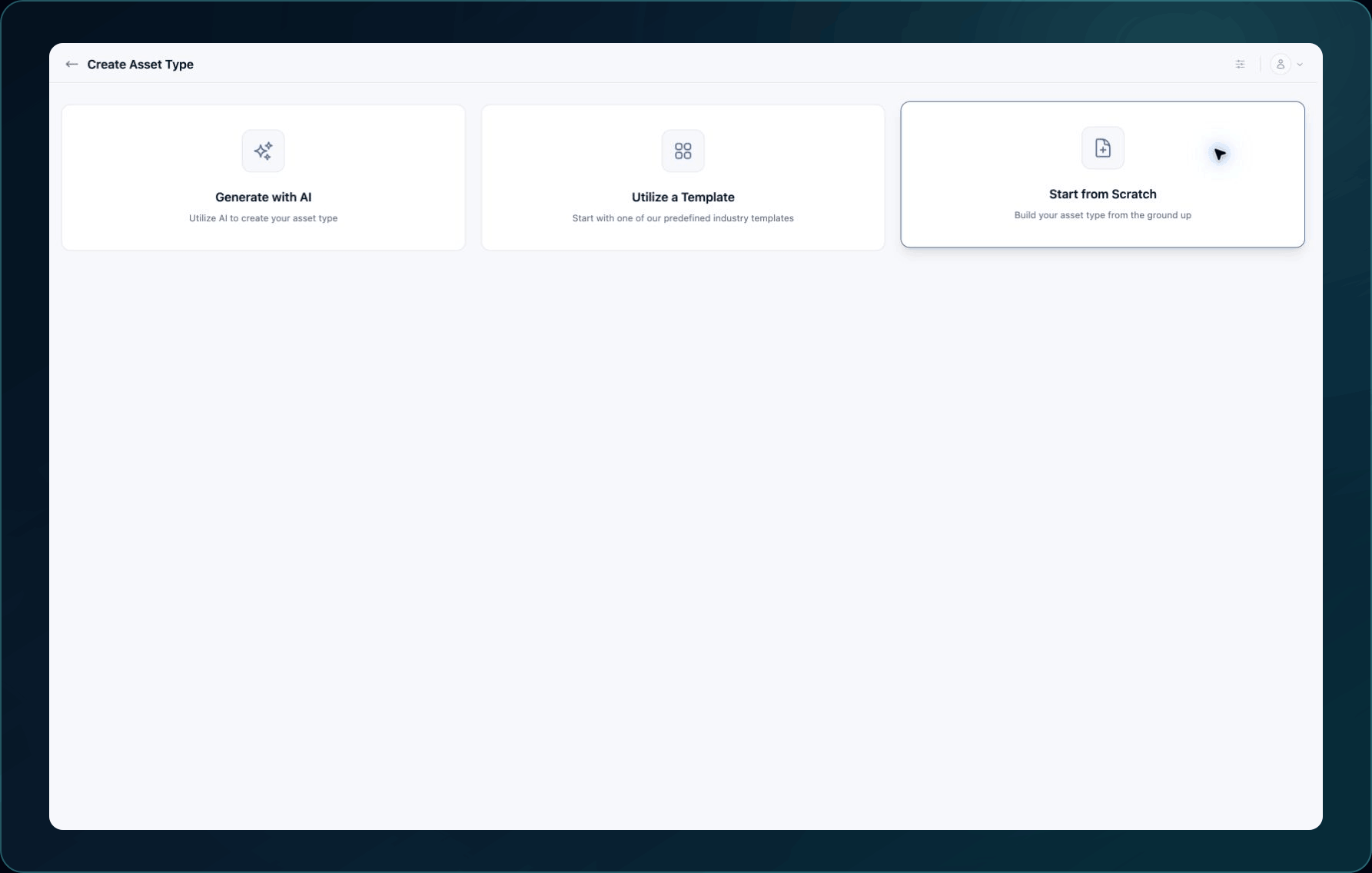
All three paths create a custom draft. The difference is how the first set of sections and fields is produced; nothing is published from this screen.
-
Choose one starting option:
- Generate with AI for a suggested starting schema. Review every field before saving.
- Utilize a Template when an available template closely matches the use case.
- Start from Scratch when you need full control or a small schema.
-
Complete the selected starting flow:
- For Generate with AI, enter the business purpose and the Asset details the schema must store. Review every suggested section and field.
- For Utilize a Template, select the closest template. Remove fields that do not apply to this Asset Type.
- For Start from Scratch, enter the name and description before adding sections.
-
Enter the Asset Type Name and Description.
-
Review the generated or copied sections and fields.
-
Select Save Draft.
Expected result: The Asset Type appears in the list with Draft status.
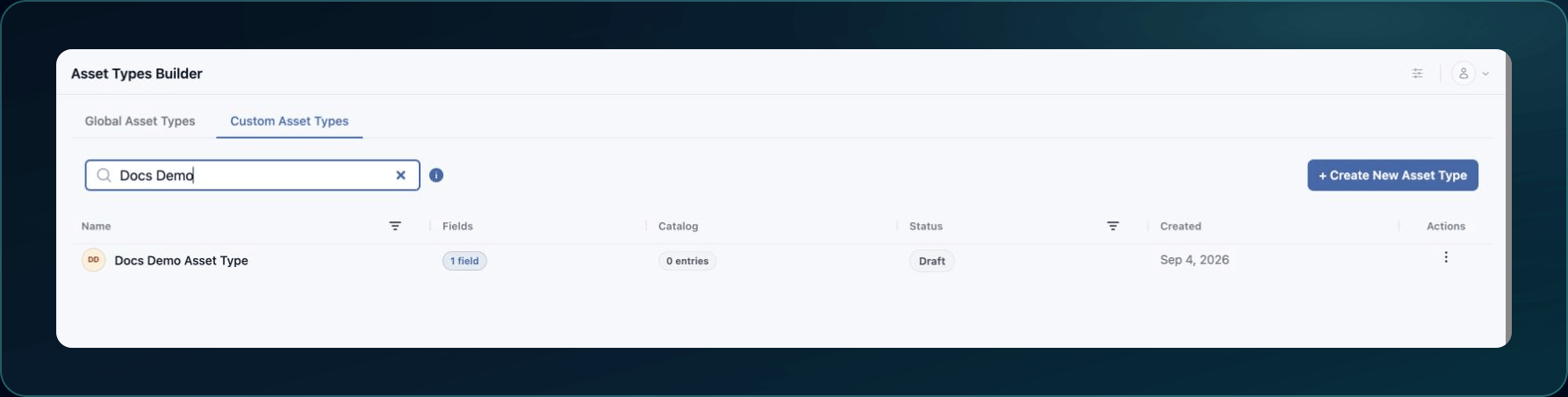
If generation fails or produces unsuitable fields, return to the starting options or remove the unwanted draft fields before saving. Do not publish unreviewed generated content.
Check your result
- Return to Administration → Asset Types.
- Search for the exact name.
- Confirm the status is Draft.
- Reopen it and verify the name and description.
- Open the row actions menu and confirm the actions match the Asset Type's status and your permissions. A manageable draft can show Edit asset type and Publish asset type; a published customer type shows View asset type instead.
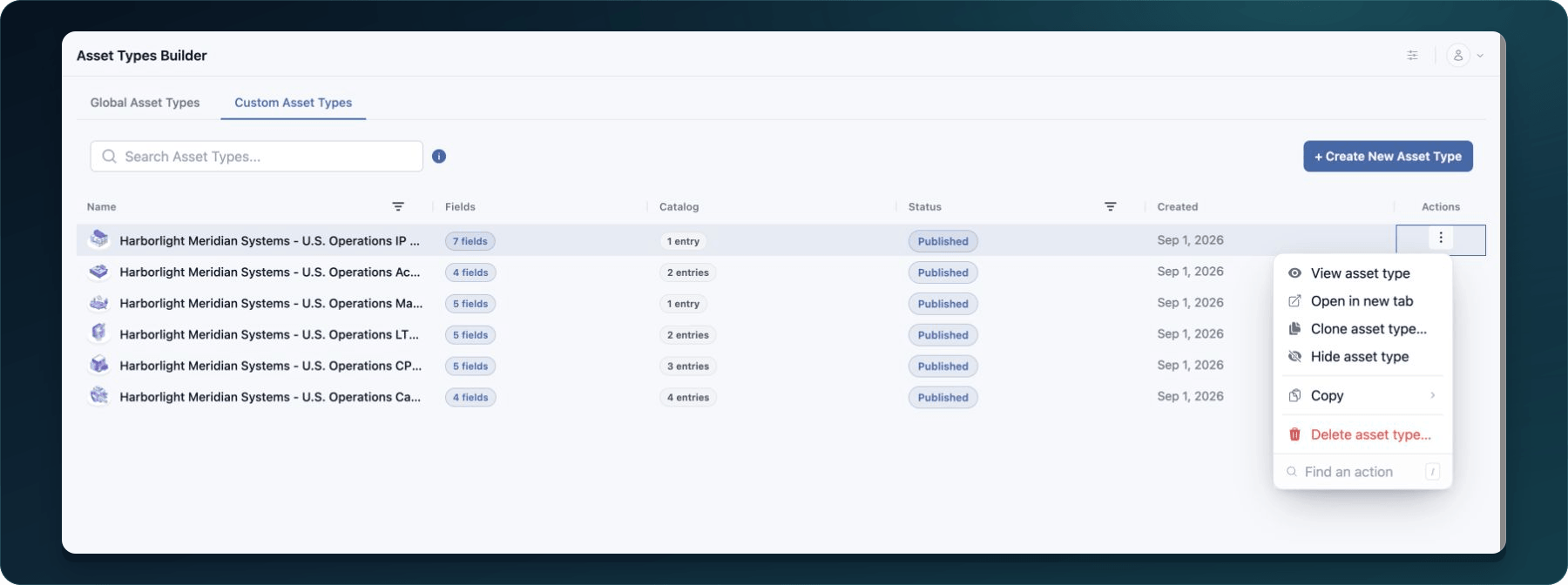
What the row actions do
| Action | Permission | Result |
|---|---|---|
| View asset type or Edit asset type | view asset_types_builder or update asset_types_builder | Opens the selected schema. Published customer schemas can be view-only. |
| Open in new tab | Same access as View or Edit | Opens the same Asset Type without closing the list. |
| Clone asset type | create asset_types_builder | Creates a named custom draft from the selected schema. |
| Publish asset type | update asset_types_builder | Starts the publication preflight for an unpublished manageable type. Review the read-only consequence before confirming. |
| Hide asset type or Restore asset type | update asset_types_builder | Changes customer visibility without deleting the schema. |
| Copy name or Copy ID | Access to the Asset Type list | Copies the displayed identity for search or Support. |
| Delete asset type | delete asset_types_builder | Opens an impact check and confirmation. Do not continue until affected Assets and dependencies are understood. |
Undo this change
Delete only an unused draft after confirming it has no catalog entries or test Assets. Do not use deletion to revise a field; edit the draft instead.
- Return to Administration → Asset Types.
- Search for the draft by its exact name.
- Open the row actions menu and select Delete asset type.
- Wait for the usage check. Continue only when no Assets or dependent catalog data use the draft.
- Read the permanent-deletion warning and select Delete only when the displayed Asset Type is the intended unused draft.
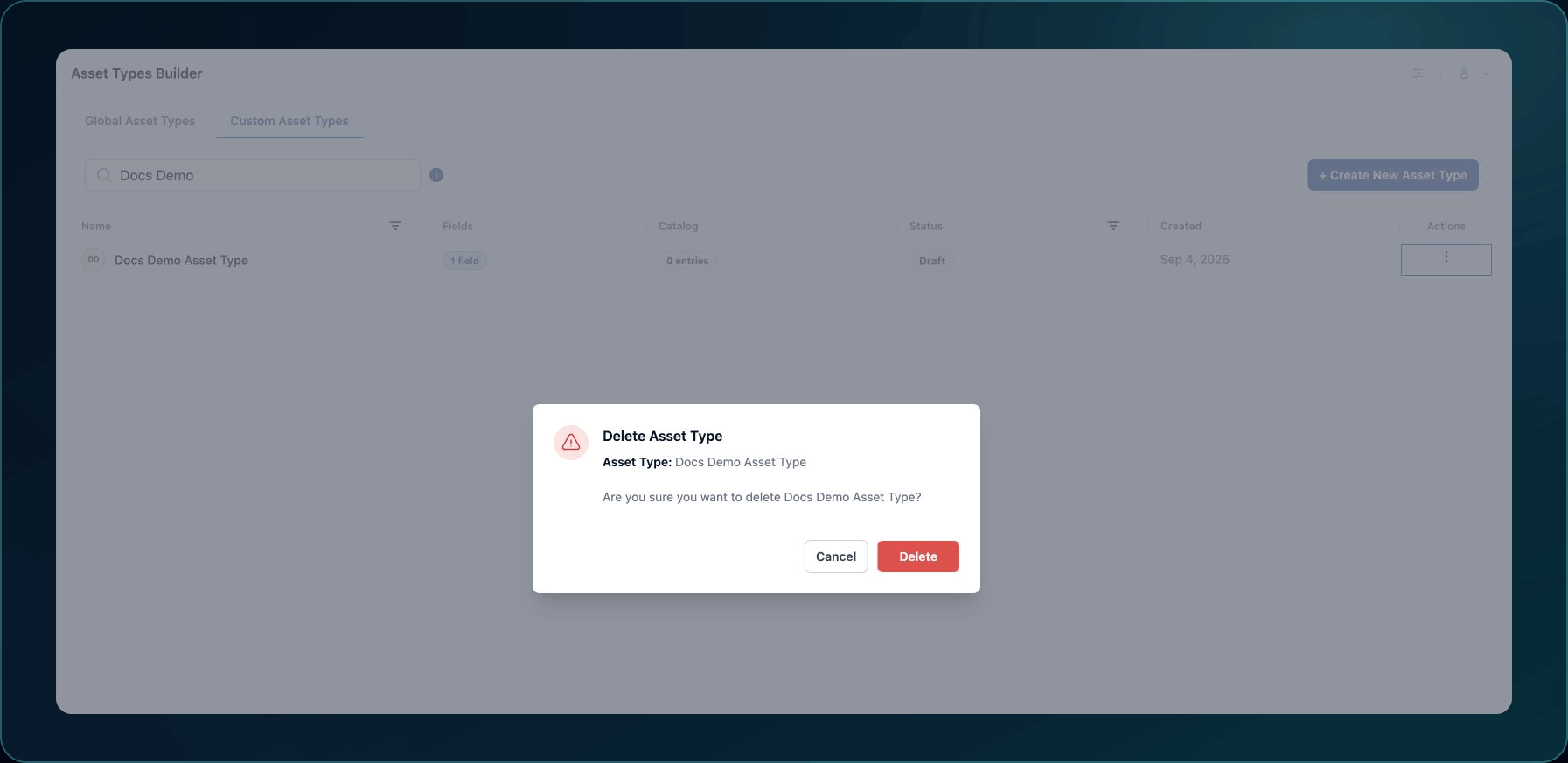
Expected result: The draft no longer appears after the list refreshes. If the usage check reports dependencies, cancel the deletion and remove or correct those dependencies before trying again.
Learn and continue
- Learn: Understand Asset Types and Service Catalogs
- In WanAware: Open
/administration/asset-types/createin your WanAware workspace.
Next steps
Get help
Email [email protected] and include:
- Company, affected user, page URL, timestamp, and time zone
- Draft name or ID and selected starting option
- Reproduction steps and the exact error
Never send passwords, credentials, tokens, or secret values.
Updated about 2 months ago