
Configure Asset Type sections and fields
Build a draft schema with clear sections, validation, dependencies, and catalog support.
Outcome: Build a draft Asset Type that collects the right information in a clear order.
For: Customer administrators and data model owners
Permission: update asset_types_builder
Time: 15–30 minutes
Changes made: Changes a shared draft schema
If you're stuck
- Confirm the Asset Type is still a draft. Publishing can make the schema read-only.
- Build and save the parent field before configuring a dependent field.
- If catalog support is needed, enable it before loading Service Catalog data.
- Do not publish merely to preview an unfinished form.
Before you start
- Confirm the Asset Type is still a draft.
- List the minimum fields needed for the first customer workflow.
- Decide which values should come from Service Catalog instead of free text.
- Identify any field dependencies before adding catalog data.
Field and option guide
| Builder item | Purpose | How to configure it | What customers see later |
|---|---|---|---|
| Name | Identifies the Asset Type | Use a unique record-type name | Asset Type picker and Asset details |
| Description | Explains the intended records | State what belongs and what does not | Asset Type administration |
| Section | Groups related fields | Use a task-based label and place fields in completion order | A detail tab or section on the Asset |
| Field label | Names the customer input | Use the term customers already know | Asset form label |
| Field type | Controls the accepted input | Choose the type matching the real value; changing it later can invalidate data | Input control and validation |
| Required setting | Blocks incomplete records | Enable only for information that must always exist | Save validation |
| Dependency | Filters or reveals a field from another value | Select the saved parent field and the controlling value | Child choices after the parent is selected |
| Catalog support | Backs the field with managed catalog choices | Enable before adding the related catalog data | Catalog-backed selector on an Asset |
| Field order | Sets the completion sequence | Put identity and parent fields before dependent details | Asset detail layout |
Configure the draft
- Open Administration → Asset Types (
/administration/asset-types). - Select the draft Asset Type.
- Confirm its Name and Description.
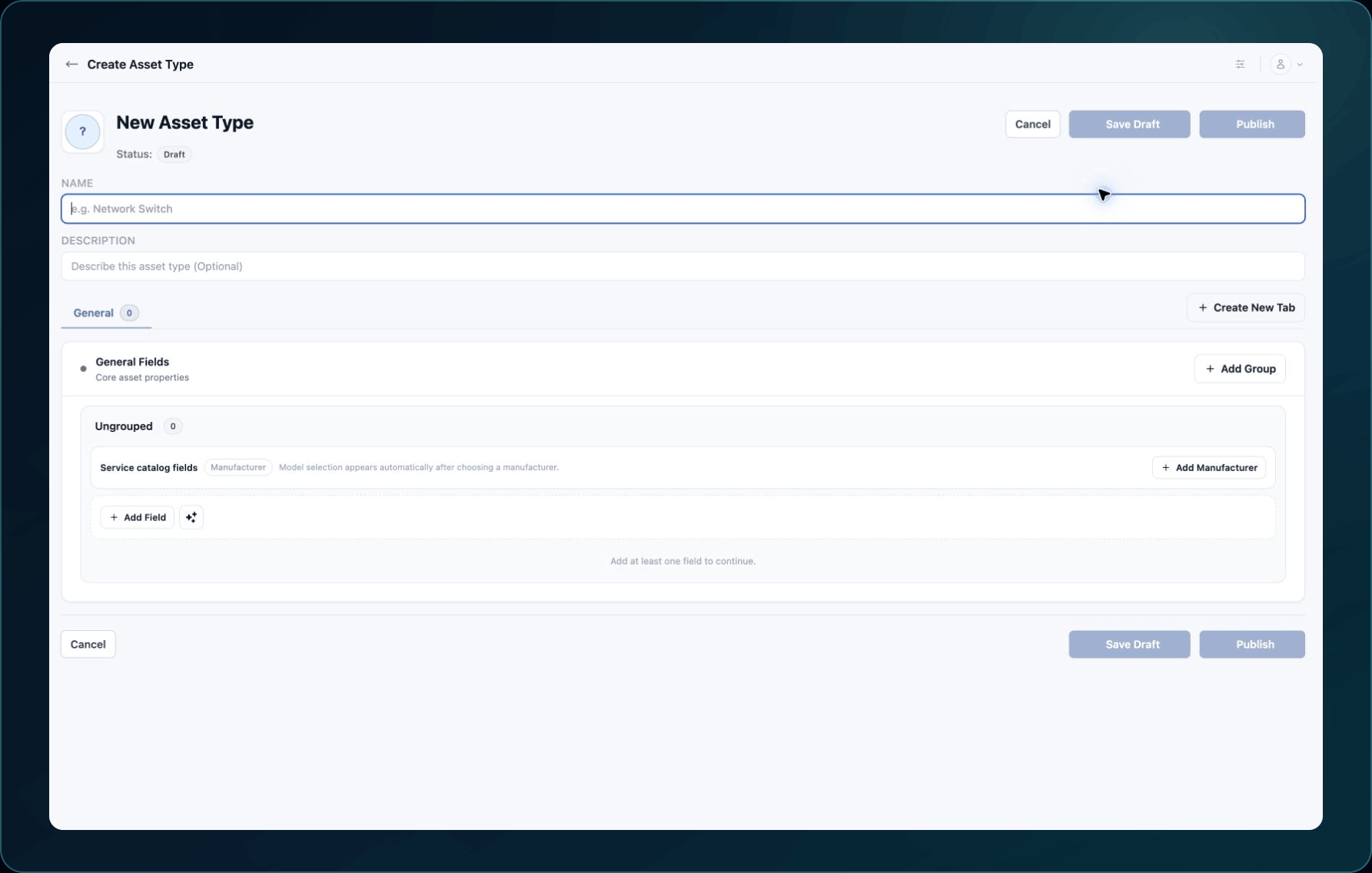
4. Add or rename sections so each one represents a clear group of details.
5. Add fields to the appropriate section.
6. Give each field a customer-facing label and choose its supported input type.
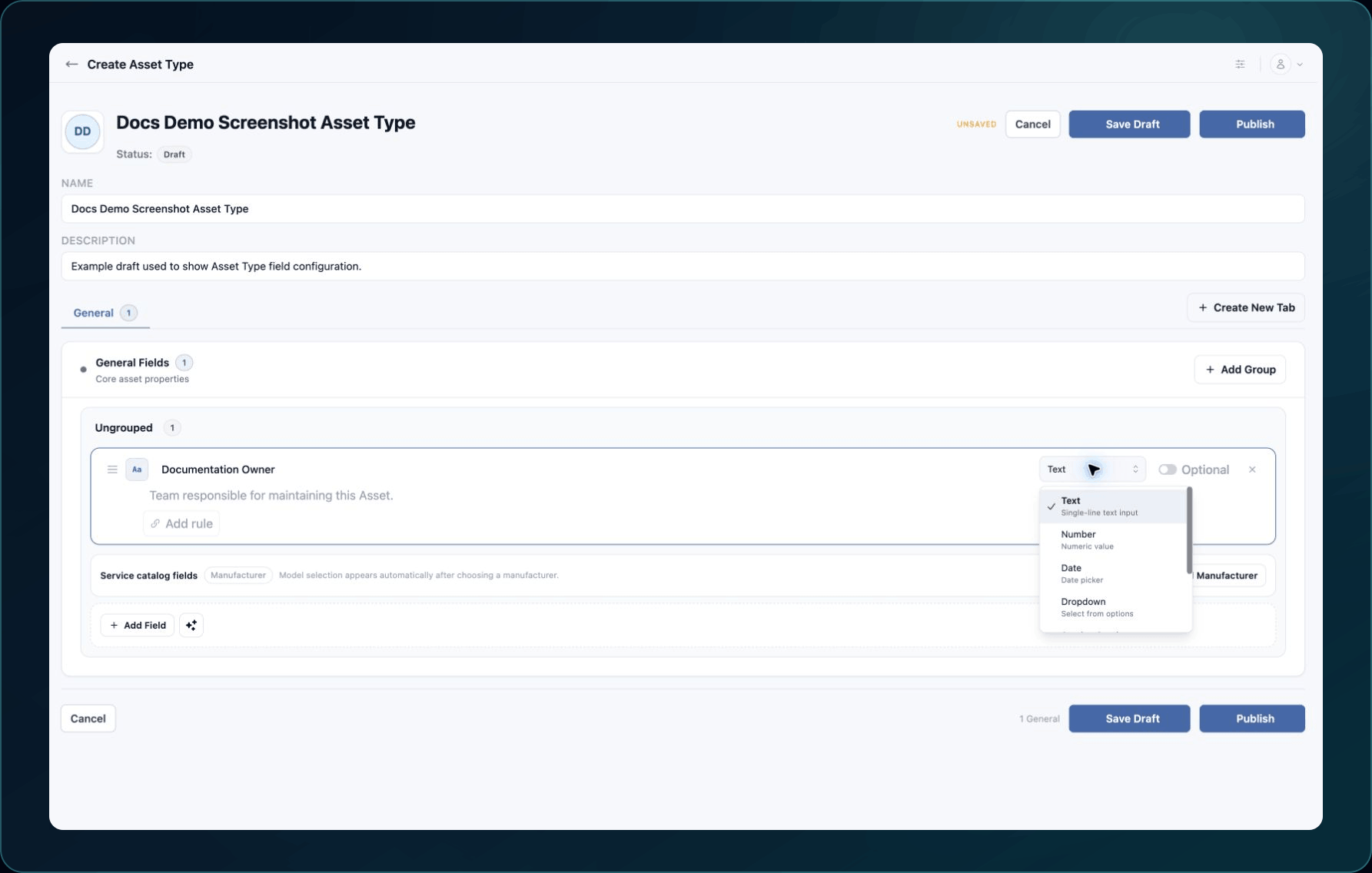
7. Configure required status, validation, default behavior, and help text where available.
8. Add dependencies only when one value legitimately controls another.
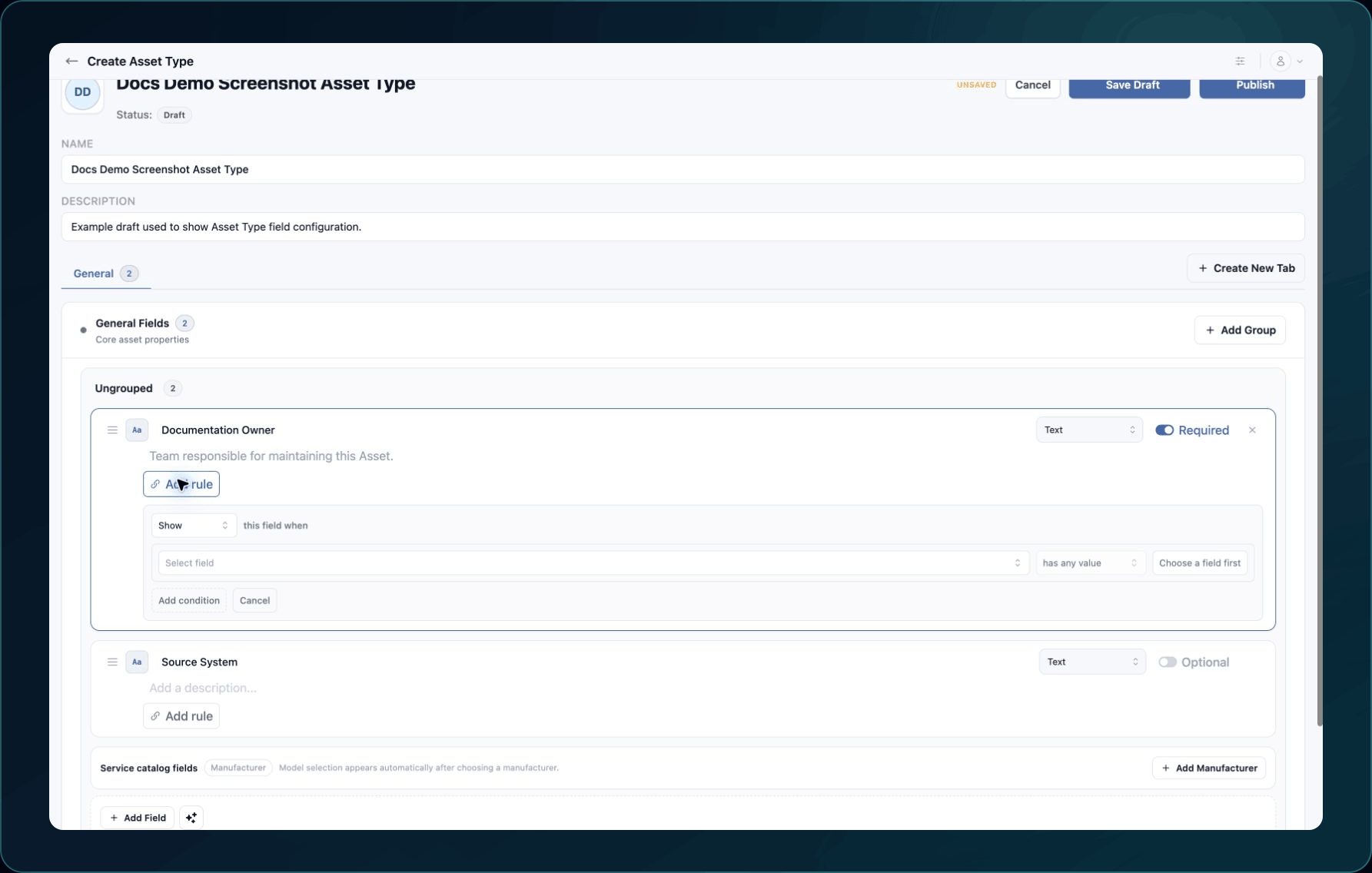
9. Enable catalog support for fields that should use managed Service Catalog choices.
10. Review the field order from the perspective of the person completing an asset.
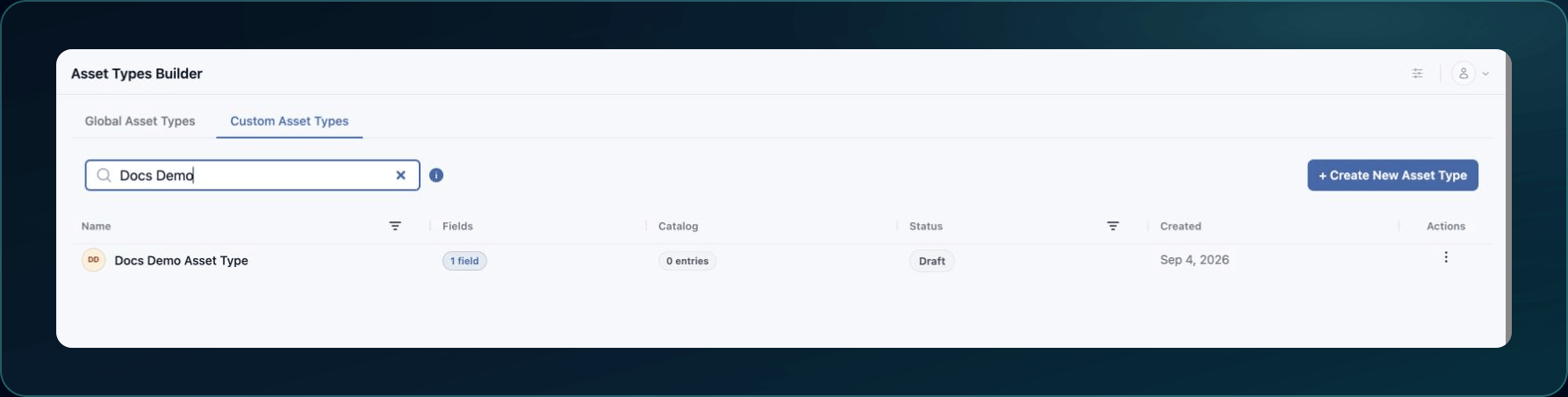
11. Select Save Draft or Save Changes.
Expected result: The saved draft reopens with the intended sections, field order, dependencies, and catalog support.
If a dependent field has no valid parent or a required setting conflicts with the input type, correct the field before continuing. Do not publish to test an unfinished configuration.
Check your result
Reopen the draft and verify every section and field. Then open Administration → Service Catalog and confirm the draft Asset Type can be selected.
Undo this change
While the Asset Type is a draft, restore the previous setting or remove an unused field after confirming no test data depends on it. After publication, schema editing may be unavailable; contact Support before attempting a replacement strategy.
Learn and continue
- Learn: Understand Asset Types and Service Catalogs
- In WanAware: Open Administration → Asset Types (
/administration/asset-types) and select a draft Asset Type.
Next steps
Get help
Email [email protected] with your company, affected user, draft Asset Type ID, section and field labels, page URL, timestamp and time zone, reproduction steps, and exact error. Never send passwords, credentials, tokens, or secret values.
Updated about 2 months ago